# Quick start guide
URL: /docs/quickstart
By the end you'll have Orvelt's opinion form live on your website and your first opinion to read. No code, no credit card: the free **Launch** plan applies automatically.
### Sign in [#sign-in]
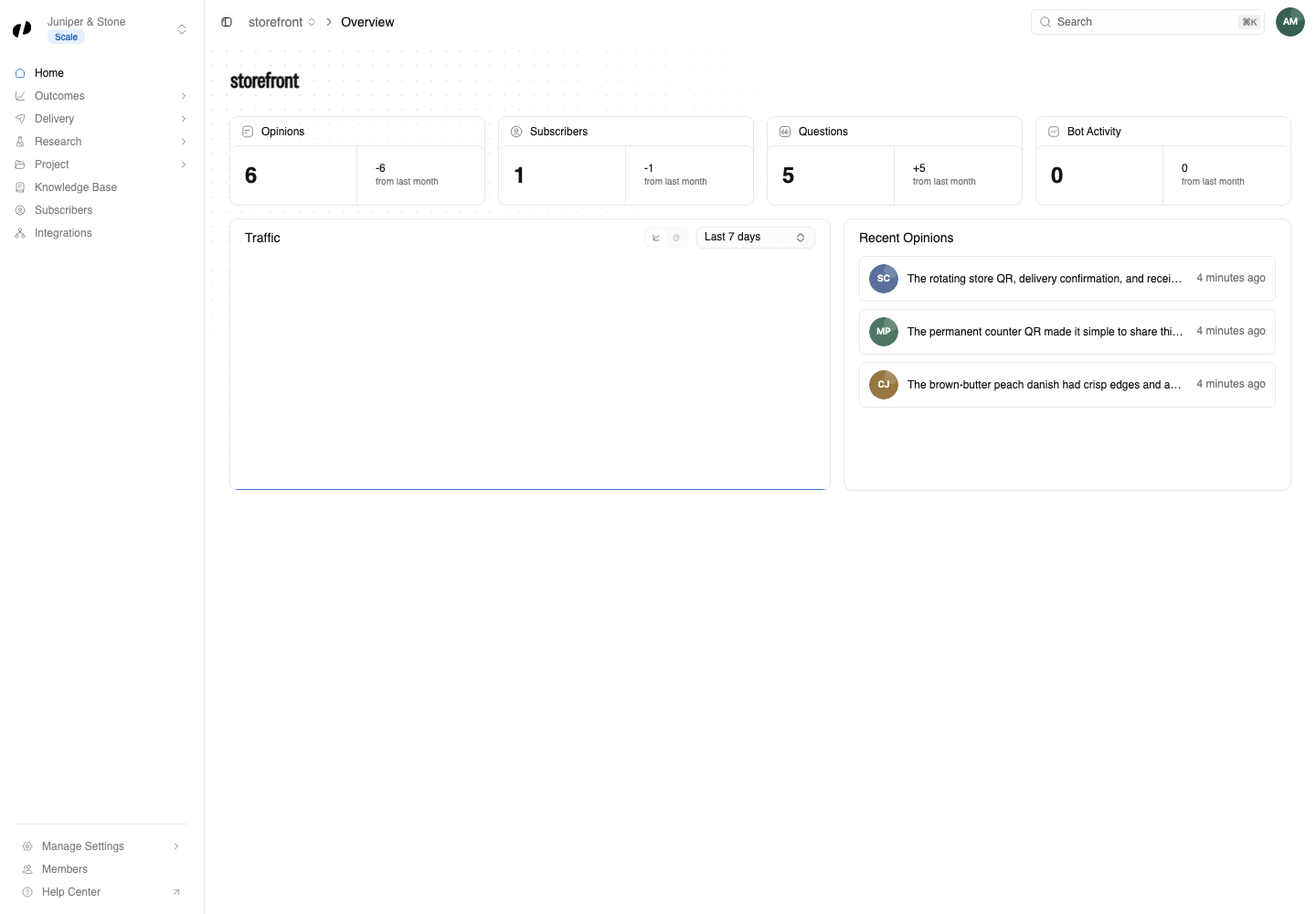
Go to **business.orvelt.com** and sign in with your email or Google account. Answer the three short setup screens (your business details, a phone number or photos to verify it, and what you want help with) and select **Complete Onboarding**. Orvelt creates your first project, **Storefront**, ready to collect opinions, and opens Orvelt Business.
Stuck on setup? [Create your business](/docs/setup/create-business) covers every field.
### Pick your questions [#pick-your-questions]
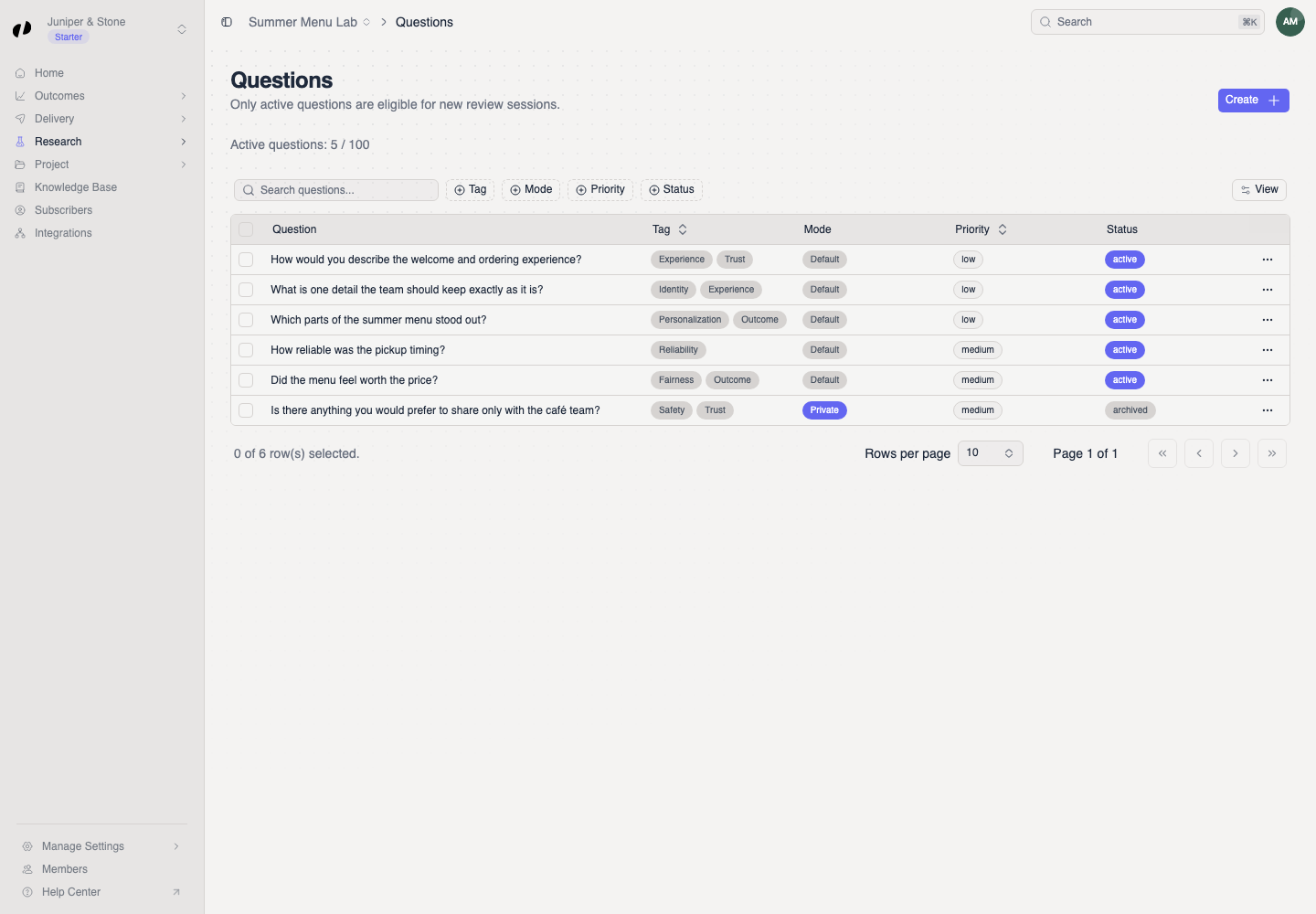
Open **Research → Questions**. Your project already has a starter set.
- **Archive** any that don't fit your business.
- Select **Create** to add your own: write the question, choose how customers answer, and pick at least one tag.
Customers see **up to three** questions each, so a handful is plenty.
[Create a question](/docs/research/questions/create)
### Copy your Project ID [#copy-your-project-id]
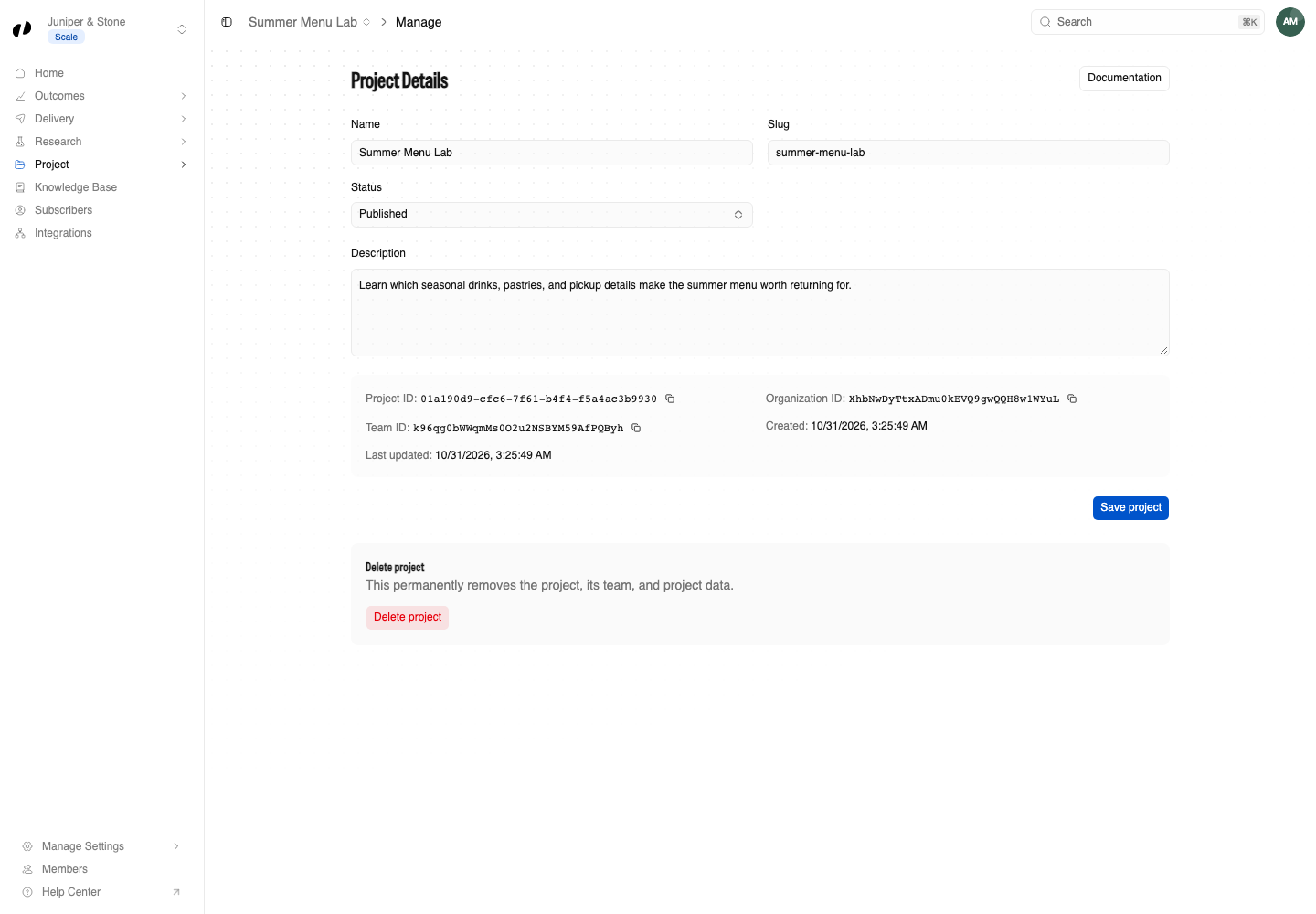
Open **Project → Manage**, check **Status** is **Published**, and select the copy button next to **Project ID**.
### Paste the form into your website [#paste-the-form-into-your-website]
Copy the block, replace `PASTE-YOUR-PROJECT-ID-HERE` with your Project ID, and paste it wherever your website builder accepts HTML. An order or booking confirmation page works best.
**Feedback button**
```html title="Paste where the button should appear"
```
**Form on the page**
```html title="Paste where the form should appear"
```
Where exactly to paste it:
[Shopify](/docs/collect/website/shopify)
[Wix](/docs/collect/website/wix)
[Squarespace](/docs/collect/website/squarespace)
[WordPress](/docs/collect/website/wordpress)
[Webflow](/docs/collect/website/webflow)
> **No website?**
>
>
> Use a QR code instead: open **Delivery → QR codes**, choose **Permanent**, and select **Create permanent QR**. [QR codes](/docs/collect/qr-codes)
### Send yourself a test opinion [#send-yourself-a-test-opinion]
Open the page on your phone, write or [speak](/docs/collect/voice-opinions) a short opinion, answer the questions, and submit. [Test the form](/docs/collect/website/test-the-form)
### Read and reply [#read-and-reply]
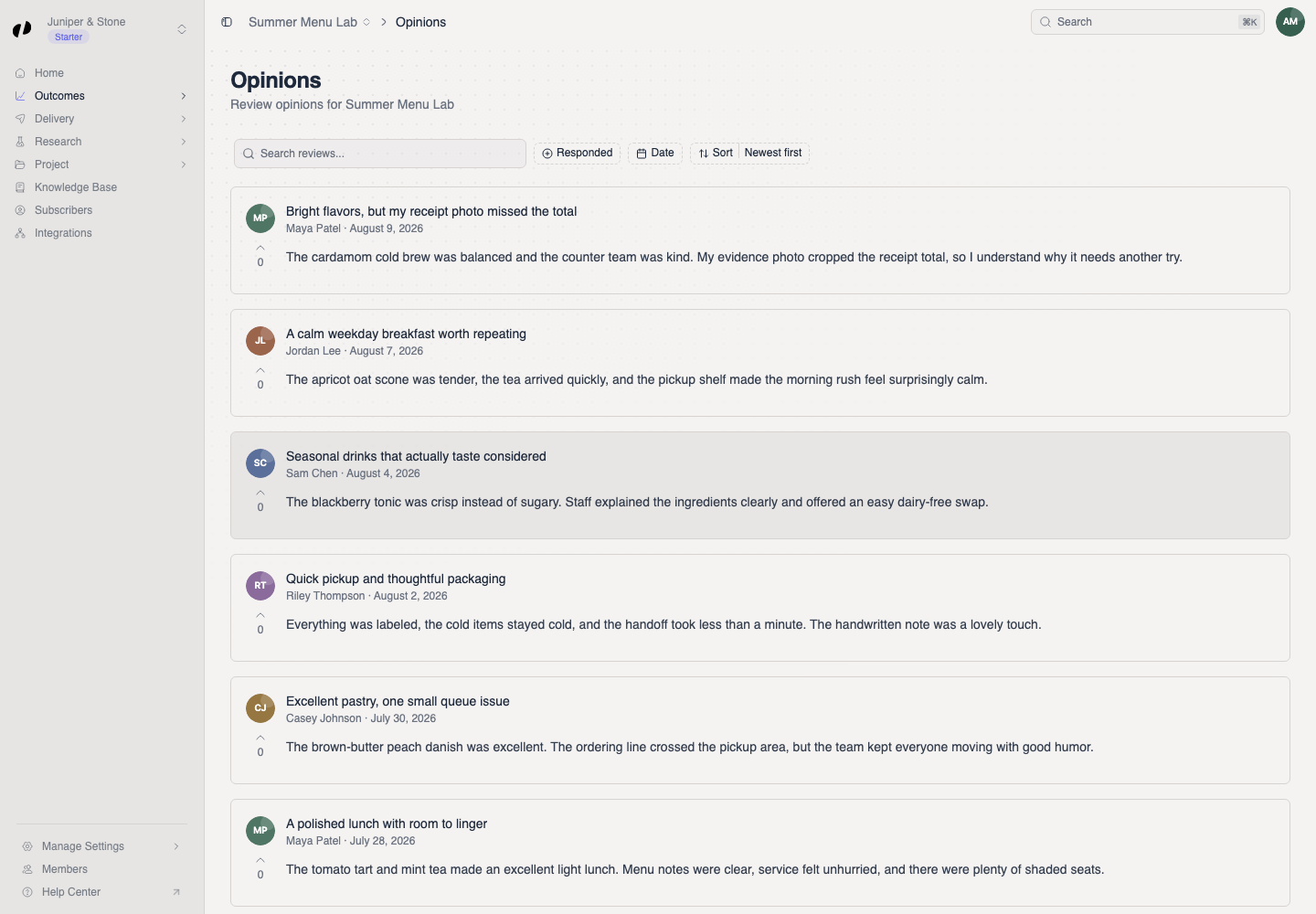
In Orvelt Business, open **Outcomes → Opinions**. Select your test opinion, type in **Add your reply...**, and select **Post**. Answers to your questions are under **Outcomes → Answers**.
## Next [#next]
[Match your brand](/docs/collect/website/customize): Set the form's colors, corners, and dark mode.
[Write better questions](/docs/research/questions/writing-good-questions): Questions customers answer well.
[Invite your team](/docs/organization/team-and-roles): Give colleagues access to the projects they need.
[Connect Claude](/docs/ai): Ask Claude to summarize opinions or draft replies.