Read customer answers
Search project answers and filter the table by one submission or one question.
Updated August 10, 2026
BusinessFeedback
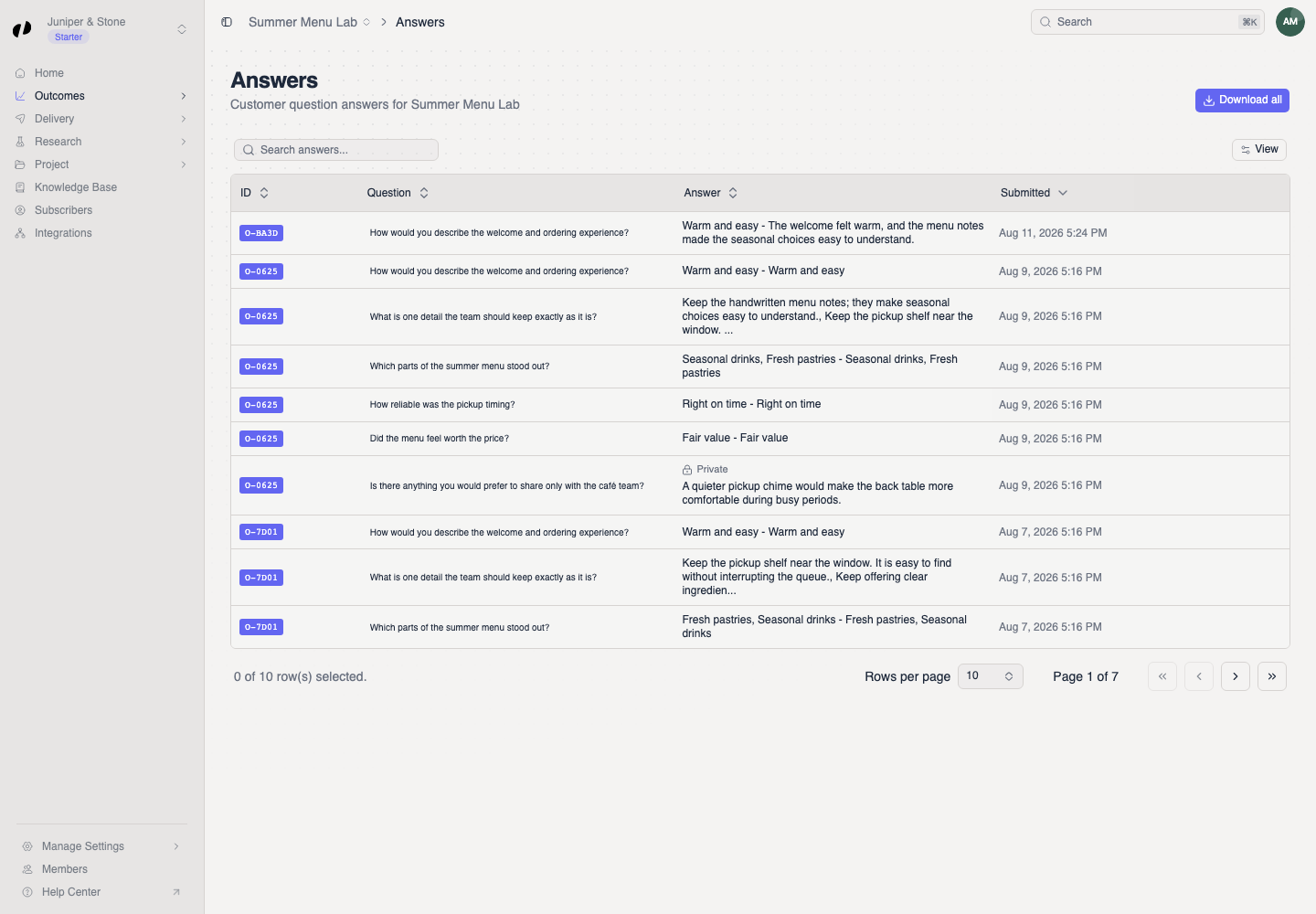
The Answers page is a table, not a set of answer detail pages. Each row shows a submission ID, question, answer, and submitted time. A Private label marks an answer that stays between the writer and your business.
Search the table
Find text across questions and answers
- Open the project and choose Outcomes > Answers.
- Use Search answers... to find text across questions and answers.
- Read the answer beside its question and submitted time.
Filter related answers
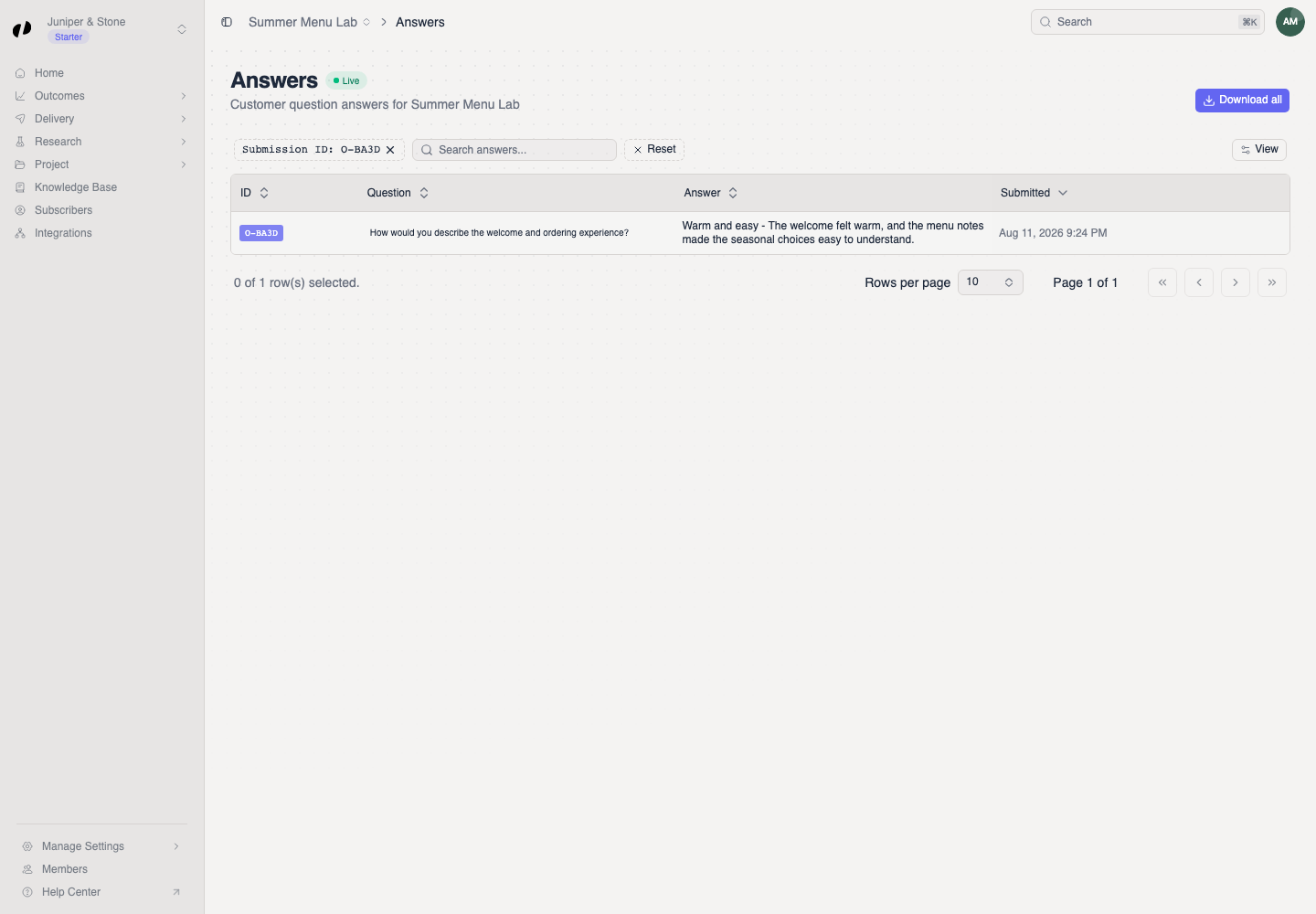
Filter by submission or question
- Select an ID such as O-4F2A to show every answer from that review submission.
- Select a question to show answers to that question.
The active filter appears above the table. Applying one of these filters clears the other. Select the X in the filter to return to all answers.
Export the full answer set
Select Download all when you need a CSV export of the project's answers.
If no rows appear
- Clear the Submission ID, question, and search filters.
- Confirm that the selected project has completed reviews with question answers.
- If a question says it is unavailable, clear that question filter and open the full table.