Manage review questions
Create the active and archived questions customers answer when they submit an opinion.
Updated August 10, 2026
BusinessFeedback
Only Active questions are eligible for new review sessions. Archive a question when you want to keep its existing answers without asking it again.
Create a question
Configure the answer and visibility
- Open the project and choose Research > Questions.
- Select Create.
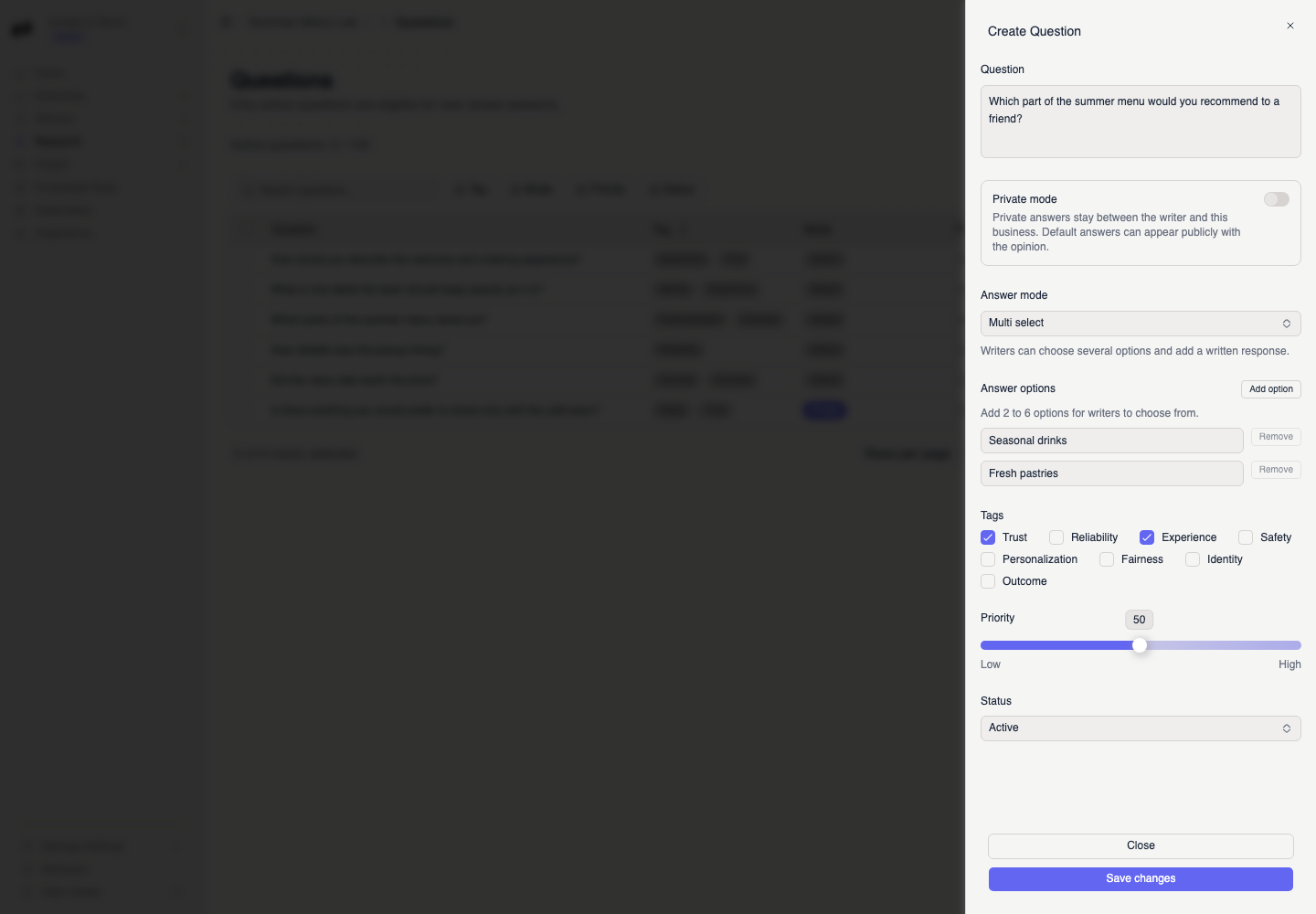
- Write the Question.
- Turn on Private mode when answers must stay between the writer and your business.
- Choose an Answer mode: Text only, Single select, or Multi select. Add two to six options for a select mode.
- Choose tags, set the priority, and select Active or Archive under Status.
- Select Save changes.
Confirm the question status
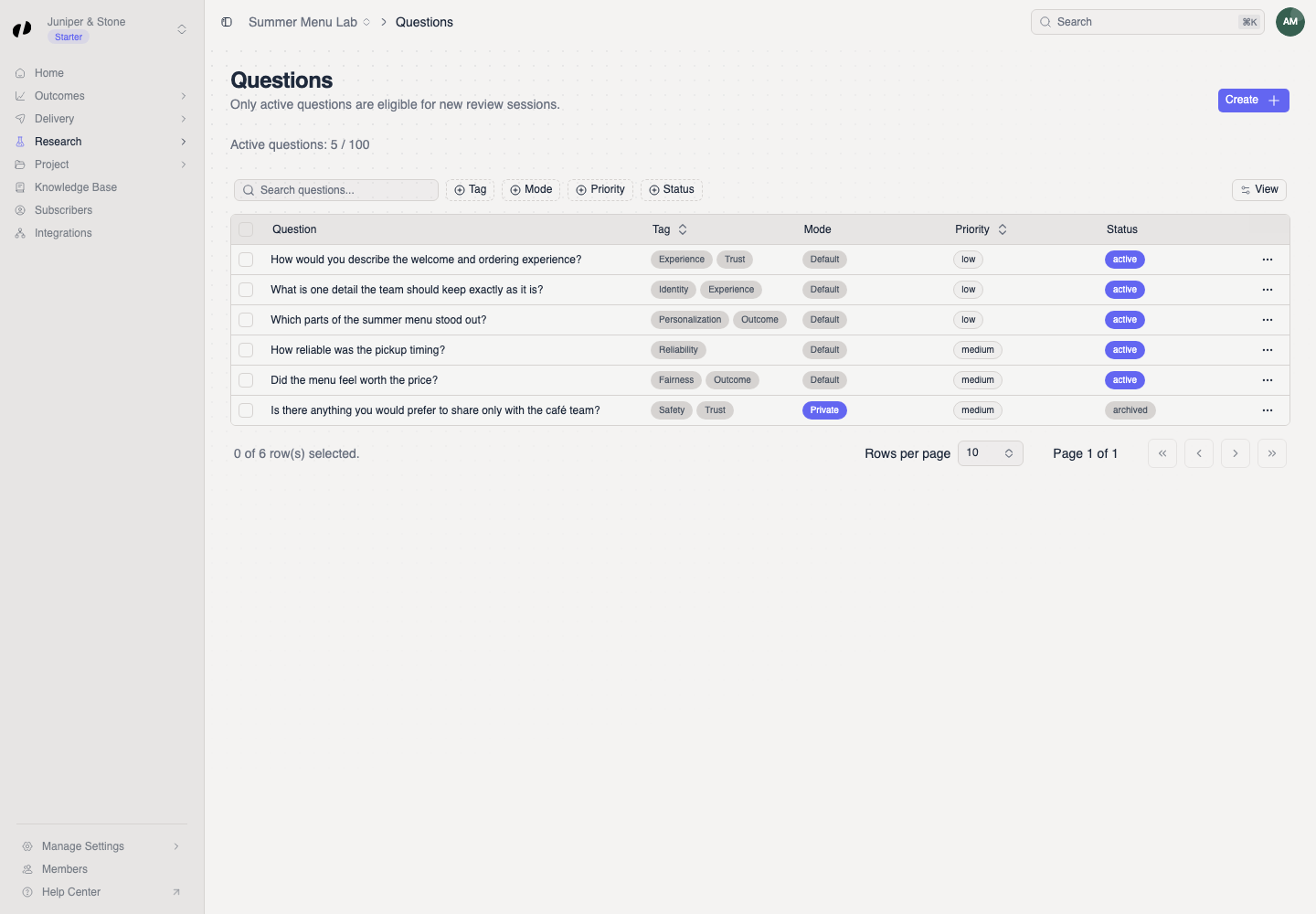
The question appears in the table with its Mode, Priority, and Status.
Edit, archive, or delete a question
Choose whether to preserve past answers
Open the row menu and choose Edit, Archive, Activate, or Delete. Deleting removes the question; archive it when you still need its past answers.
If activation would exceed the plan's active-question limit, archive another active question or ask an owner to review Billing.