Recover from a Business access error
Return from a 403 page, select the intended organization and project, or ask an owner for the missing access.
Updated August 10, 2026
BusinessTroubleshooting
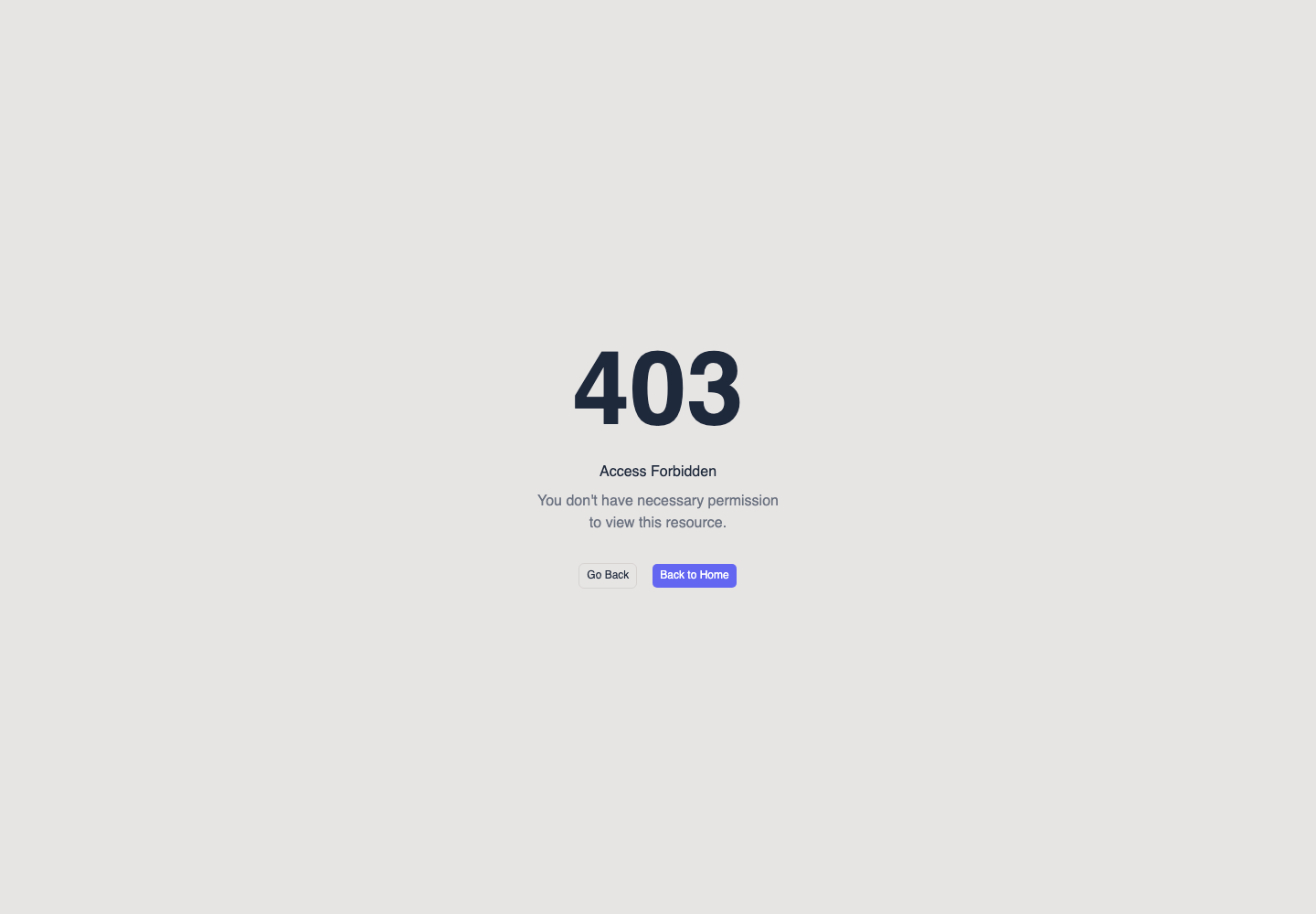
A 403 page means you signed in but your account does not have the required access to that resource.
Return to Business
Choose a safe route back
On Access Forbidden, choose:
- Go Back to return to the last page; or
- Back to Home to open the Business dashboard.
Check the selected organization and project
Select the intended workspace
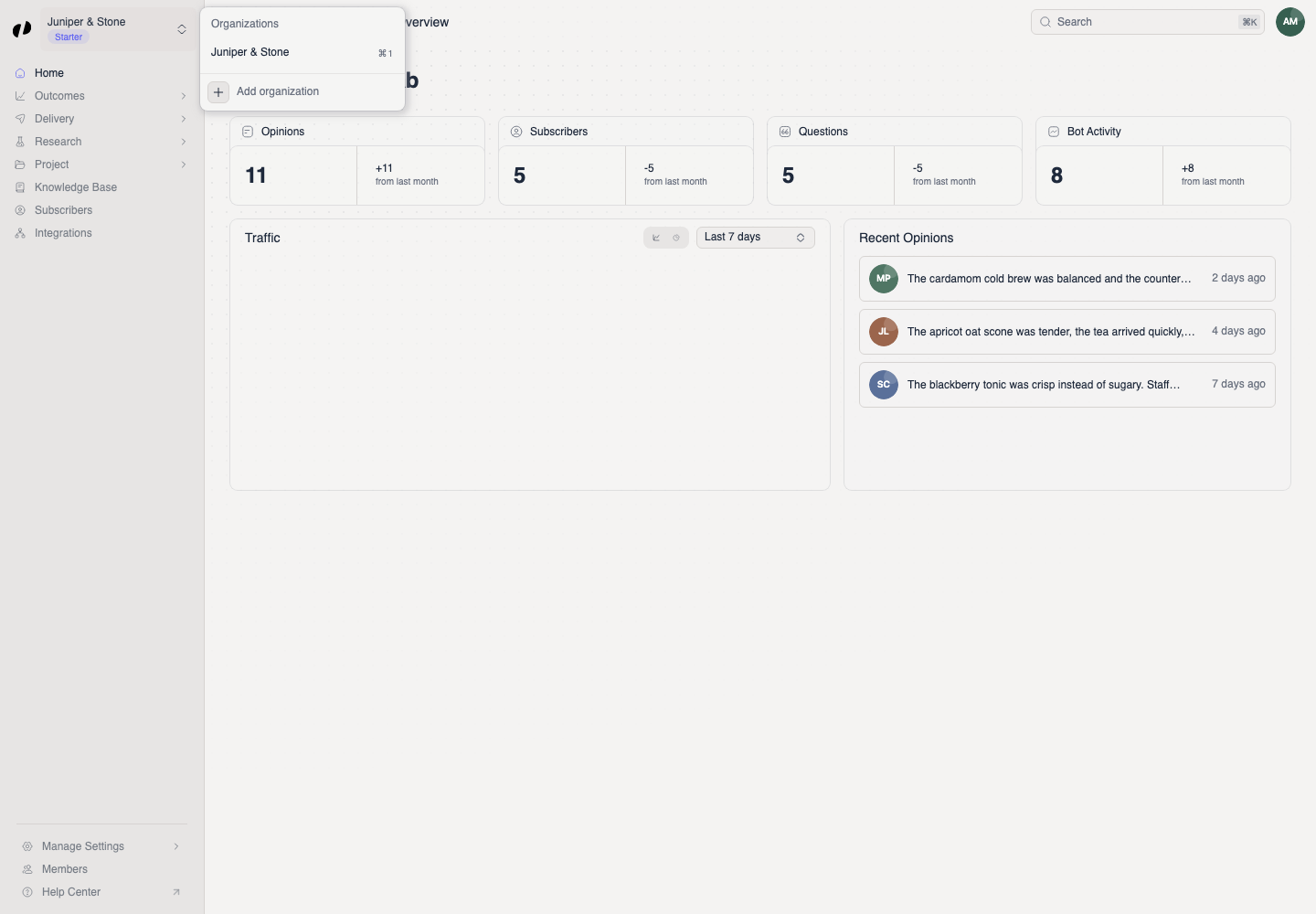
- Open the organization switcher at the top of the sidebar and select the organization that invited you.
- If the missing page belongs to a project, use the project name in the header to select that project.
- Open the page again from the Business navigation.
Ask for missing access
Give the owner enough context
Send the organization owner or admin:
- the email address you use for Business;
- the organization and project name;
- the page or action you need.
They can open Members, select Access beside your name, and update your project teams or product access. If your invitation is still pending, accept it while signed in with the invited email.
Use the invited account
If the correct organization does not appear, sign out and sign in with the invited email. Do not keep retrying a restricted action from a different account.