Subscribe to a store or project
Subscribe to a store or project and find it again from your Storefront profile.
Updated August 10, 2026
StorefrontFind and follow
Storefront calls following a business or project a subscription. A subscription gives you a saved route back to the page from your profile.
Subscribe
Turn on the subscription
- Sign in and open the store or shared project.
- Select Subscribe in the store details column.
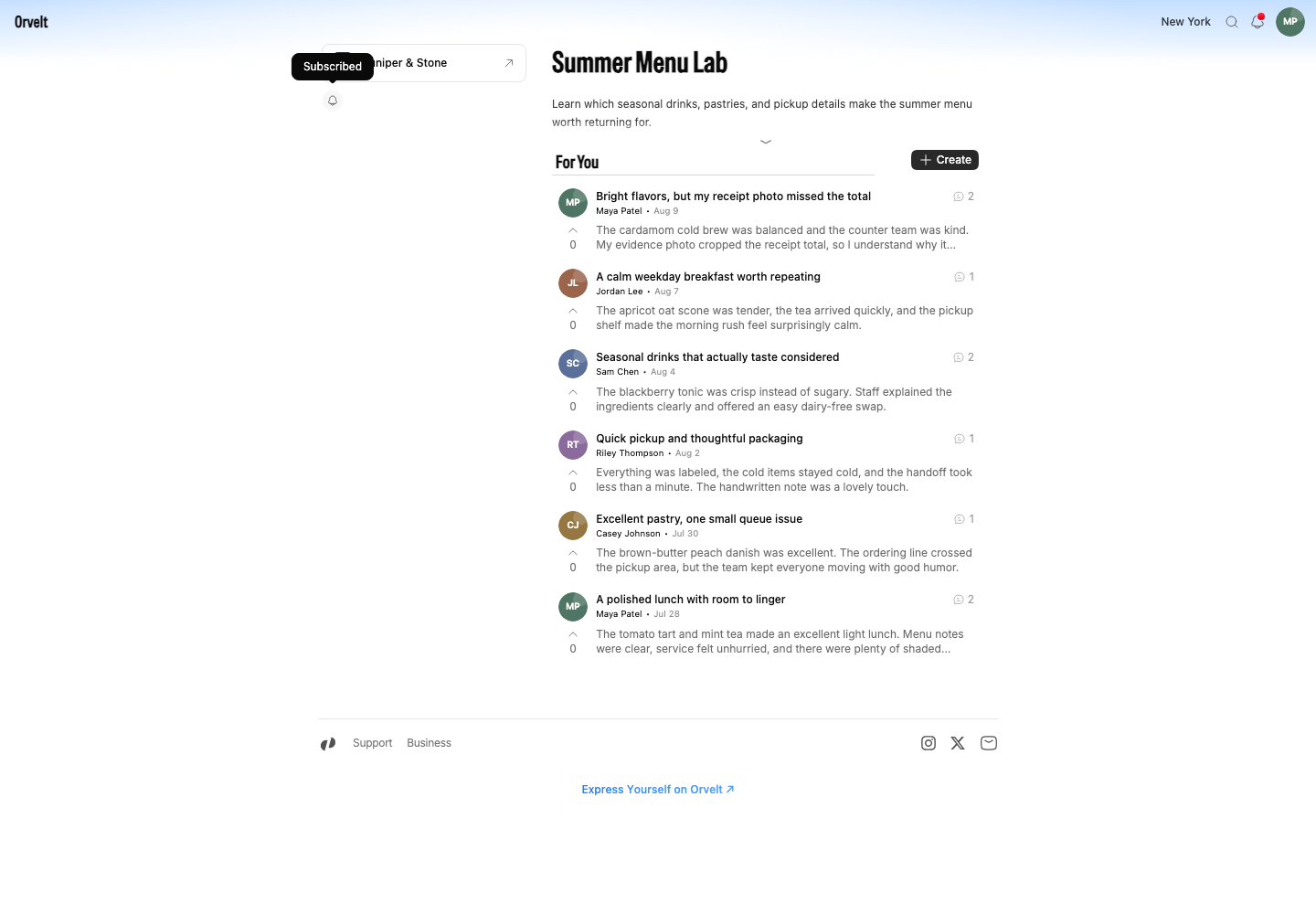
- Wait for the button to change to a bell icon. Its tooltip reads Subscribed. Orvelt also shows a Subscribed successfully! message.
Find the page again
Open your Subscriptions list
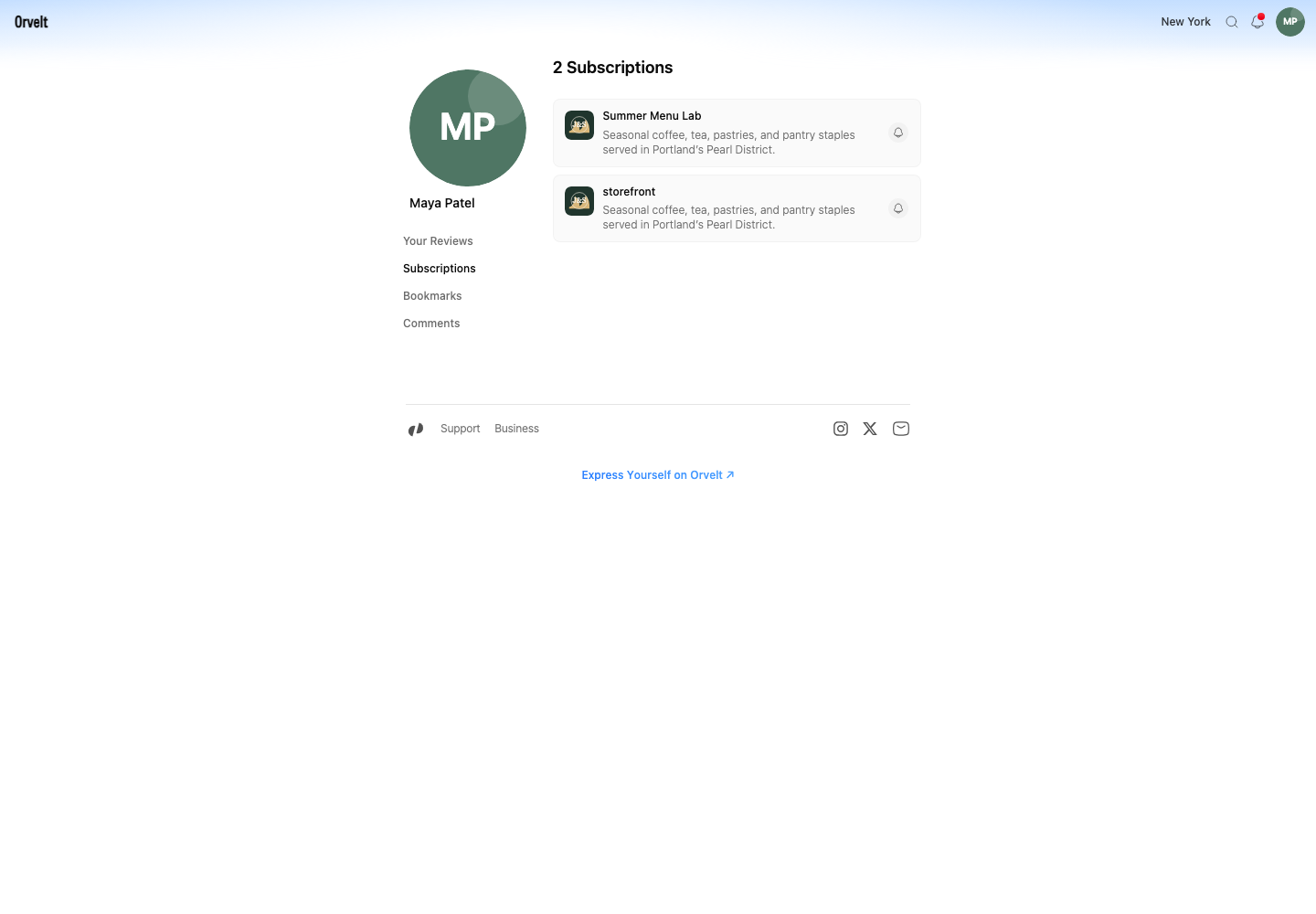
Open Profile, then choose Subscriptions. The list shows each saved business or project. Select a card to open its page.
Unsubscribe
Select the subscribed bell icon on the page or subscription card, then choose Unsubscribe from the menu. Orvelt removes that entry from your profile.
If the page is missing
Check that you used the same account on both pages. A project also disappears if the business unpublishes it.