Open a shared project
Open a business project from its shared link or from your Storefront subscriptions.
Updated August 10, 2026
StorefrontFind and follow
A business can share a project when it wants feedback on a product, service, or decision. Project links contain the store and project names, such as /stores/store-name/project-name.
Open a project
Use a link or saved subscription
Use either source:
- Select a project link sent by the business.
- Sign in, open Profile, choose Subscriptions, and select a project that you subscribed to before.
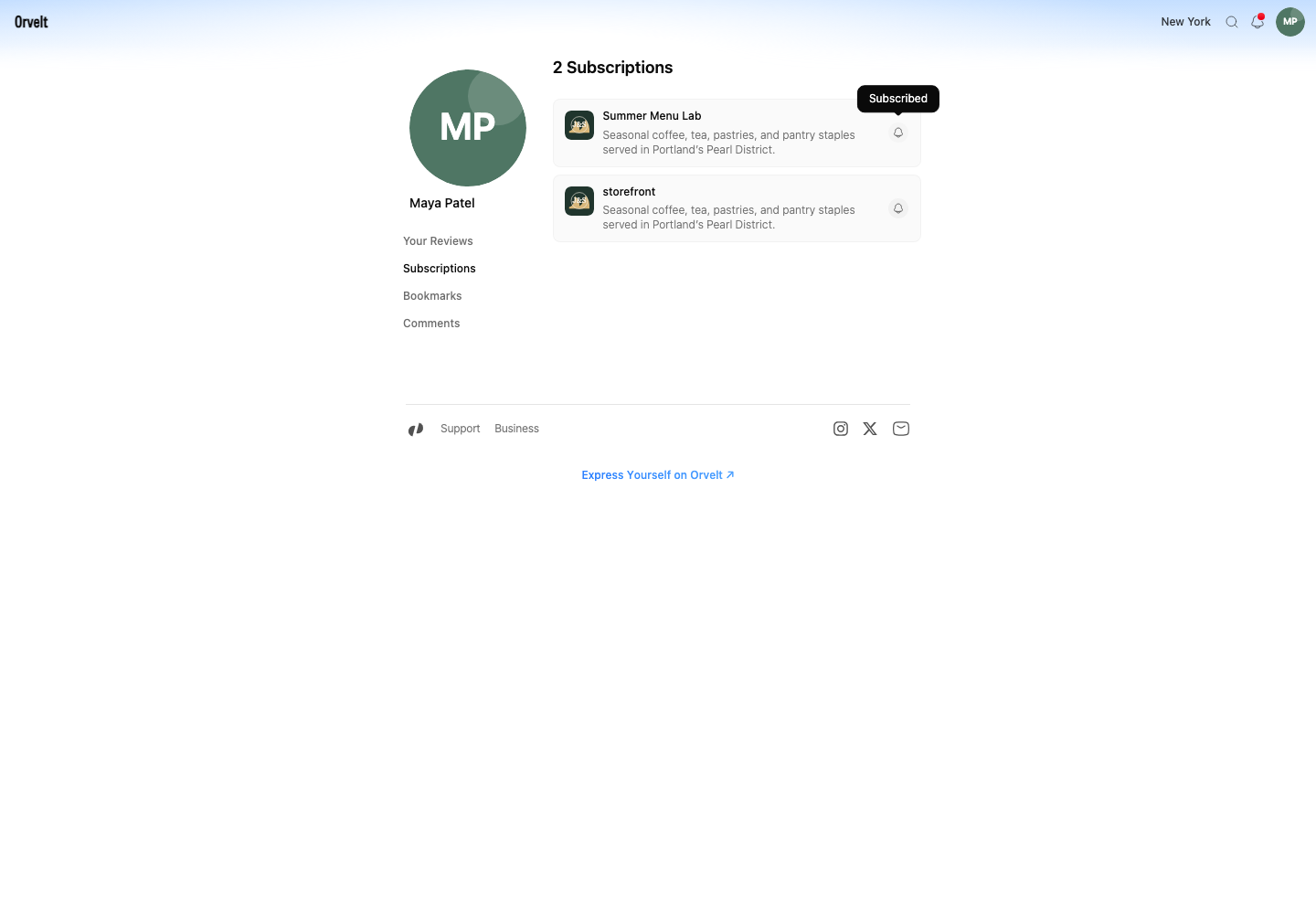
Choose your next action
Review the project before responding
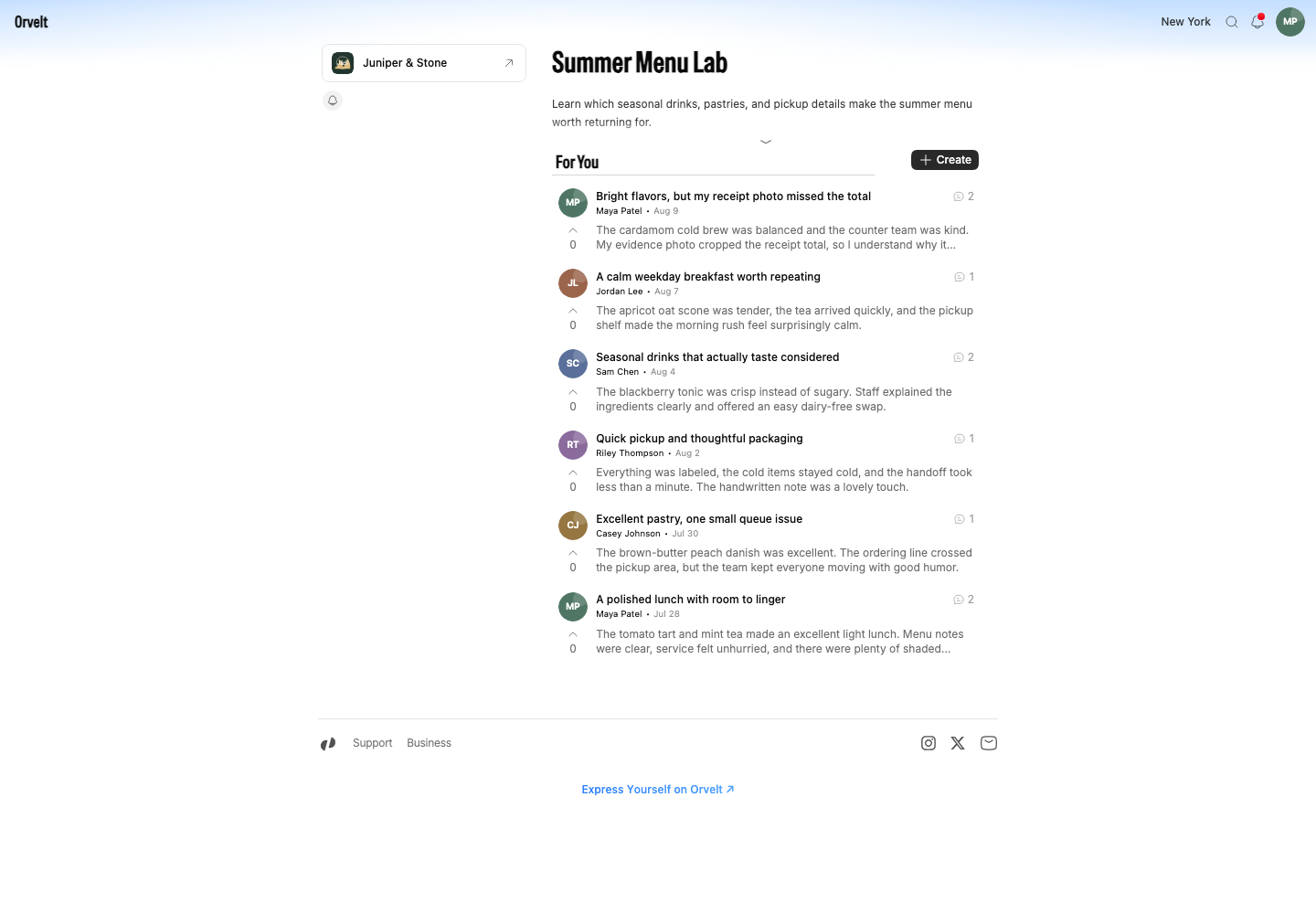
Read the project name and description first. The For You section contains opinions about that project.
- Select Create to write an opinion for the project.
- Select Subscribe to add the project to Profile > Subscriptions.
- Select the business name in the left column to return to its main store page.
If the link does not open
Check that the copied address includes both the store slug and project slug. A business can also unpublish a project. Ask the sender for a current link if Orvelt reports that the project is unavailable.