Add evidence to an opinion
Upload a receipt, photo, or screenshot to verify an experience you described.
Updated August 10, 2026
StorefrontOpinions and evidence
Evidence helps Orvelt verify that your opinion describes a customer experience. Storefront accepts receipt images, photos, and screenshots in JPEG, PNG, or WebP format.
Open the evidence upload
Start from submission or Your Reviews
Use either route:
- After you submit an opinion, select Yes, let's do it on Would you like to verify this opinion?
- For an opinion you submitted before, open Profile > Your Reviews and select Verify Now on its card.
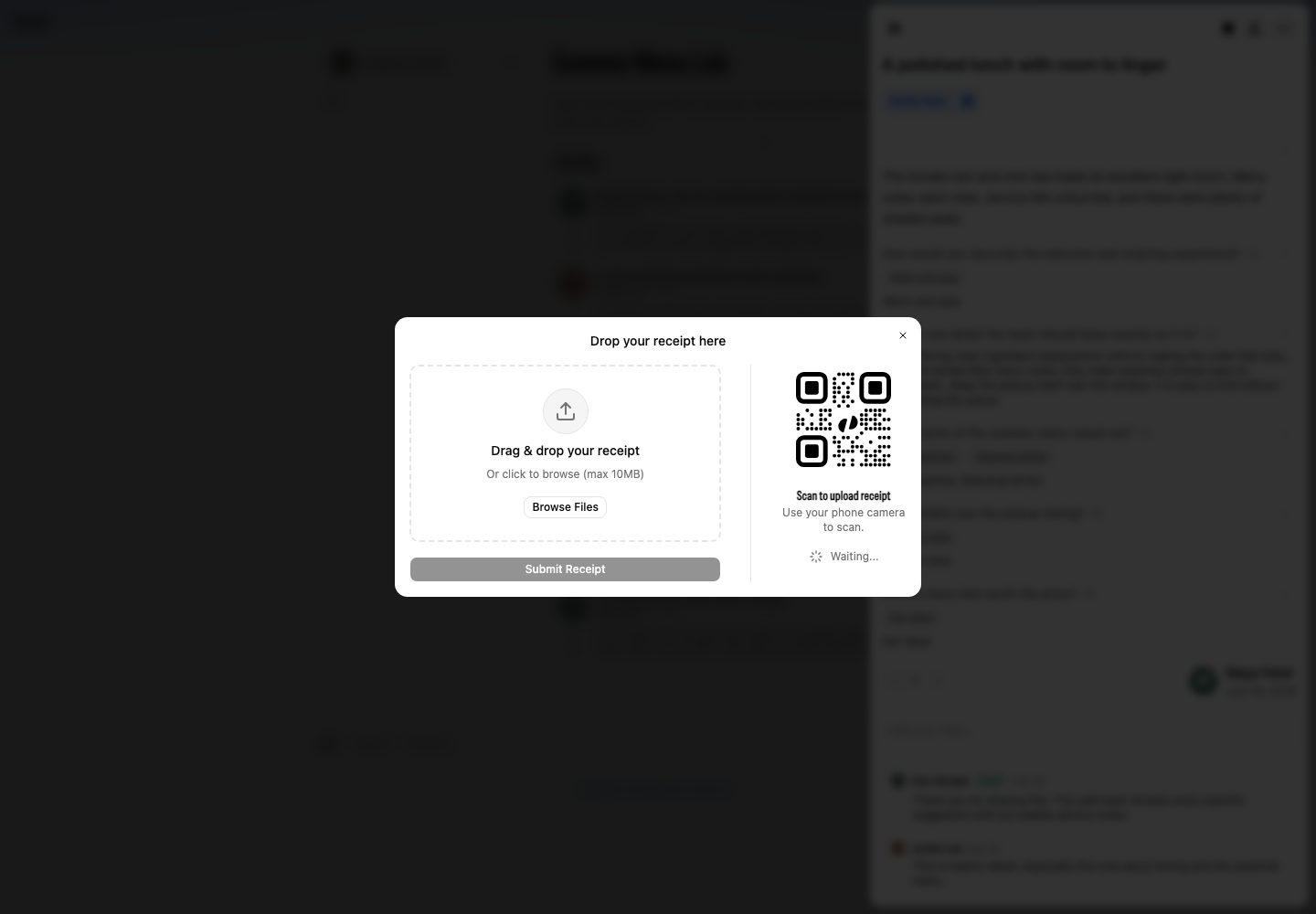
Choose the images
Upload and review the files
- Drag images onto Drag & drop your receipt, or select Browse Files.
- Add up to three images. Each file can be up to 10 MB.
- Check each preview. Include the store name, purchase date, and relevant items when a receipt contains them.
- Select Submit Receipt.
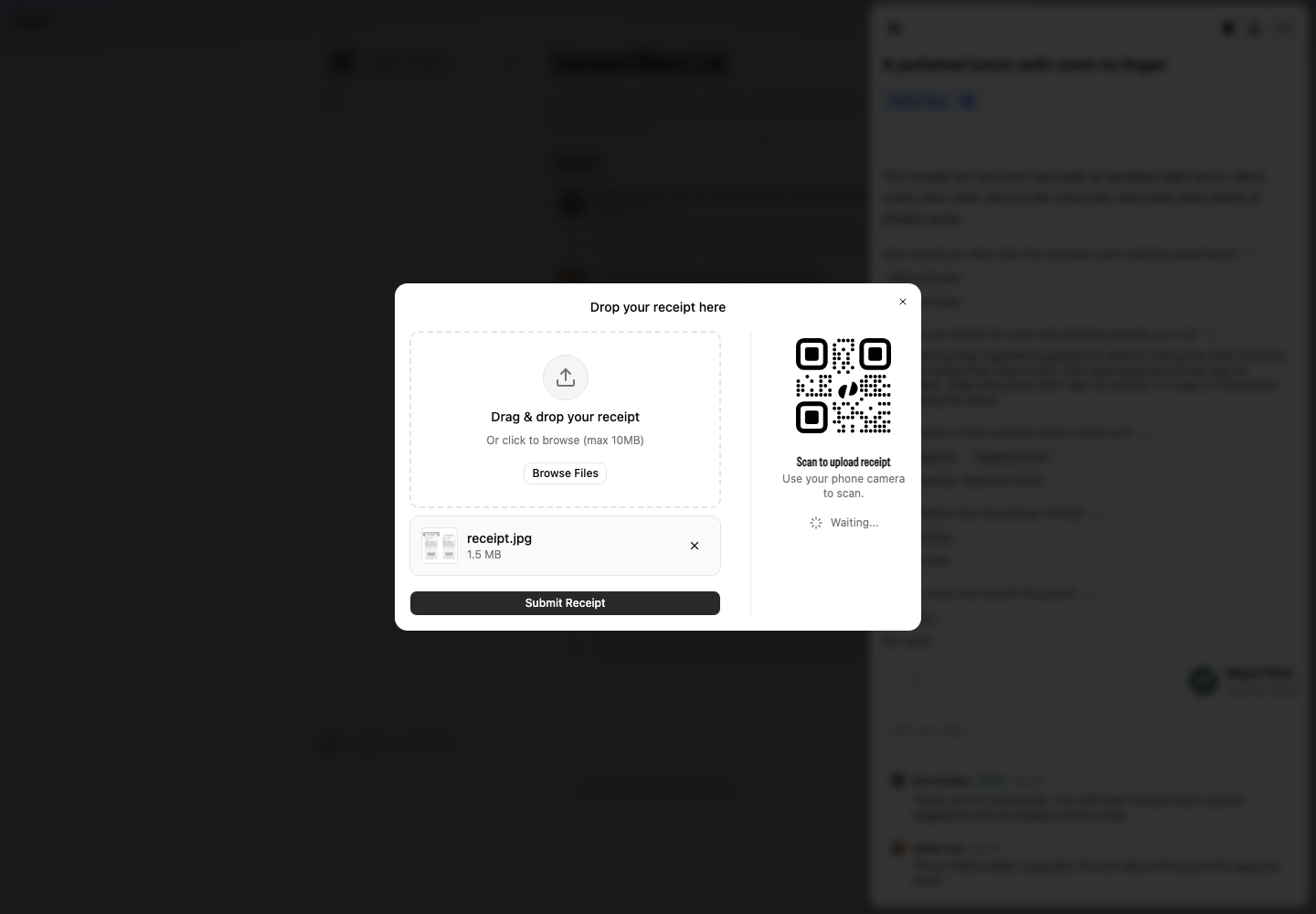
On a computer, the form also shows a QR code. Scan it when the evidence is on your phone, then follow the mobile upload page.
Protect private information
Crop or cover payment card numbers, loyalty numbers, addresses, and unrelated purchases. Keep the business name and transaction details needed for verification readable.
If the upload fails
Use a supported image format and keep each file under 10 MB. Remove the failed file, choose it again, then wait for its preview before selecting Submit Receipt.