Check an opinion's verification status
Understand an opinion's verification label and check evidence processing status.
The evidence button on an opinion shows Verification and a colored dot after you upload proof.
Open the status
Find the submitted opinion
- Sign in and open Profile > Your Reviews.
- Find the submitted opinion.
- Select Verification on the opinion card.
Understand each status
The Verification Status dialog shows the upload date, evidence preview, and one of these states:
- Processing means Orvelt is checking the images.
- Verified means the evidence passed the check.
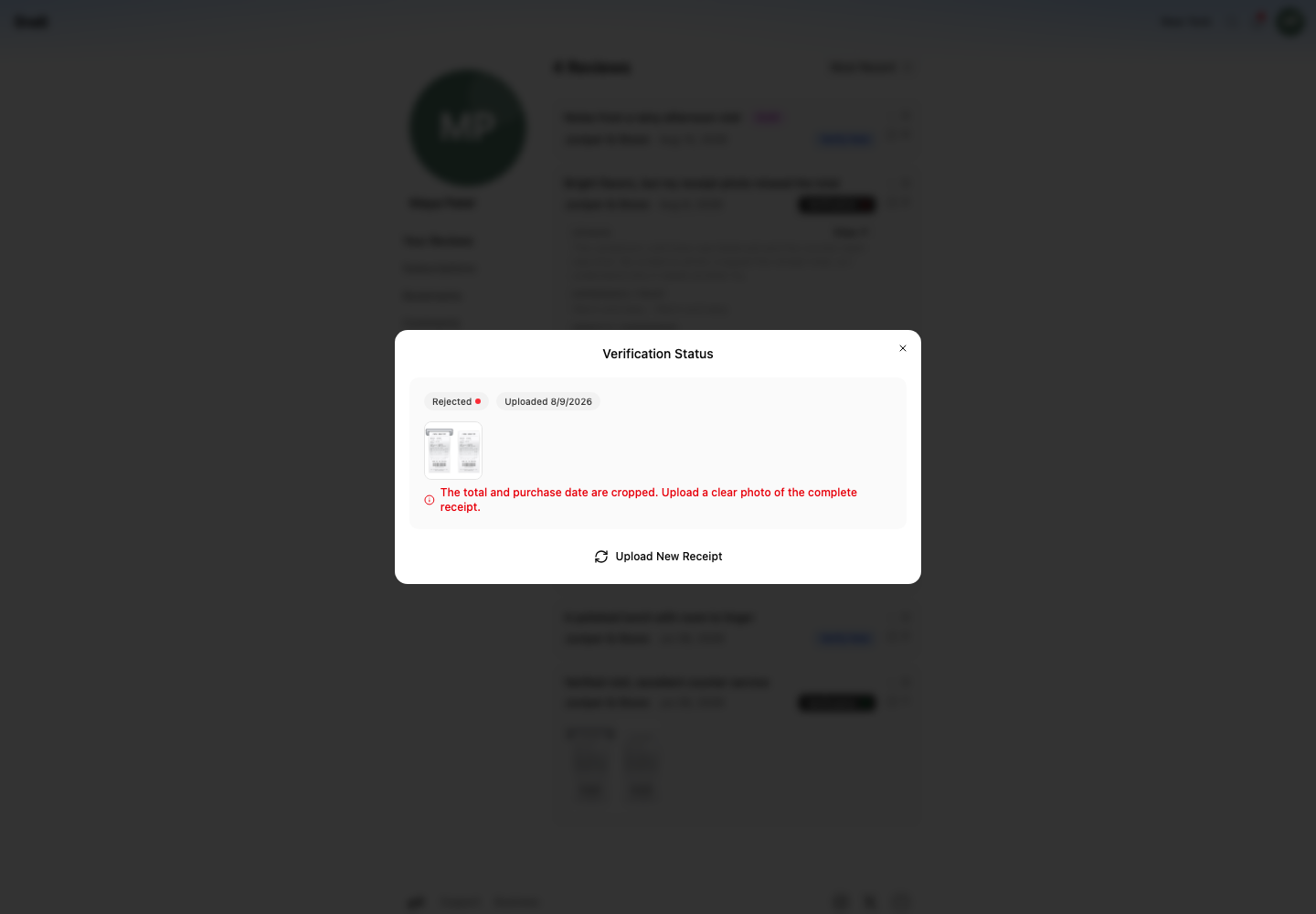
- Rejected means the dialog contains a reason and lets you replace the evidence.
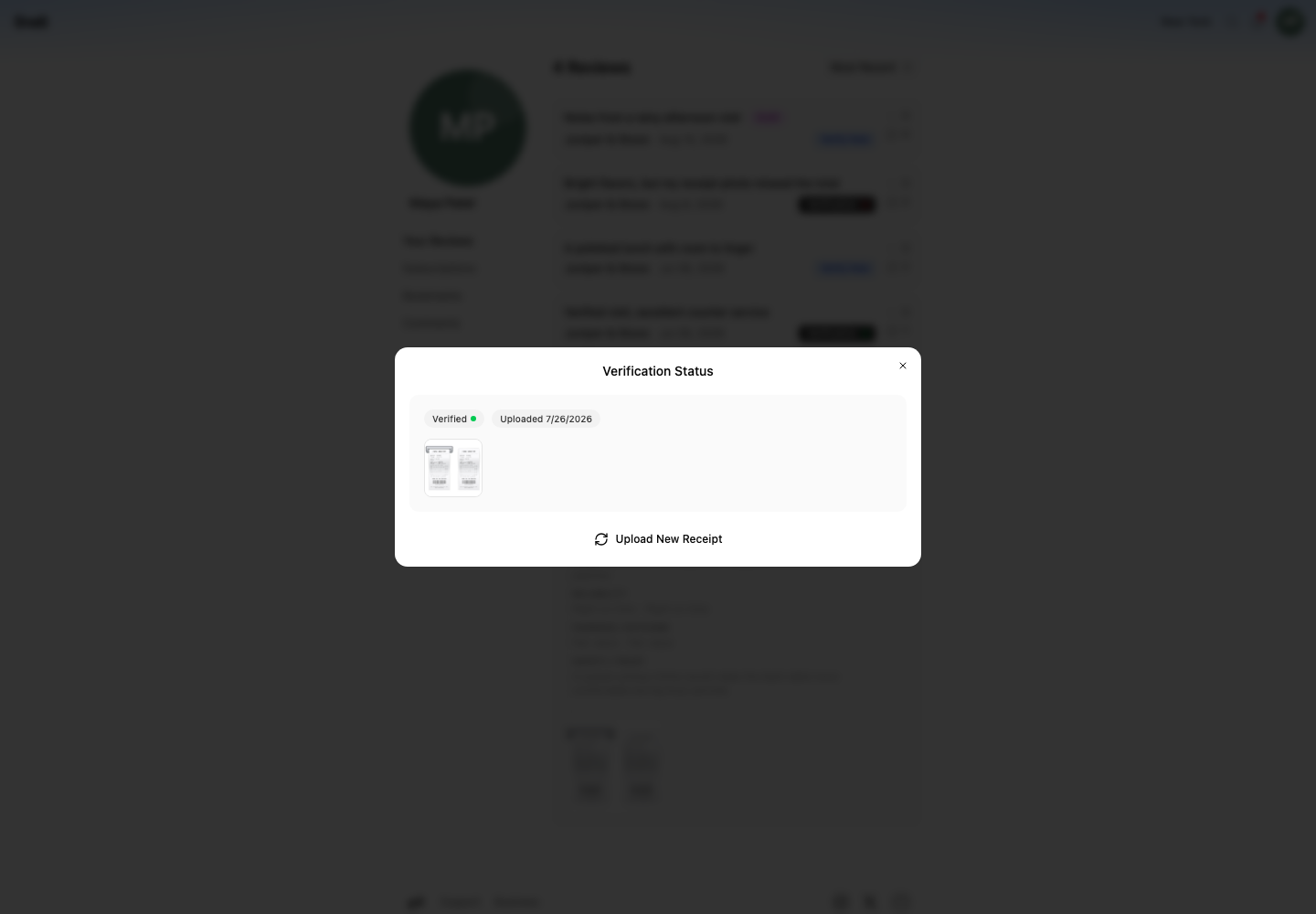
You can also open the published opinion from a store page. Verified opinions show Verified visual evidence, Verified customer delivery, Verified by permanent QR, or Verified by rotating QR. A QR label means the customer opened the workflow with that project's valid code; it does not confirm identity, purchase, or location.
Replace rejected evidence
Read the reason under the rejected receipt. Select Upload New Receipt, choose clearer images, and submit them.
If Processing does not change
Refresh Your Reviews later. Keep a readable receipt in place while Orvelt is processing it. If the status remains unchanged, contact support with the opinion link and upload date.