Answer guided opinion questions
Answer the public or private questions a business adds to its opinion flow.
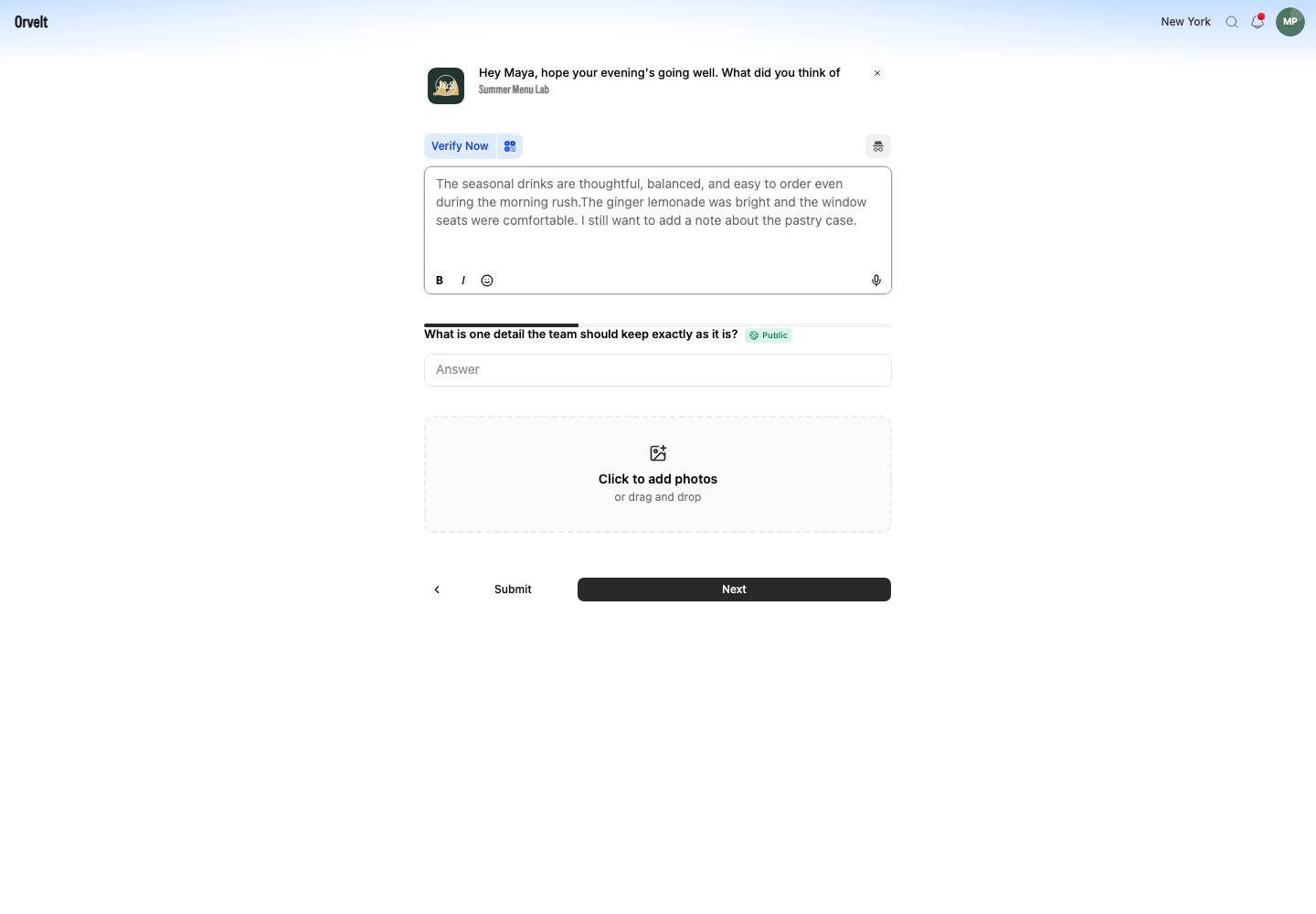
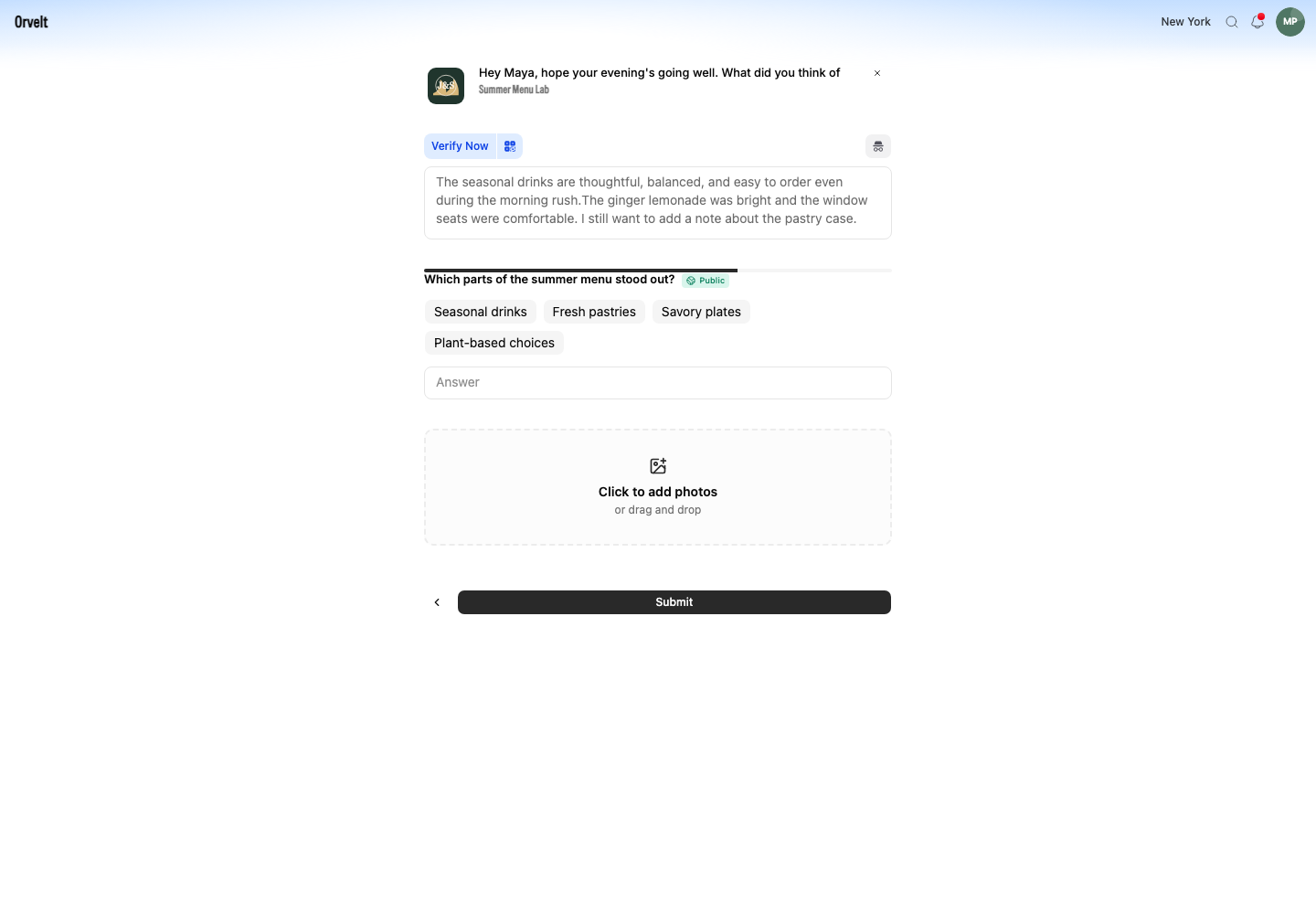
Guided questions help a business ask about a specific part of your experience. They appear below Your opinion, one at a time.
Answer each question
Enter a response
- Read the question and its visibility label.
- Choose an option when the question provides choices.
- Add details in Answer when a text field appears.
- Select Next to keep the current entries in this session and open the next question.
Understand the answer mode
The answer mode controls whether you can choose one option or several. Select the option that matches your experience; use the text field for details the options cannot express.
Public and private answers
A public answer can appear with the published opinion. A question labeled Private tells you that only you and the business can see the answer. Keep payment details, phone numbers, and other sensitive data out of both fields unless the business needs that information to resolve the issue.
Finish the flow
Use the back-arrow button to revisit an earlier question. On the final question, check the visible answer and select Submit. The flow does not show a separate review page.
If you need more time
If you need to leave, copy any text you cannot afford to lose. A Draft card can return you to the flow, but the latest unsent characters may not be present after an interruption.