Continue an opinion draft
Reopen an unfinished Storefront opinion and continue with its saved answers.
Storefront marks an opinion as a draft until you submit it. Use the same account that started the opinion.
Find the draft
Look in Your Reviews
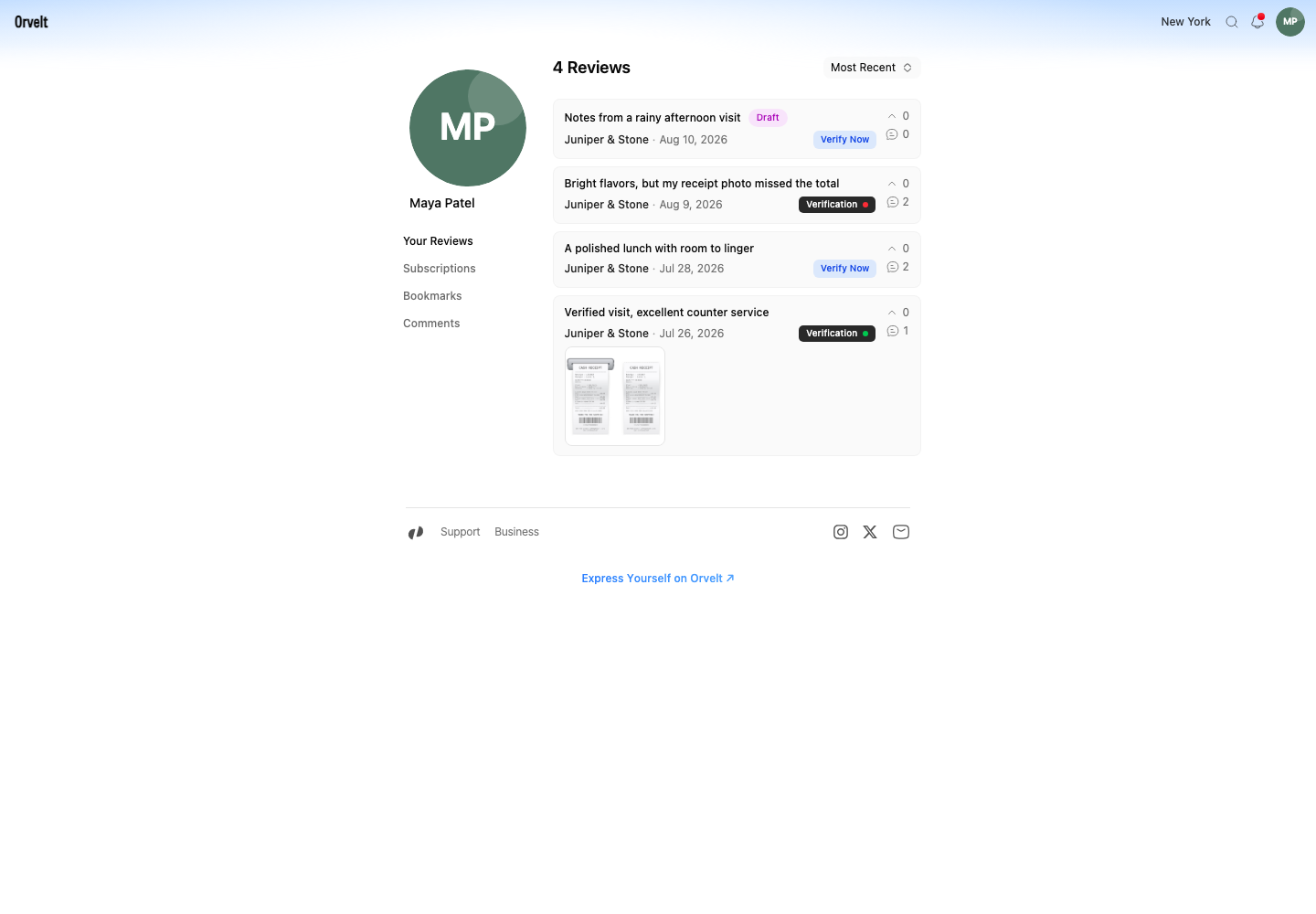
- Sign in and open Profile.
- Choose Your Reviews.
- Find the card with the Draft badge. The card also names the store and shows the date you started.
Continue writing
Resume the correct opinion flow
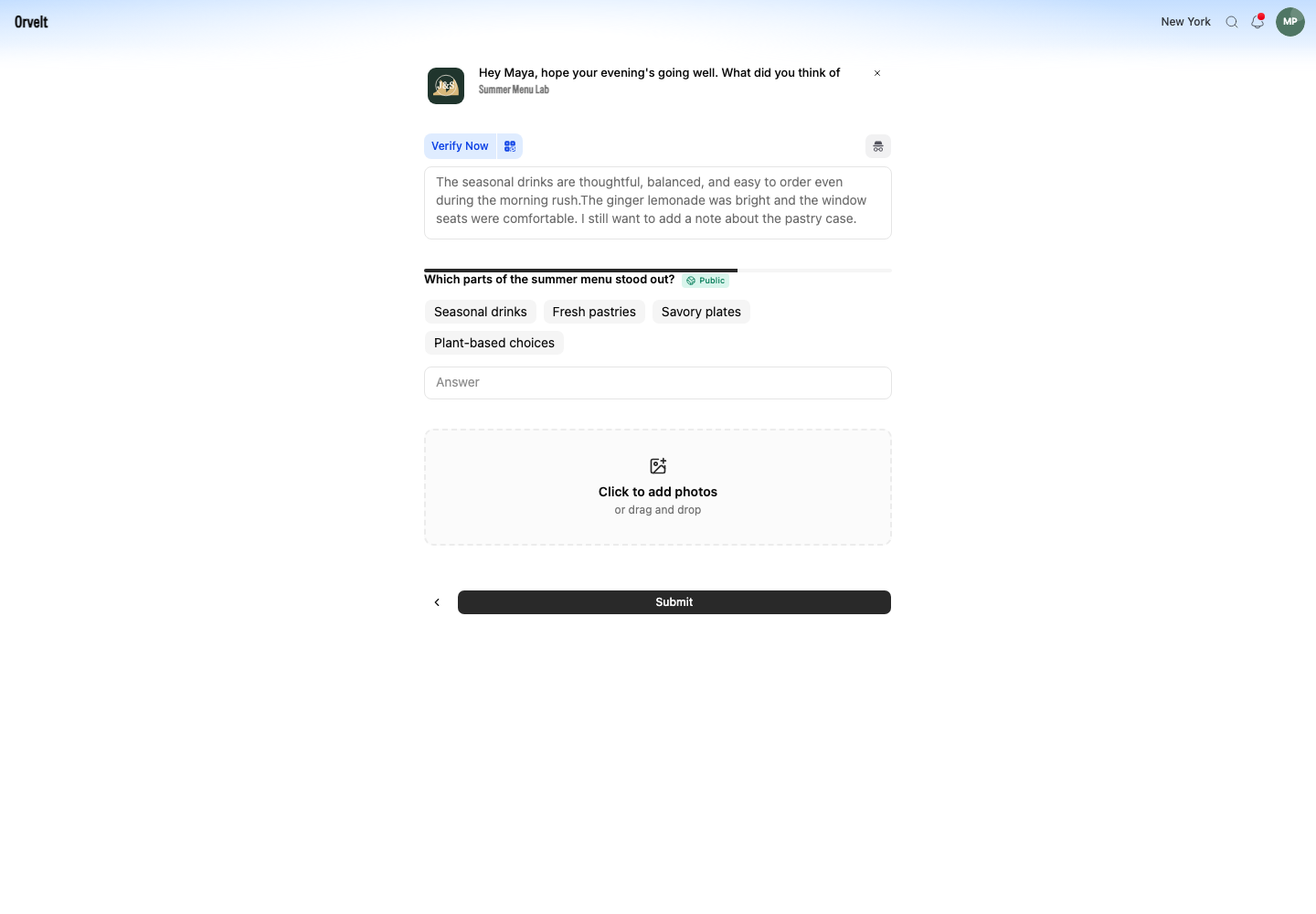
Select the draft card. For a draft from the main Storefront, this opens the opinion flow. For a shared project, reopen that project's public URL and select Create; Orvelt resumes the draft for that project. Check the restored main opinion, question responses, and photos before you continue with Next or Submit.
Pause without deleting the draft
Use the close control at the top if you need to stop again. In Cancel this review?, choose Keep writing and leave the page after the dialog closes. Cancel review removes the draft and its saved answers. Copy newly typed text before leaving because the last unsent changes may not have reached the draft.
If the draft is missing
Check the signed-in email under Settings > Security. Drafts stay with the account that created them. A draft also disappears after you delete it or submit it; submitted opinions remain under Your Reviews without a Draft badge.