Comment on an opinion
Post a reply in the discussion beneath a published Storefront opinion.
Updated August 10, 2026
StorefrontOpinions and evidence
Comments let you ask about a detail or add relevant context to a published opinion. Your profile name and comment date appear with the reply.
Write a comment
Open the reply field
- Sign in and open a store or project page.
- Select a published opinion to open its detail panel.
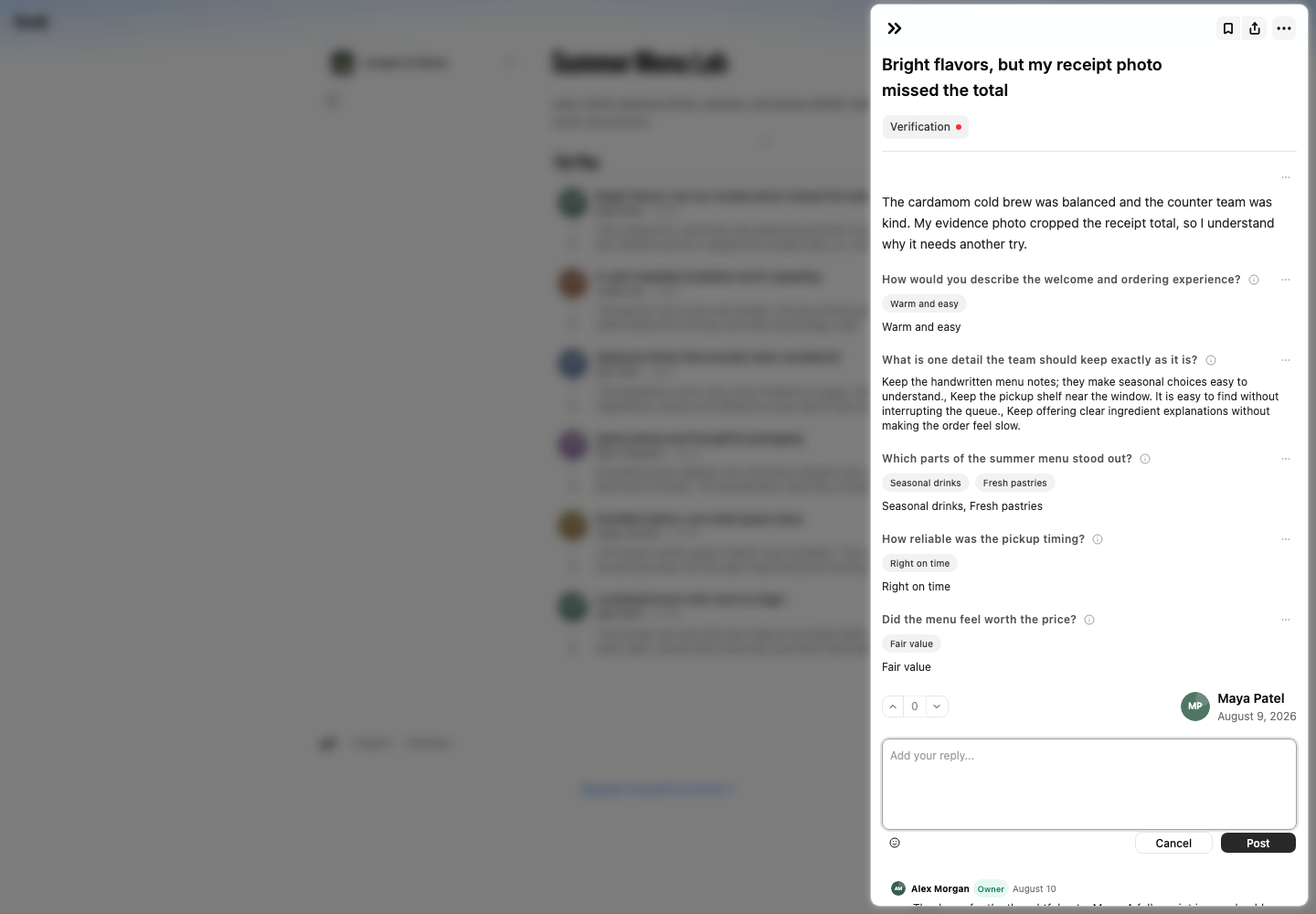
- Select Add your reply... below the opinion. The field expands to show Cancel and Post.
- Write your reply. Keep personal contact details and order information out of public comments.
Publish the comment
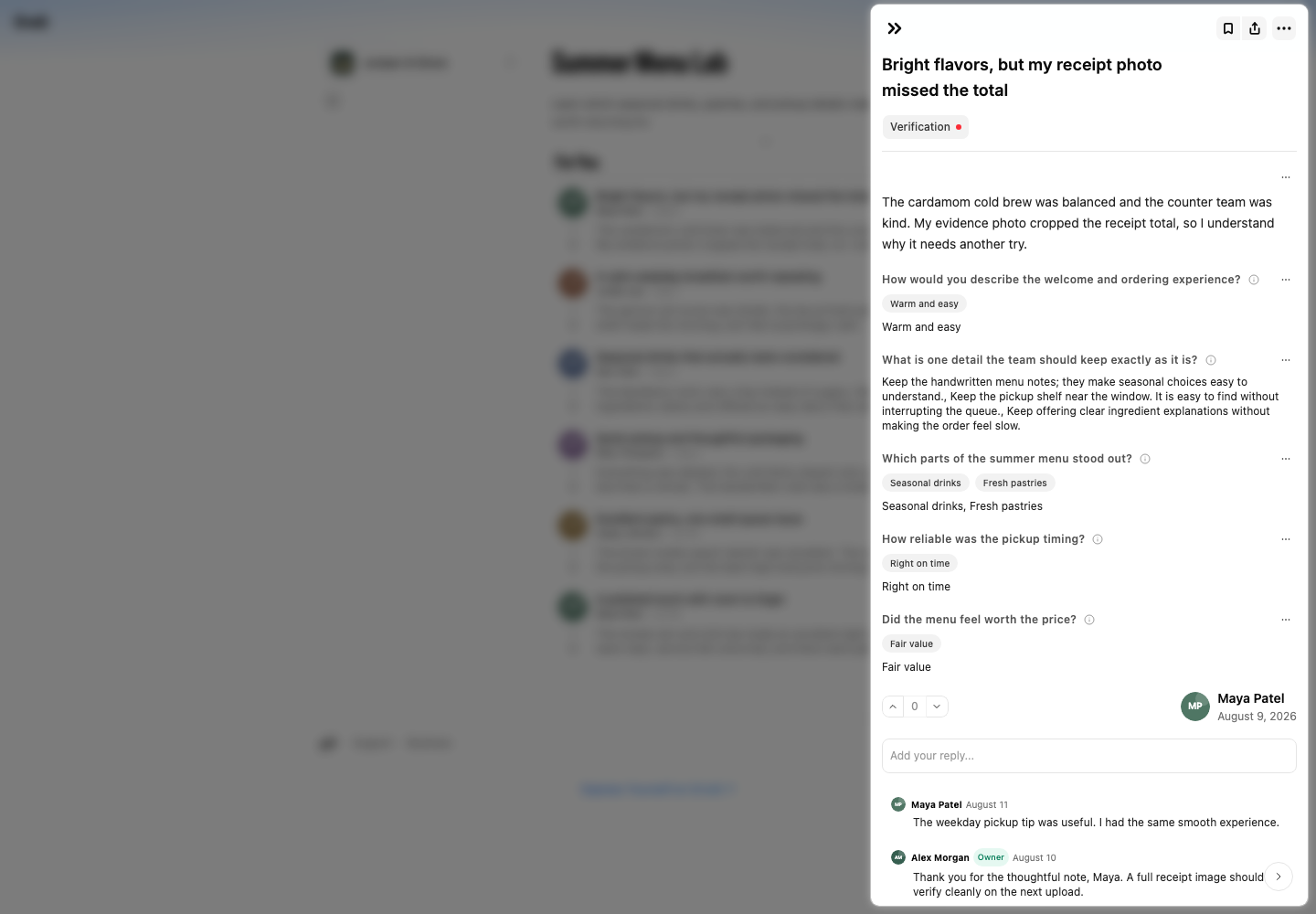
Select Post. Your comment appears below the field with your avatar, profile name, and date.
Leave without posting
Select Cancel. If the field contains text, Storefront asks Discard Comment? Choose Keep Editing to return or Discard to clear it.
If Post is unavailable
Add text to the reply field. Storefront keeps Post unavailable for an empty comment. If the request fails, copy the text before you close the dialog, then try again after you reload the opinion.