Link another sign-in account
Link Google or Apple to the Storefront account you already use.
Link a Google or Apple account to add another sign-in method. Start while signed in to the Storefront account you want to keep.
Link a provider
Connect Google or Apple
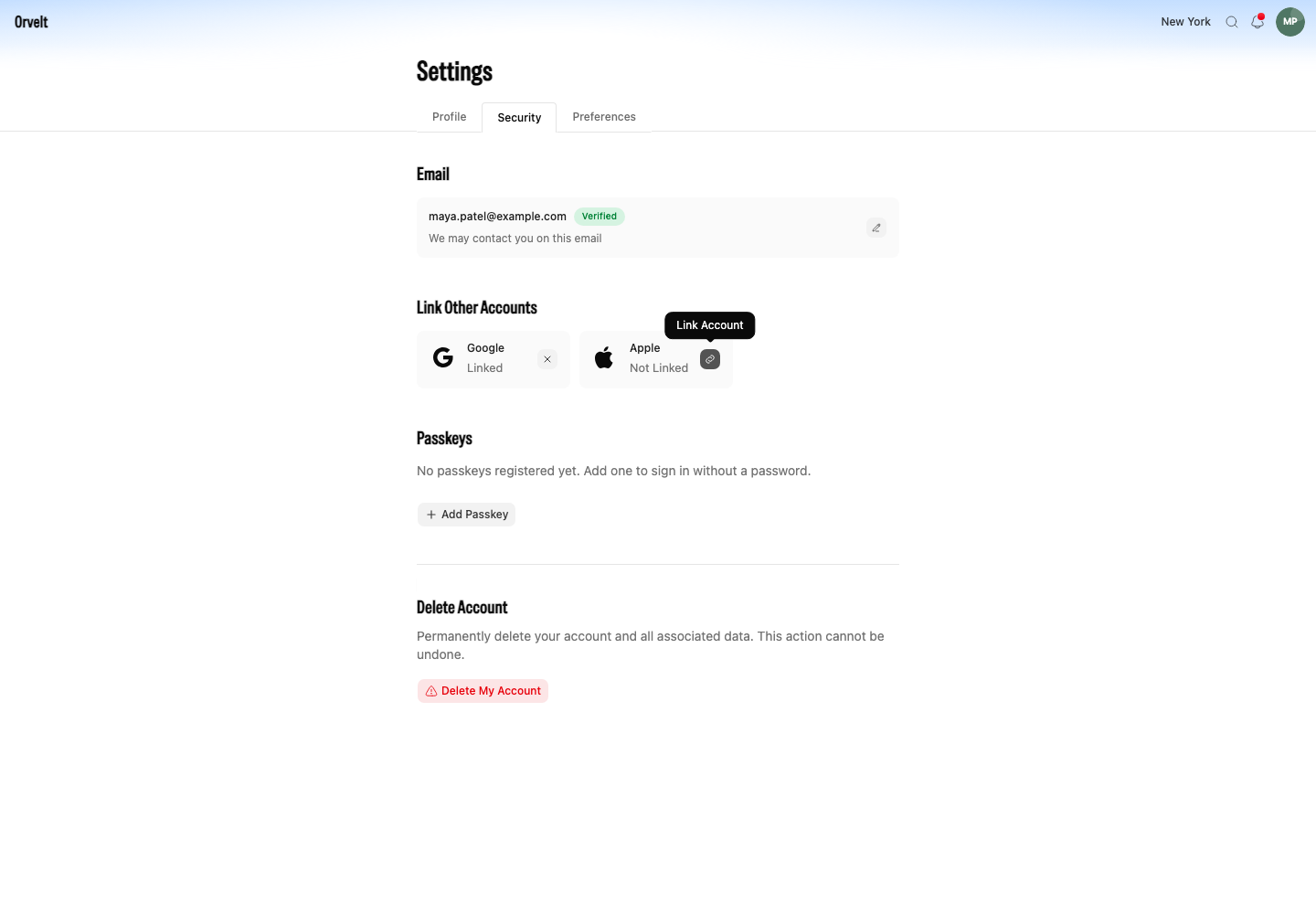
- Open Settings > Security.
- Find Link Other Accounts. Each provider card shows Linked or Not Linked.
- On the Google or Apple card, select the link icon. Its tooltip reads Link Account.
- Complete the provider's sign-in and consent page.
- Return to Settings > Security and check that the provider says Linked.
Check which account you linked
Use the Google or Apple account that belongs to you. If the provider belongs to another Orvelt account, sign in to that account before you decide which account to keep.
Unlink a provider
On a provider card marked Linked, select the X icon. Review Unlink Account, then select Unlink Account again to confirm.
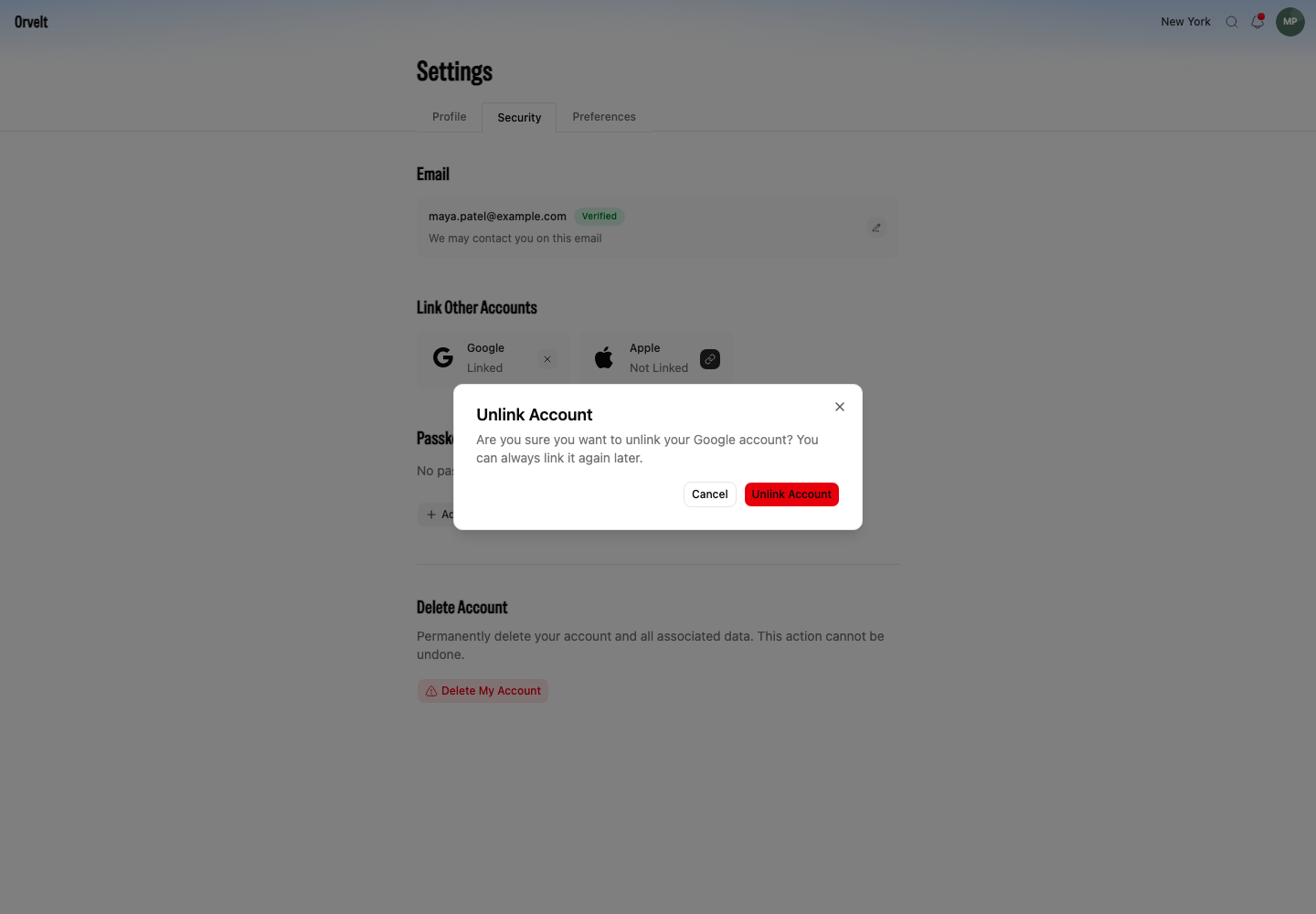
Keep another working sign-in method before you unlink a provider. The current Security page does not block you with a last-method warning.
If the provider does not return
Allow the provider page to redirect to Storefront. If the browser blocks the sign-in window, permit pop-ups for the Storefront address and start again from Link Other Accounts.