Manage account security
Review your email, linked accounts, and passkeys from Storefront security settings.
Updated August 10, 2026
StorefrontProfile and account
Open Settings > Security to manage the methods you use to access Storefront. Keep one working sign-in method available while you change another.
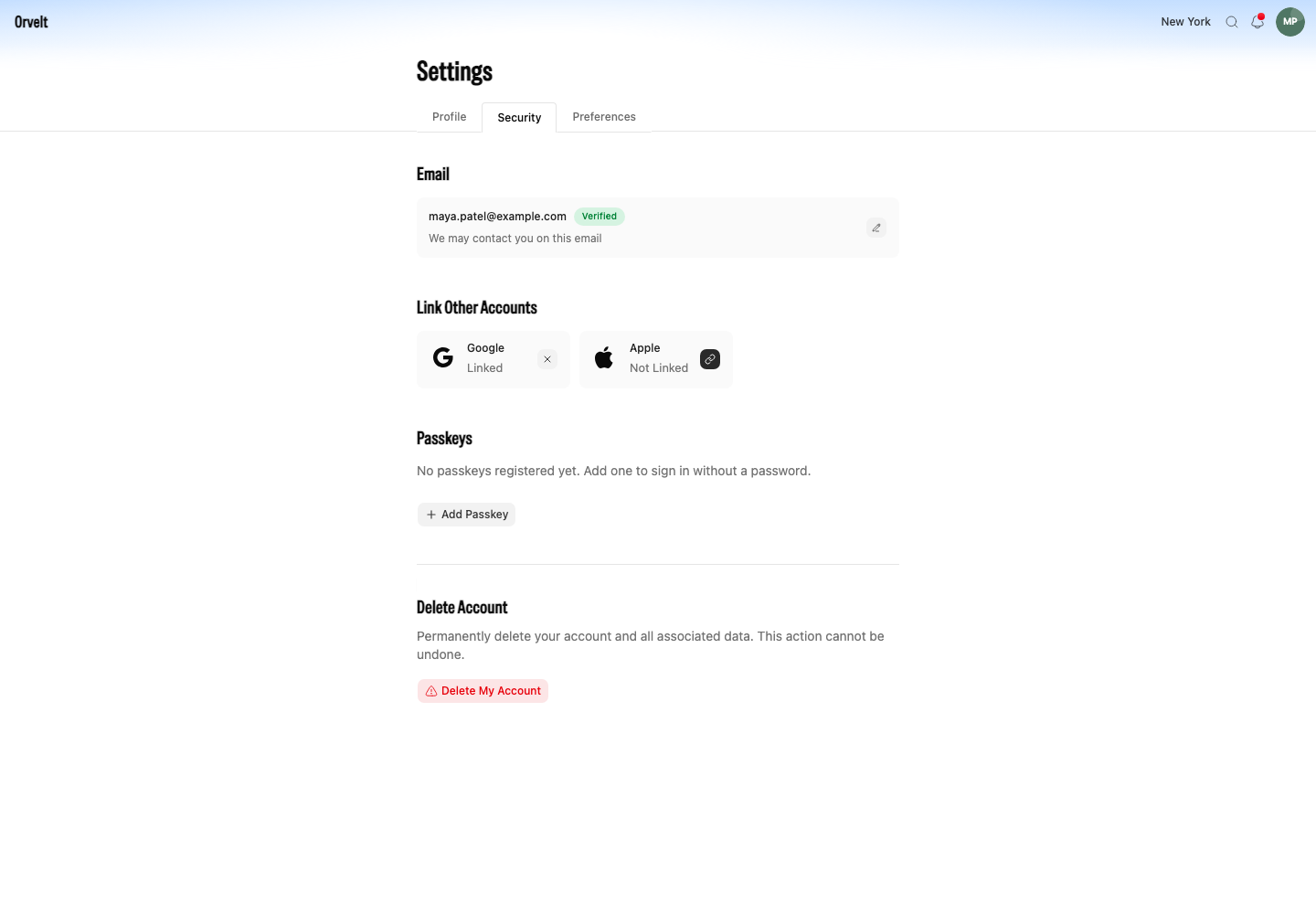
Change your email
Approve a verified email change
- In Email, select the pencil icon. Its tooltip reads Edit email.
- Enter the new address and select Continue.
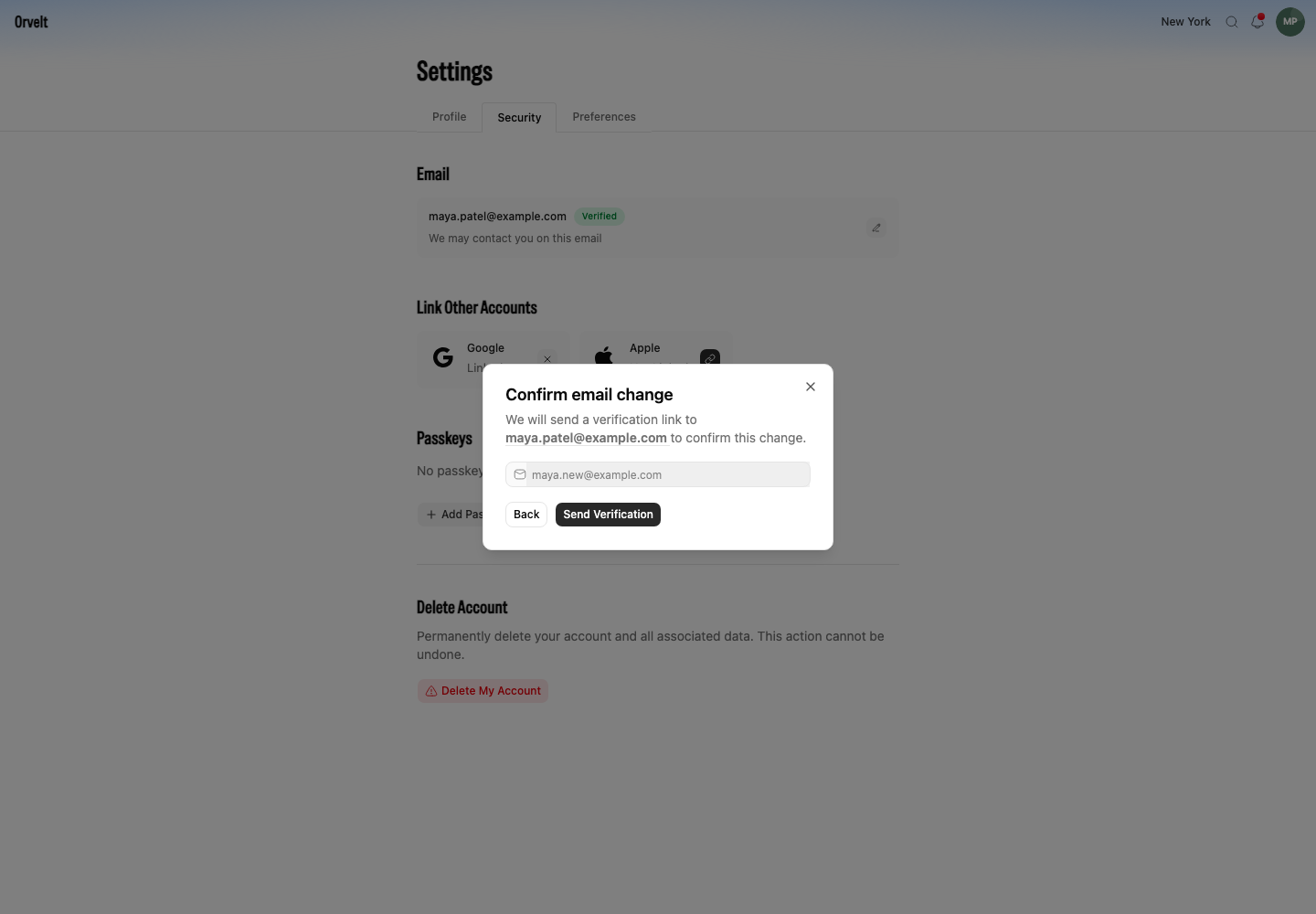
- On Confirm email change, check both addresses and select Send Verification.
- Use the link sent to the current email address to approve the change.
Verify an unverified address
An unverified address shows a Verify button instead. Enter the six-digit code in Verify Your Email.
Manage passkeys
Add, rename, or remove a passkey
- Select Add Passkey and complete your browser or device prompt.
- Use the pencil icon beside a passkey to open Rename Passkey.
- Use the delete icon, then confirm Delete Passkey, to remove one you no longer control.
A passkey prompt comes from your browser or operating system. Cancel it and start again if it names the wrong device or account.
Linked Google and Apple accounts
Use Link Other Accounts to add or remove a provider. The account-linking guide covers the provider steps.