Choose a theme
Set the Storefront to use its light theme, dark theme, or your device setting.
Updated August 10, 2026
StorefrontProfile and account
Storefront can use a light theme, a dark theme, or the appearance setting from your device.
Change the theme
Choose an appearance
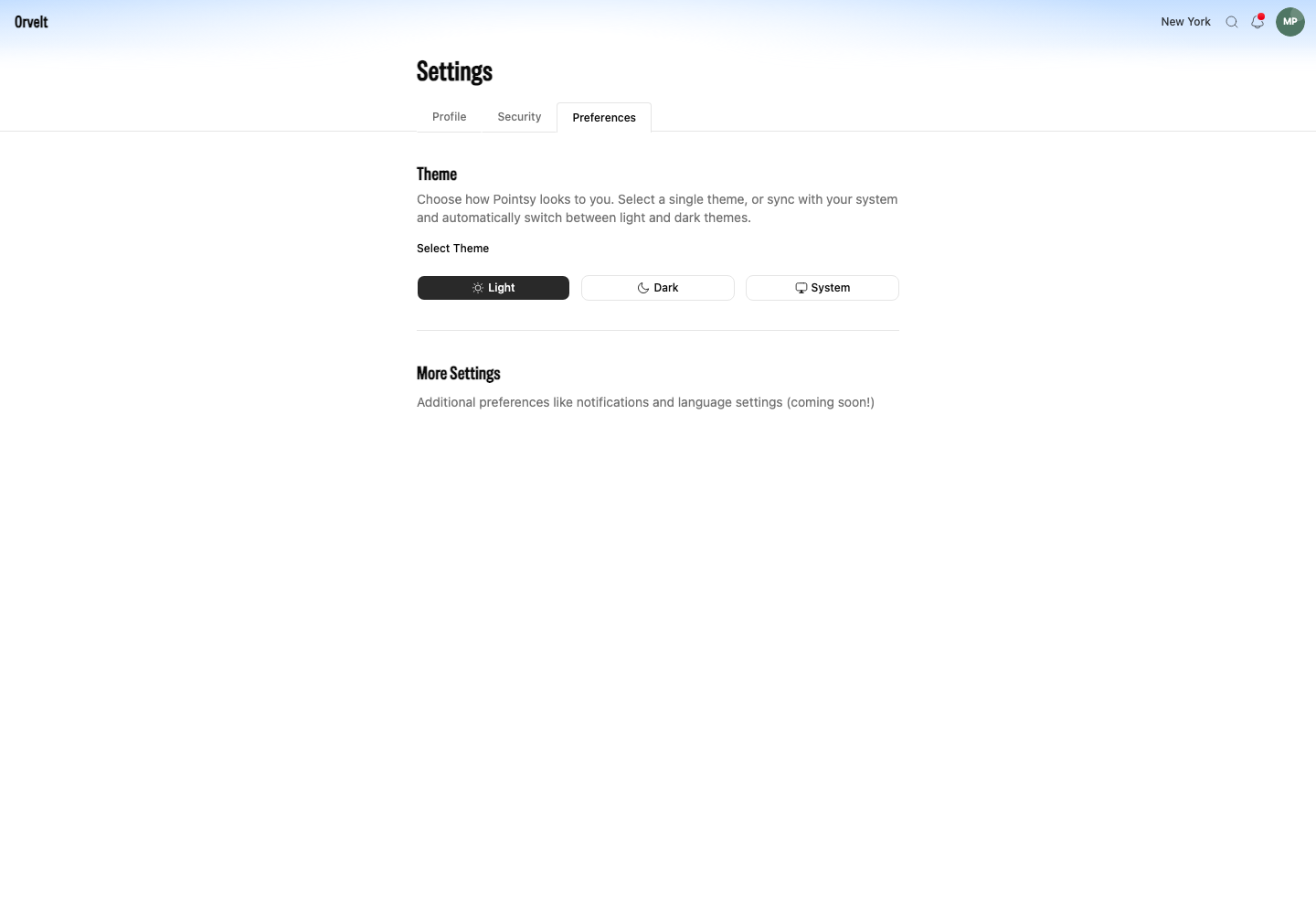
- Sign in and open Settings.
- Choose Preferences.
- Under Select Theme, choose Light, Dark, or System.
Understand each theme choice
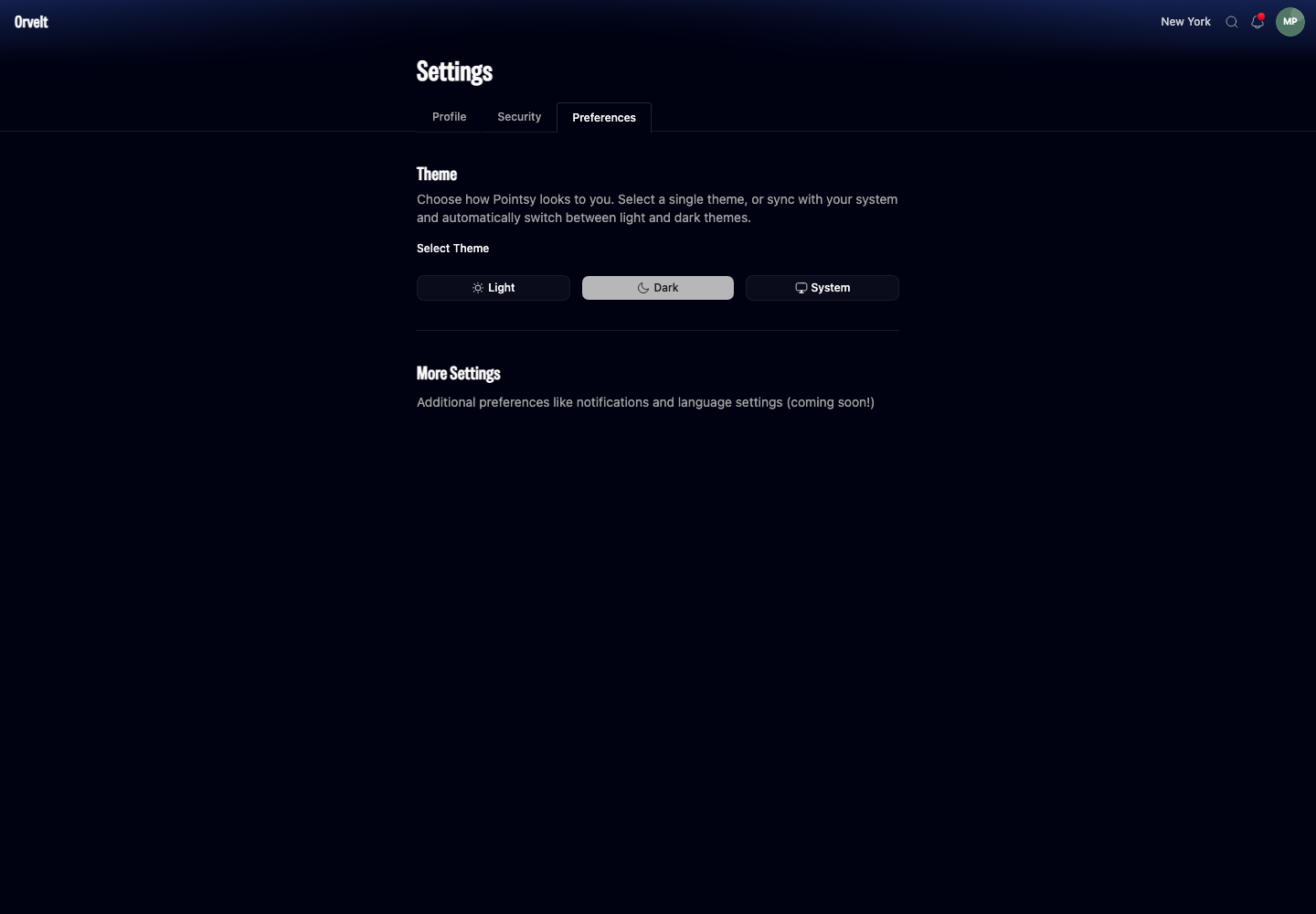
The selected button changes state and Storefront applies the theme at once. The page has no save button.
- Light keeps a light appearance.
- Dark keeps a dark appearance.
- System follows your browser or device and changes with that setting.
If System uses the wrong theme
Check the appearance setting on your device, then reload Storefront. A browser extension that forces page colors can override the Storefront theme.
The More Settings note mentions language and notification preferences. Those controls are marked as coming soon and cannot be changed on this page.