Connect Claude
Add Orvelt to Claude on the web or Claude Desktop in about two minutes, then approve what Claude can read and change.
Connect Claude to Orvelt and ask it about your opinions, answers, and projects in plain language. It signs in as you through Business MCP, so there's no API key to copy.
You need: a Claude plan that allows custom connectors. Using Claude Code, Cursor, or another coding agent? Connect a coding agent
Add the connector
In Claude (claude.ai or Claude Desktop), open Settings → Connectors and choose Add custom connector.
Enter Name Orvelt and URL https://mcp.orvelt.com/mcp, then choose Add.
Choose Connect next to Orvelt. Claude opens Orvelt in your browser.
Approve access
Sign in to Orvelt Business. If you belong to more than one organization, choose the one Claude should use and select Continue. A connection belongs to one organization.

Choose what Claude can do. Everything starts as Read; set a section, or a single resource inside it, to None, Read, or Write.
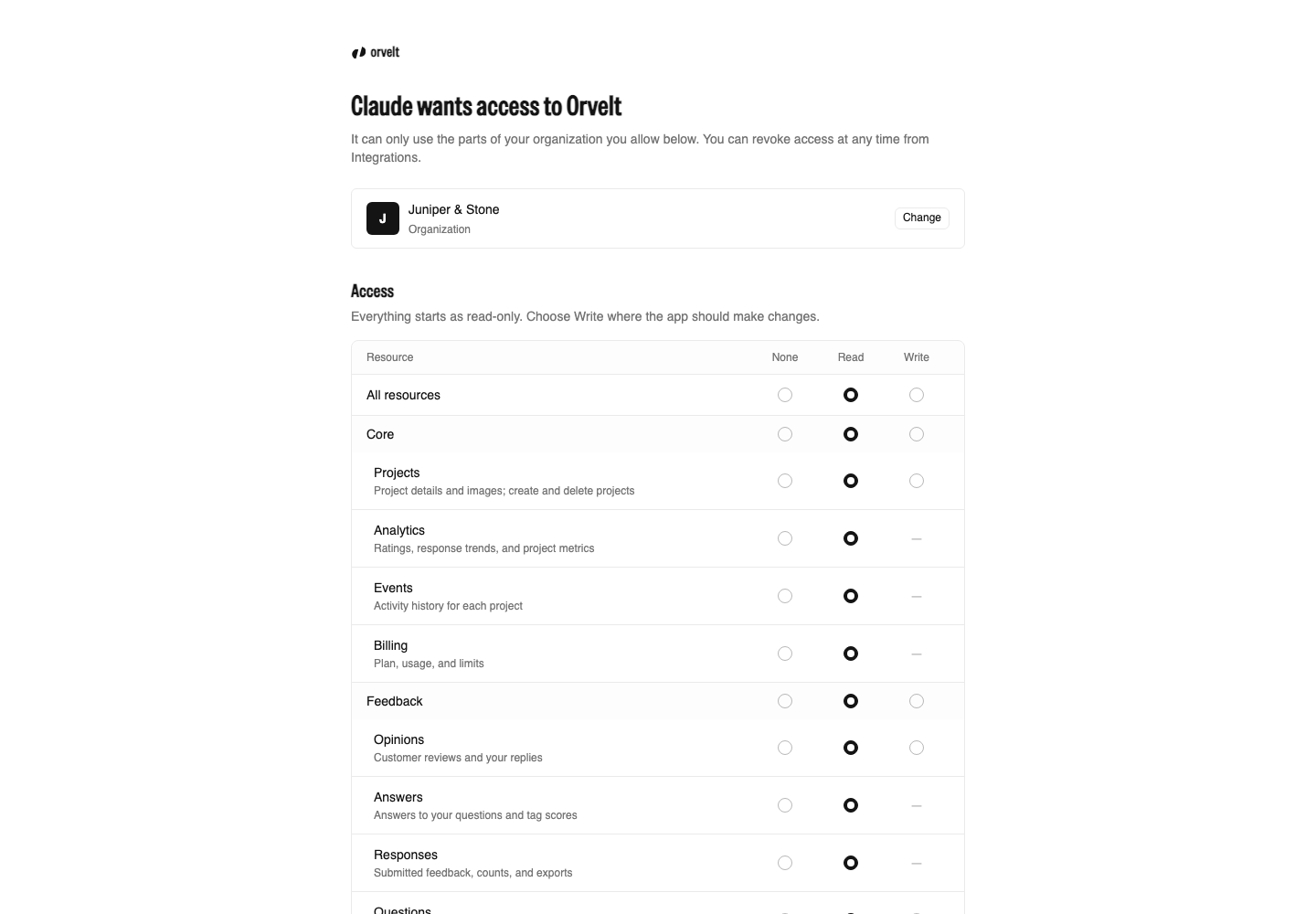
| You want Claude to... | Choose |
|---|---|
| Summarize opinions and answers, or draft replies for you | Read (the default) |
| Post replies | Write on opinions |
| Create and edit questions | Write on questions |
| Send personal links | Write on delivery |
Keep Stay connected between sessions on, or Claude must sign in again every 5 minutes. Select Approve.
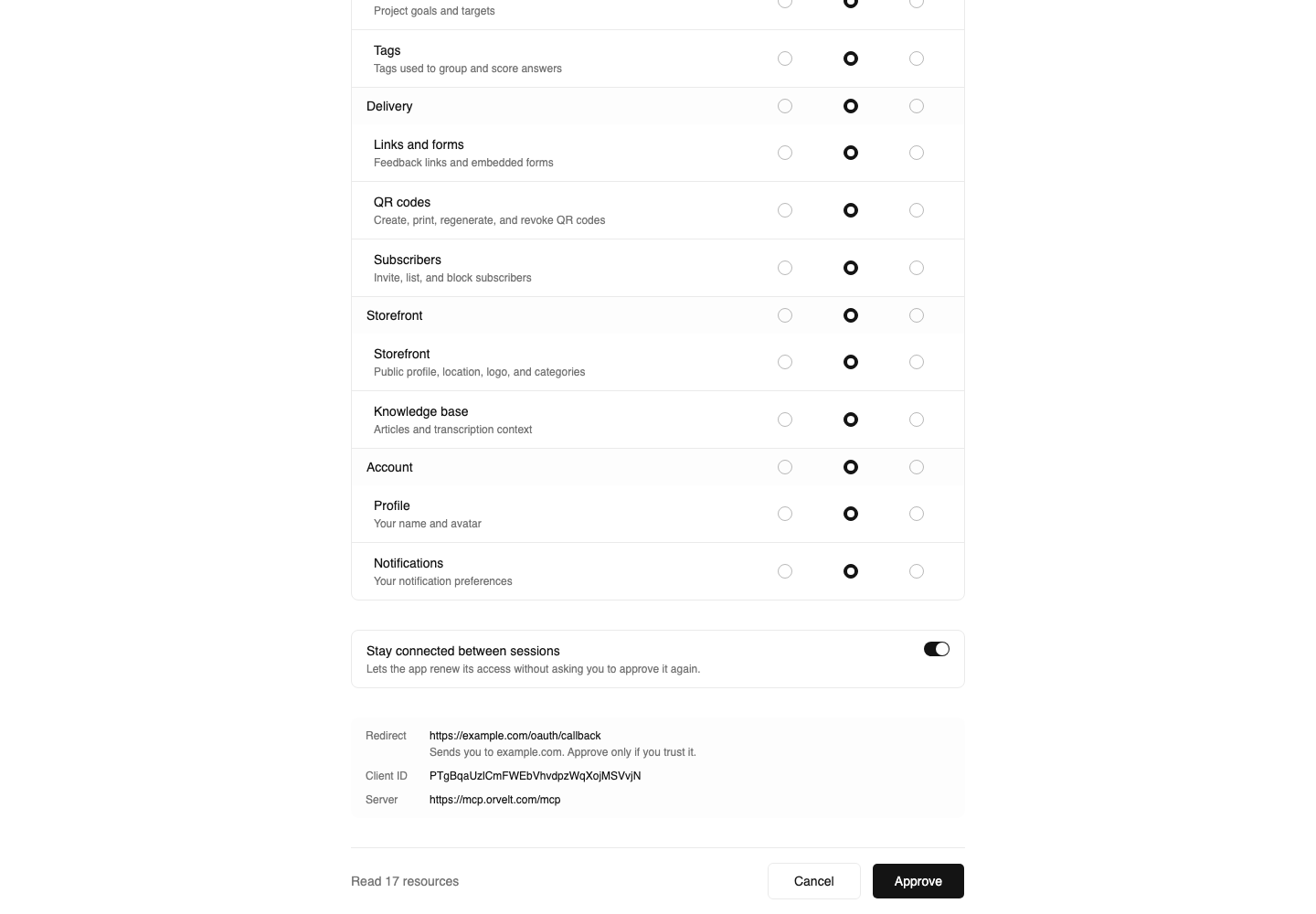
Approve only requests you started
If the page says An app on this device gets access or Unencrypted HTTP destination, stop unless you just started connecting this agent yourself.
Try it
Using Orvelt, list my projects and tell me how many opinions each got this month.
More in Example prompts.
Change or remove access
Claude acts as you: it can never see more than your own role and project access allow. Access can't be edited after you approve. To change it, open Integrations → Business MCP → Manage, select Disconnect, and connect again. Security