Manage project subscribers
Find people subscribed to a project and block a subscriber when they must be removed.
Updated August 10, 2026
BusinessEngagement
Subscribers follow one project. Blocking a subscriber removes them from that project and cannot be undone from the Subscribers page.
Find a subscriber
Search and check status
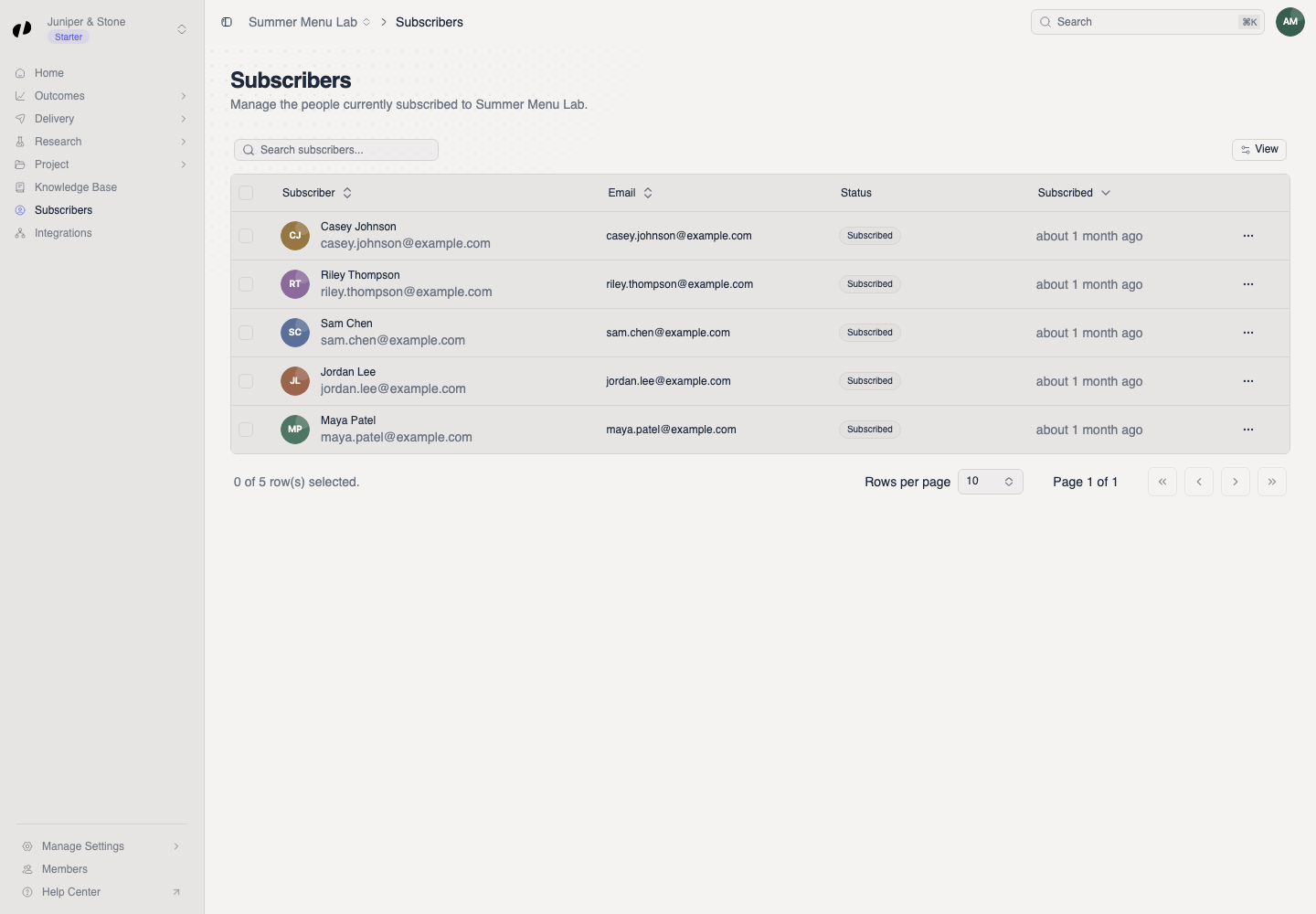
- Open the project and choose Subscribers.
- Use Search subscribers... to search by name or email.
- Check the Status and Subscribed columns before taking action.
Block a subscriber
Confirm the correct person
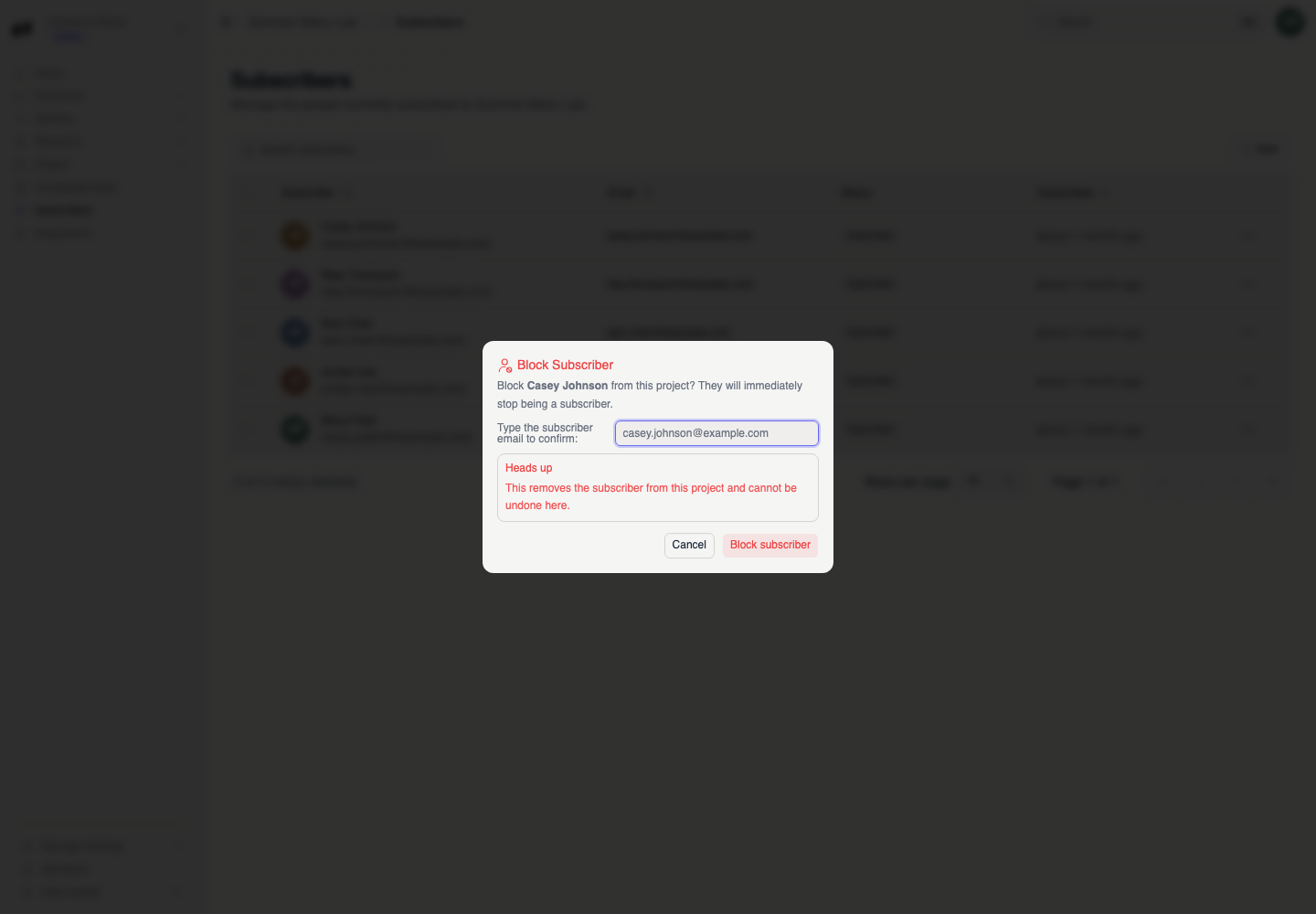
- Open the row action menu and choose Block subscriber.
- Read the warning and confirm that you selected the correct person.
- Type the subscriber's full email address exactly as shown.
- Select Block subscriber.
Verify the removal
The Subscriber removed from this project message confirms the change. The person should no longer appear as an active subscriber to this project.
If the confirmation button stays unavailable, copy the email from the row and remove any leading or trailing spaces. If blocking fails, reload the list and confirm the subscriber still appears before trying again.