API keys
Create an API key for your developer or one of your systems, store it safely, and replace or delete it when needed.
An API key is a secret, like a password, that lets one of your systems use the Business API without a person signing in. For example, your online shop could use one to send a personal review link after every order.
You only need an API key if a developer is building an integration. To connect an AI assistant, you don't need a key at all: use Business MCP, which signs in with your account.
You need: API keys product access, or the Owner or Admin role.
Create a key
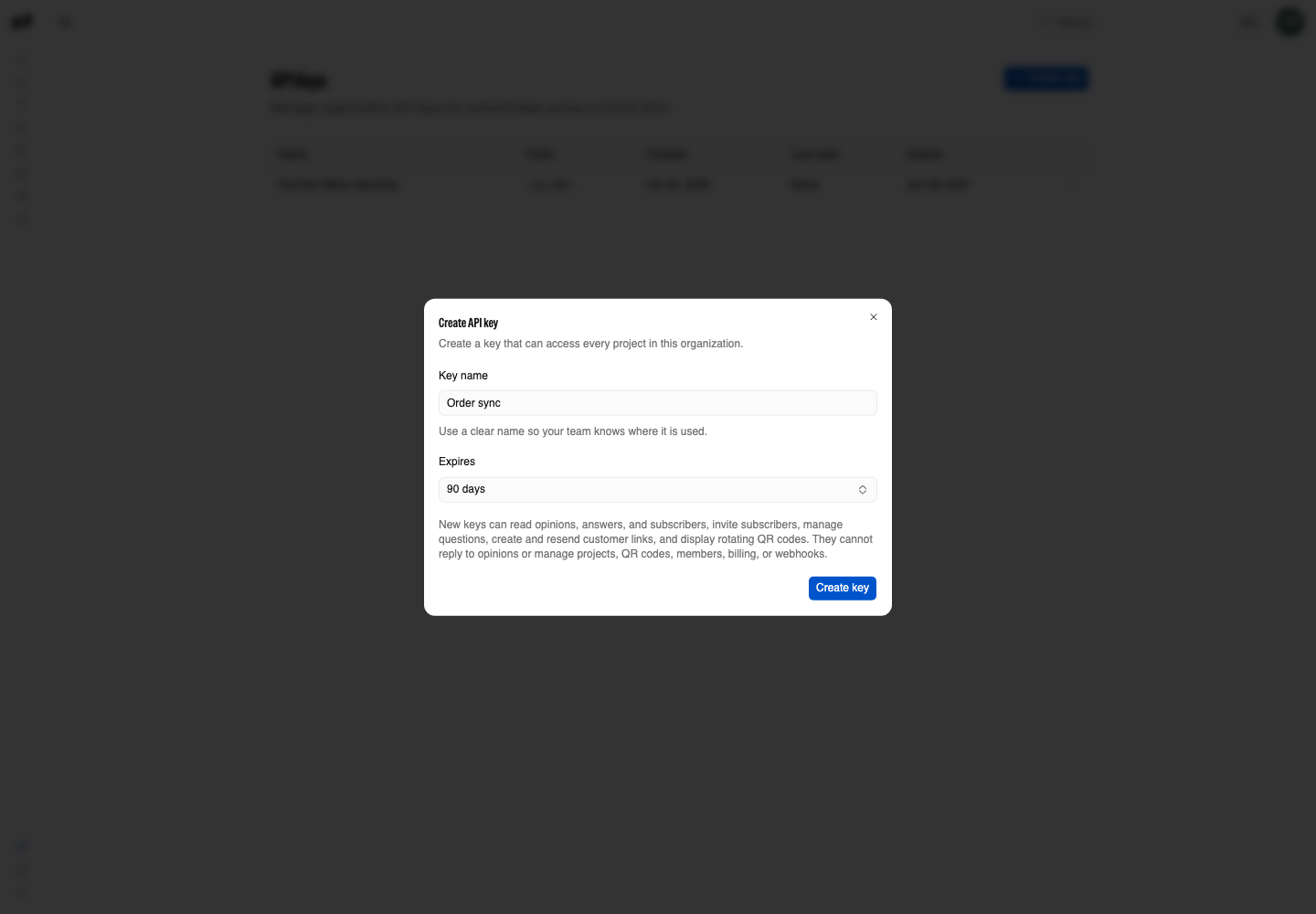
Open Manage Settings → API Keys and select Create key.
Enter a Key name that says which system uses it, such as Order sync. You'll thank yourself later when you have several.
Under Expires, choose 30 days, 90 days, or 1 year.
Select Create key.
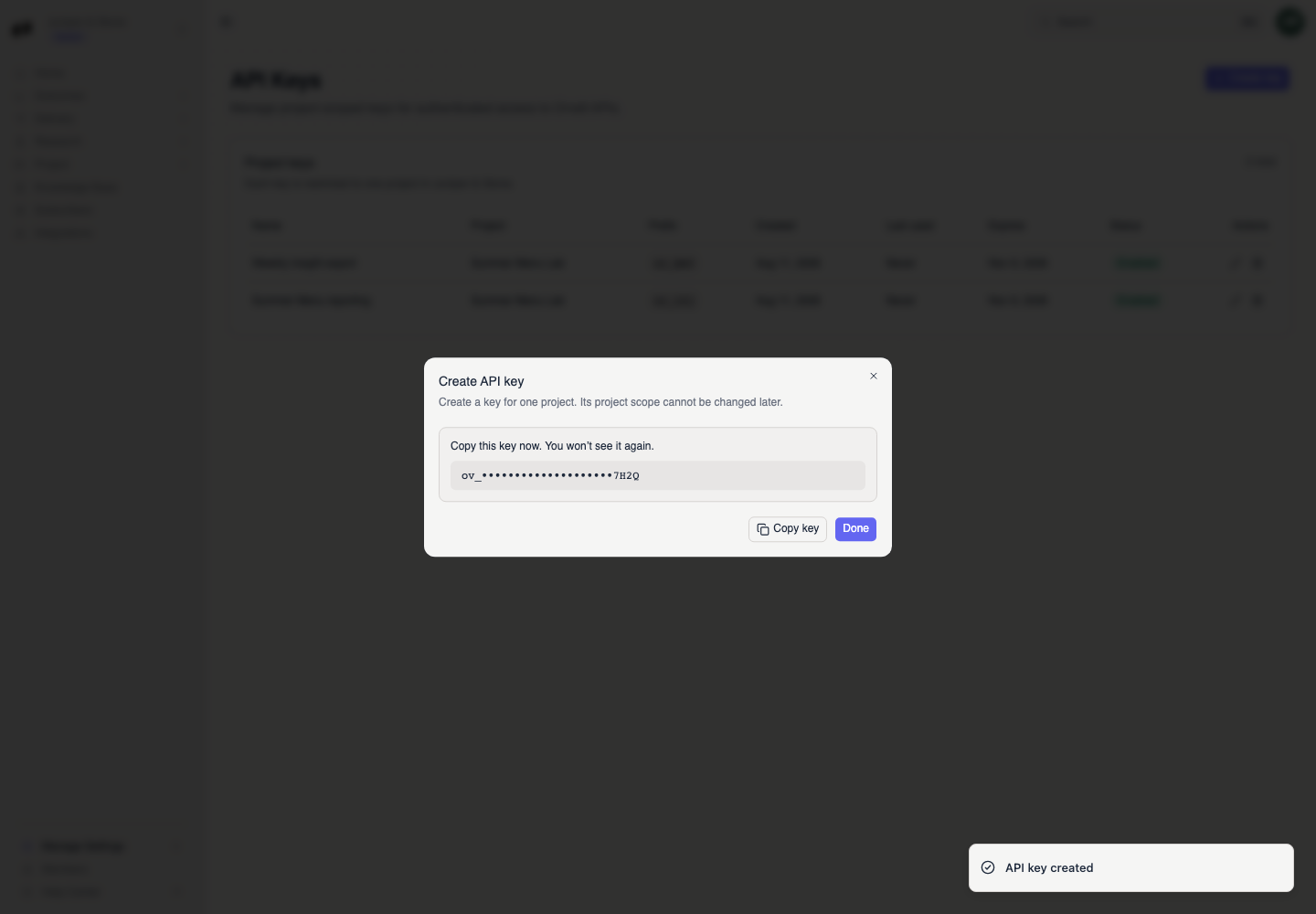
Copy it now: you'll only see it once
Orvelt shows the full key once, right after you create it. Select Copy and give it to your developer, or paste it straight into your system's secret settings. After you select Done, only the first few characters stay visible.
Treat it like a password
Anyone with the key can read your customers' opinions and manage your questions. Never put it in a website's code, email, chat, screenshots, or support tickets. Share it through a password manager or your hosting provider's secret settings.
What a key can and can't do
Every key has the same access:
| A key can... | A key can't... |
|---|---|
| Read opinions, answers, and subscribers | Reply to opinions |
| Invite subscribers | Remove subscribers |
| Create and manage questions | Change goals |
| Create, email, resend, and list personal links | Create or revoke QR codes |
| Show the current rotating QR code | Manage members, billing, API keys, knowledge, or webhooks |
A key works for every project in your organization. Do the things it can't in Orvelt Business.
Rename, replace, or delete a key
Open the ... menu at the end of a key's row.
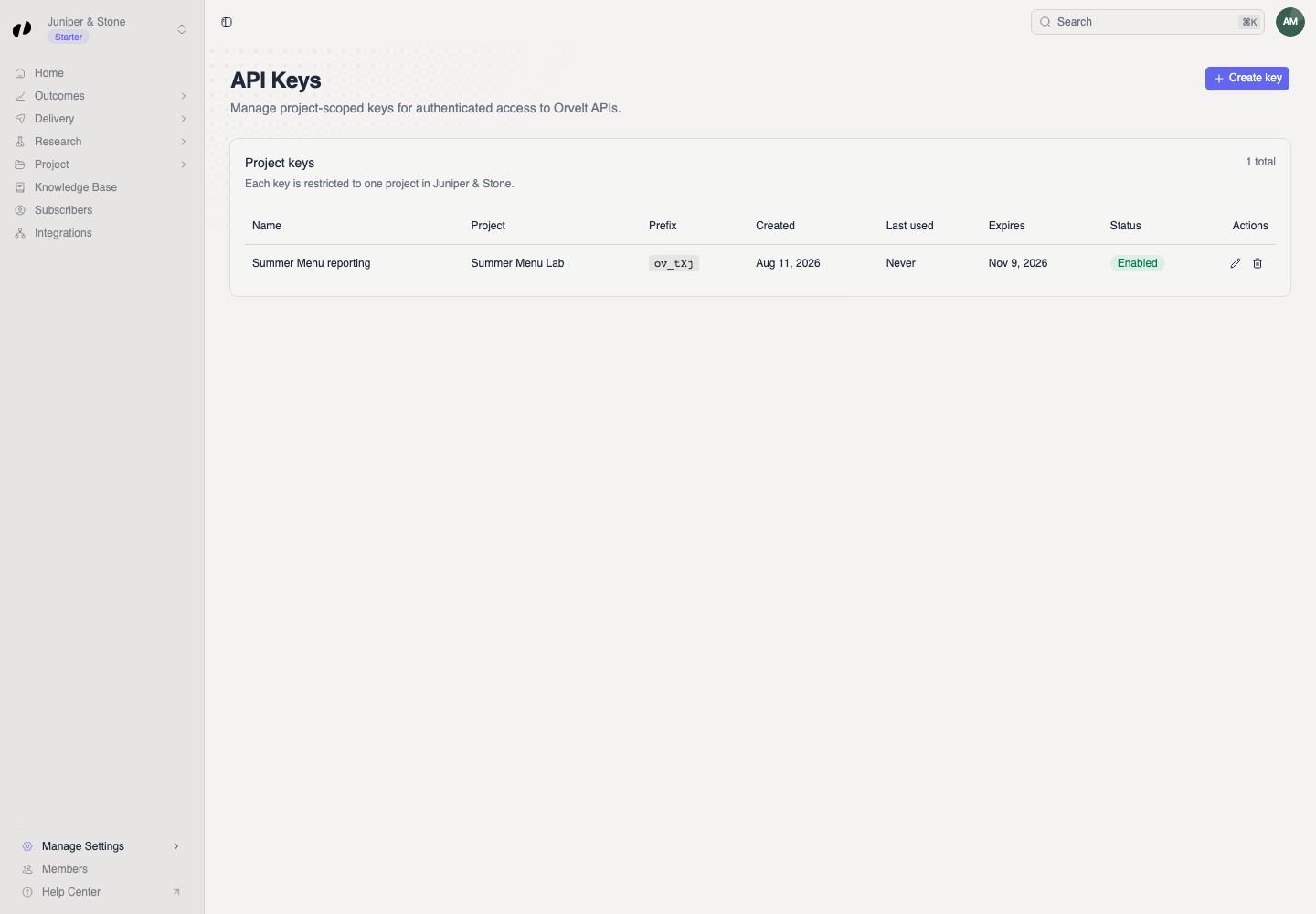
- Rename changes only the display name. The key itself stays the same.
- Delete stops the key working immediately.
Before a key expires
Create the replacement, have your developer switch over to it, then delete the old key. This way nothing stops working.
If a key is lost or exposed
- Delete it right away.
- Create a new key.
- Give the new key to your developer to update your system.
Use the key
Send it in the x-api-key header, or pass it to the SDK. Developer quickstart · Authentication