Tags and the Research Radar
Understand the eight research tags, choose which ones appear on the Research Radar, and read what customers lean toward.
Every question carries one or more tags. A tag names what an answer can tell you about the customer, for example whether they trust you. Tags do two jobs: they decide what answers are scored against, and they fill the Research Radar, a one-glance view of how customers feel.
The eight tags
Every project uses the same eight tags.
| Tag | What answers reveal | Example question |
|---|---|---|
| Trust | Whether customers trust your business. | Would you trust us with a catering order? |
| Reliability | Whether you do what you promise, consistently. | Did your order arrive when we said it would? |
| Experience | How the visit or purchase felt. | How was your visit today? |
| Safety | Whether customers felt safe and comfortable. | Did you feel comfortable in the space? |
| Personalization | Whether customers feel known and catered to. | Did we get your order just how you like it? |
| Fairness | Whether prices, policies, and treatment feel fair. | Did the price feel fair for what you got? |
| Identity | Whether customers feel the place is "for them". | Do you feel at home here? |
| Outcome | Whether customers got what they came for. | Did you find what you were looking for? |
Choose the tags for the radar
Open the project, then choose Research → Priority Tags.
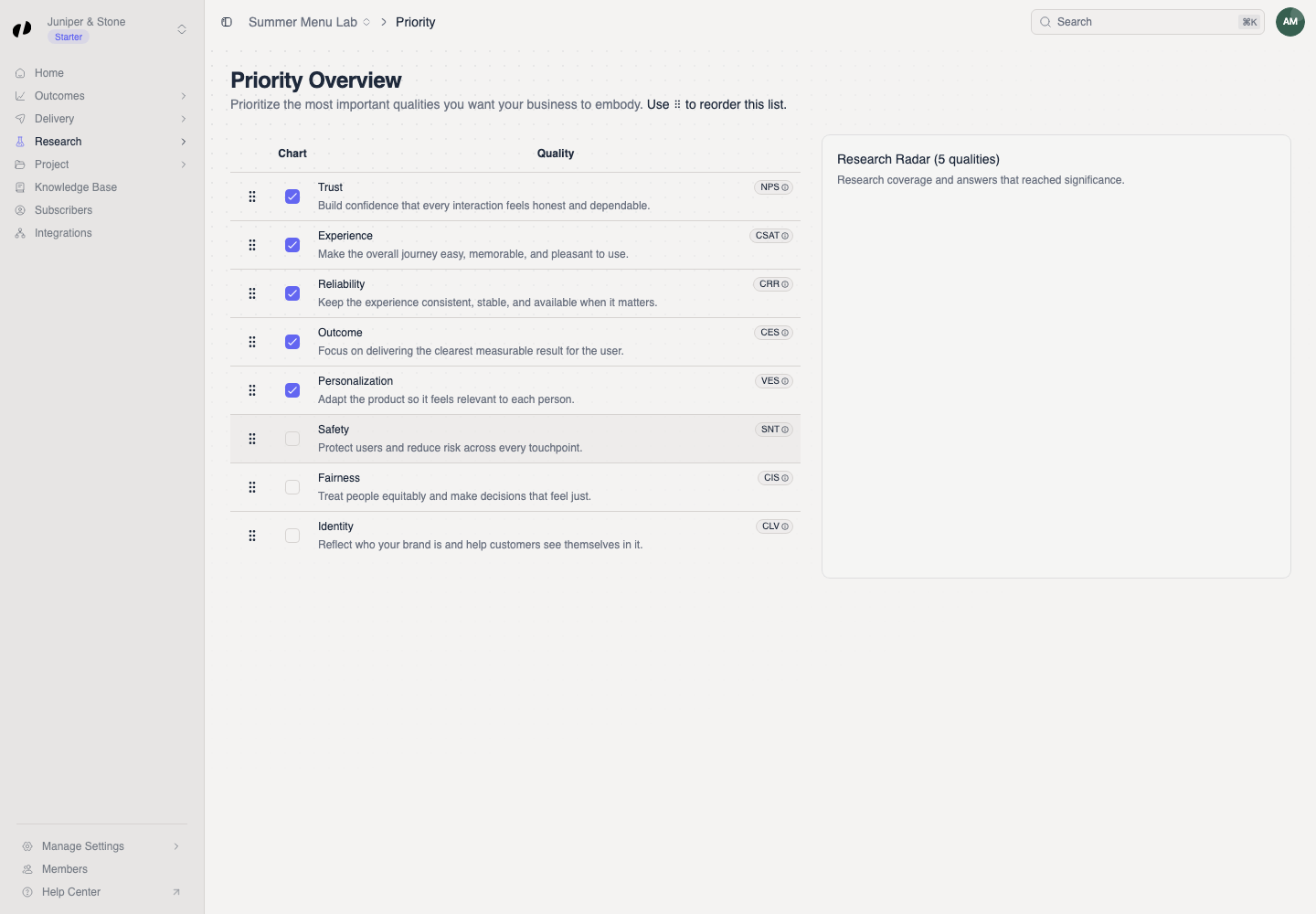
In the Chart column, select the tags you want on the Research Radar. Choose the ones your current goals are about.
Keep at least one tag selected. Reload the page to confirm your selection stuck.
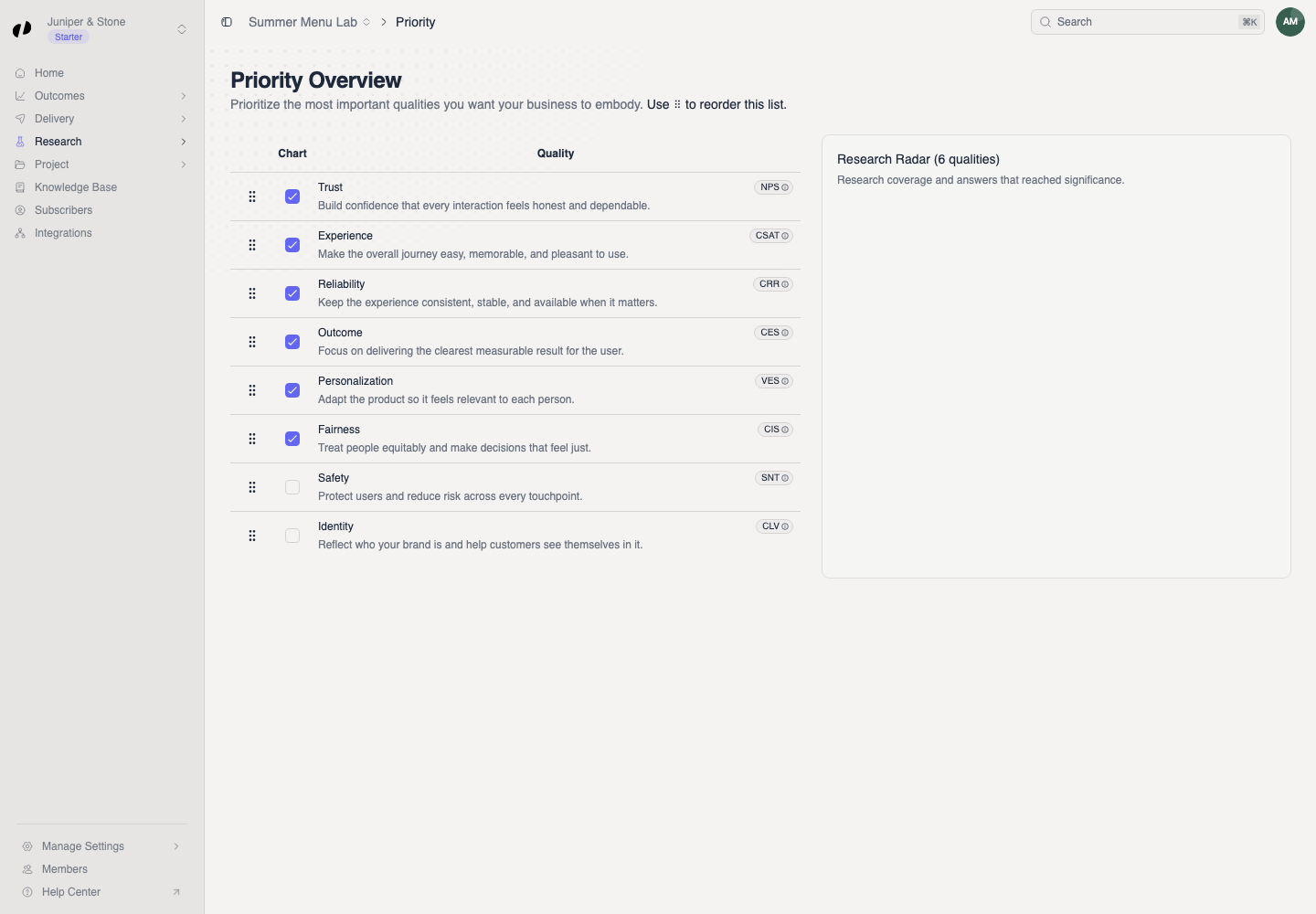
The tag list has no order
Some versions of the page show drag handles. Moving a row doesn't save an order or make one tag count more. Choosing a tag for the radar also doesn't change how questions are picked or how Auto priority works.
Read the Research Radar
For each selected tag, the radar shows how customers lean in the scored answers that reveal it:
- Positive: for Trust, customers who trust you.
- Unsure: customers whose answers point neither way.
- Negative: for Trust, customers who don't.
Each is a percentage of those answers, and recent answers count more than older ones. Hover a tag to see how many answers it's based on. Answers that say nothing about a tag don't count toward it.
How to use what you see
- A tag leaning Negative: read the answers to questions with that tag on Outcomes → Answers to find out why.
- A tag based on very few answers: treat it as an early signal. Add or raise a question with that tag if it matters to you.
- A tag mostly Unsure: your questions may not be revealing much about it. Try rewording them to be more specific.
How tags affect question priority
With Auto priority, Orvelt adjusts each question based on its scored answers for its tags. All of a question's tags count equally. Whether a tag is on the radar doesn't matter. Priority