Add the website feedback widget
Allow the production website origin and install the project's generated script tag.
Updated August 10, 2026
BusinessShare feedback
The website widget sends visitors into the selected project's review flow. The widget must be enabled for your organization, and you need Delivery access.
Allow the website
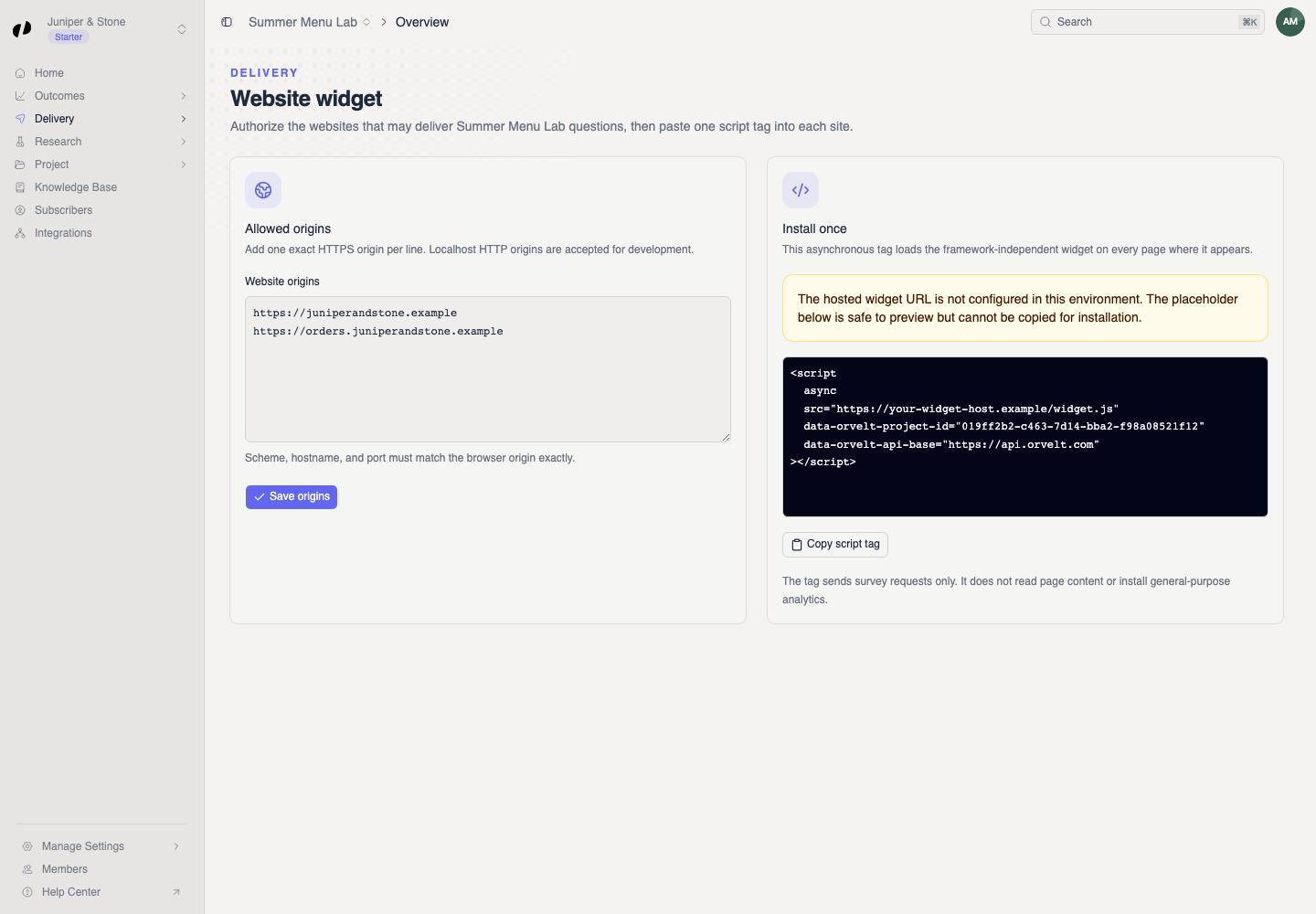
Add exact website origins
- Open the project and choose Delivery > Widget.
- Under Allowed origins, enter one exact HTTPS origin per line. Include the scheme and hostname, but no page path. For example:
https://www.example.com. - Add each production or staging origin that will load the widget.
- Select Save origins. The Widget origins saved message confirms the change.
Install the script
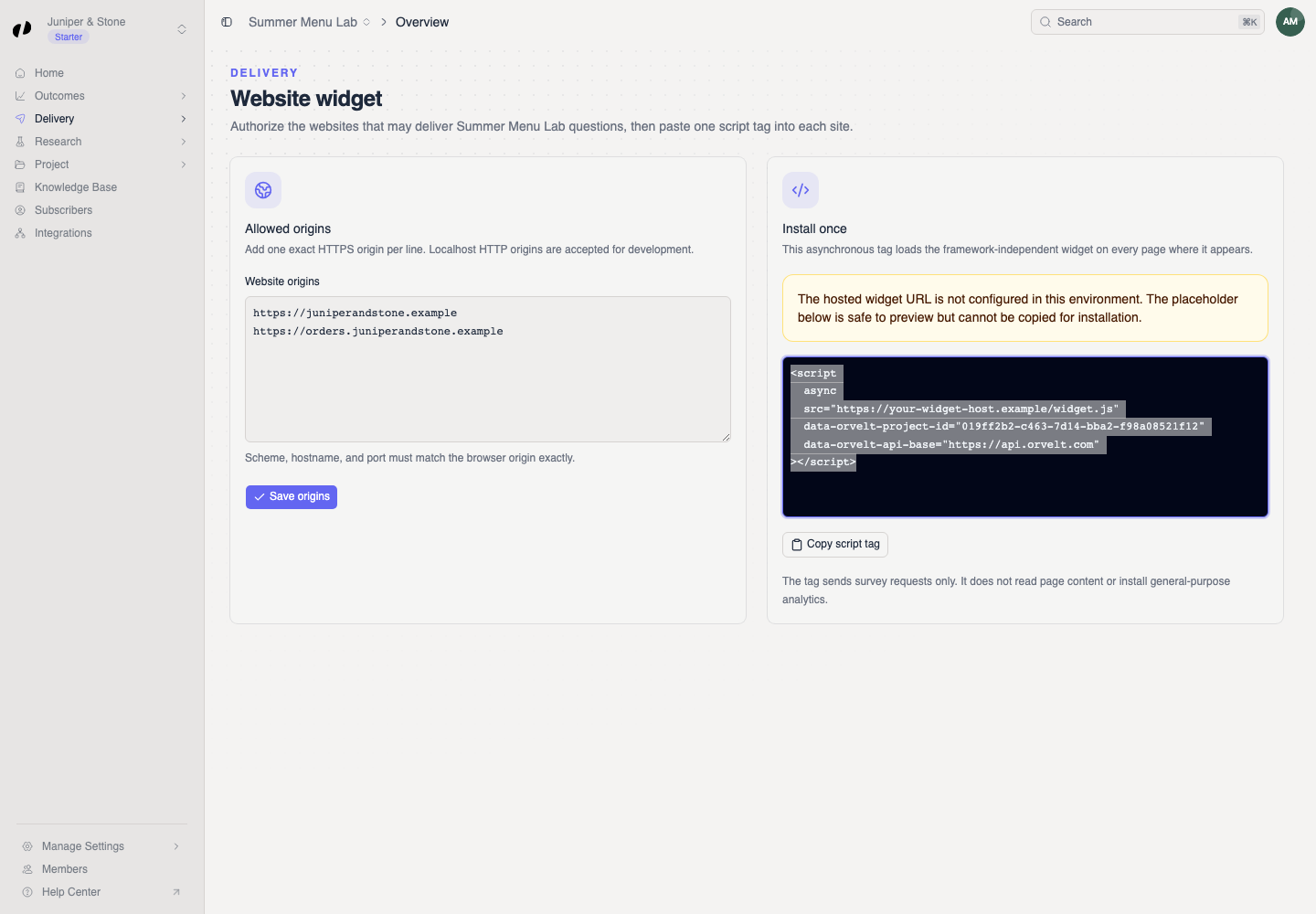
Publish and test the project script
- Under Install once, select Copy script tag.
- Add the tag to every page where the widget should load, preferably through the site's shared template or tag manager.
- Publish the website.
- Open a published page from an allowed origin and start the widget to confirm it opens the correct project.
If the widget does not load
- Match the browser origin exactly, including
https://and any subdomain or port. - If the page says the hosted widget URL is not configured, contact your Orvelt administrator; do not install the placeholder URL.
- If Widget is absent or opens a not-found page, the feature is not enabled for this organization.