Website embed
Let customers write an opinion and answer your questions without leaving your site. One script tag, no API key, no backend.
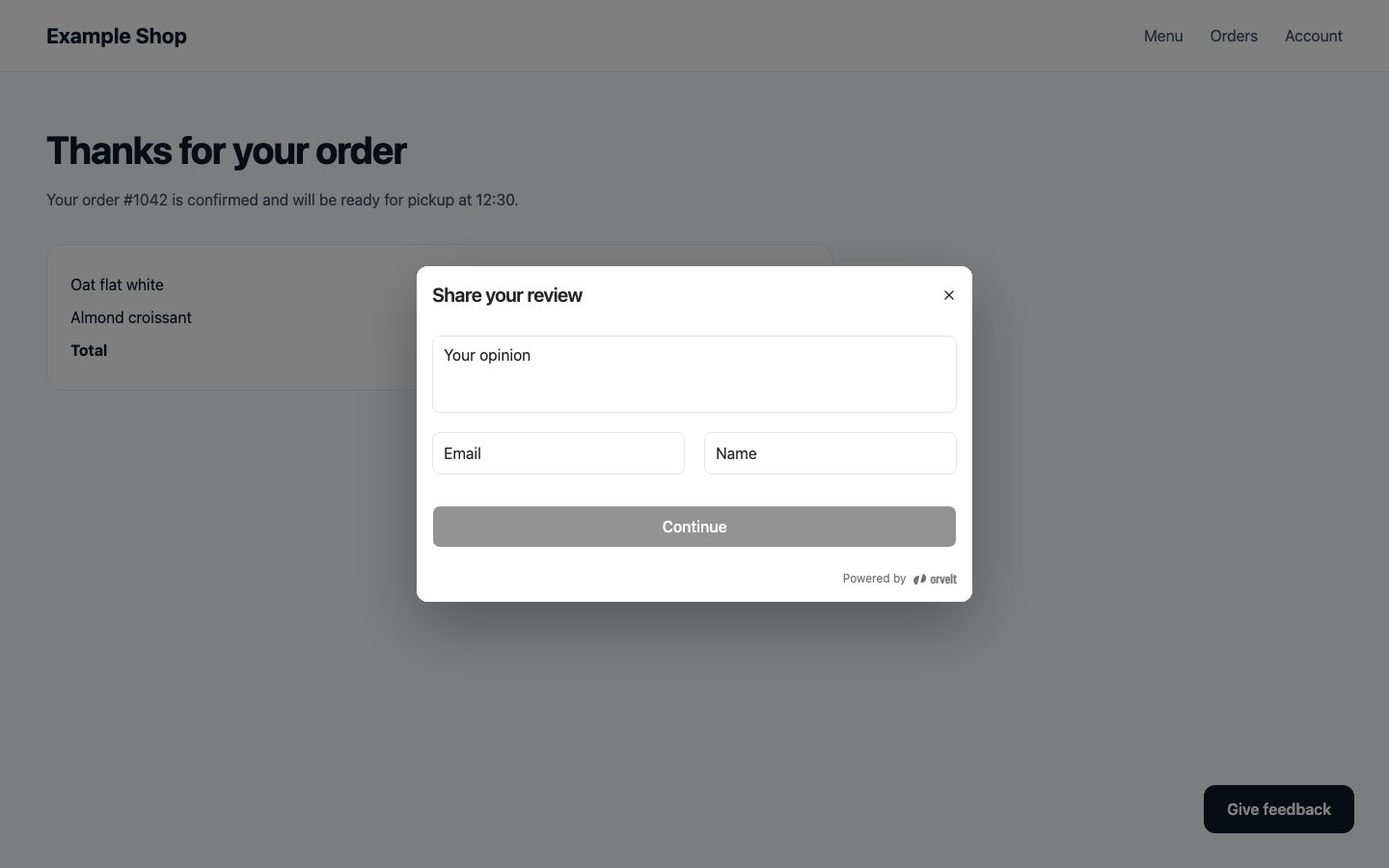
The best moment to ask for feedback is right after the experience: on an order confirmation page, after a booking, or behind a Give feedback button. The embedded form brings Orvelt's opinion form and your questions to that moment on your own website. It needs only your public project ID: no Business API key, session endpoint, or website backend. Orvelt runs a separate visitor session inside the iframe.
Prepare the project
Publish and allow your website
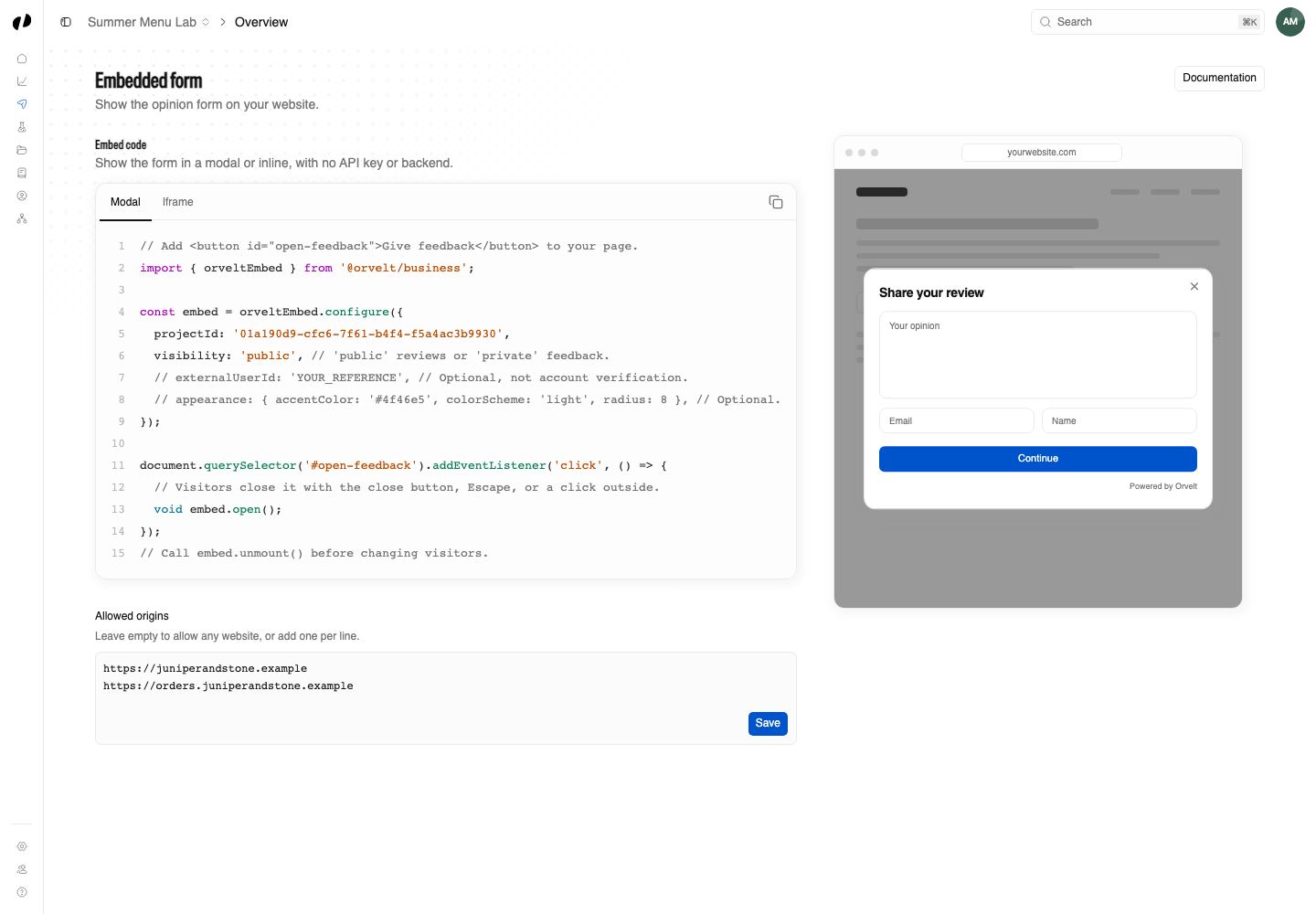
Publish your project in Orvelt Business. All website origins are allowed by default. To restrict embedding, add exact origins under Delivery → Embedded form, such as https://shop.example.com; once you add origins, add each development origin separately, including its port. Clear the list to allow all origins again. Replace PROJECT_UUID below with your published project's UUID.
Allow Orvelt in your Content Security Policy
If your website sends a Content Security Policy (CSP), add https://orvelt.com to frame-src. When you use the script tag, also add https://unpkg.com to script-src, and apply your CSP nonce to the inline script if your policy uses nonces. With no CSP, there is nothing to add.
Allow voice opinions
The SDK adds allow="microphone" to the iframe. Use HTTPS (or localhost for development). If your website sends a Permissions-Policy header, allow the form's origin, for example microphone=(self "https://orvelt.com"); a restrictive policy such as microphone=() blocks recording. Update older SDK installations to pick up microphone delegation.
Customers select the microphone in the opinion editor; permission is requested only when recording starts, after any email confirmation, and they can edit the transcript before continuing. To help transcription spell your names, add Business terms on Knowledge in Orvelt Business: up to 100 terms of 100 characters each, shared by all the business's projects on the storefront and in embeds. Every recording sends the current terms to Mistral's Voxtral Mini Transcribe 3 as spelling context. They are not returned to your website.
Copy the snippet from Orvelt Business
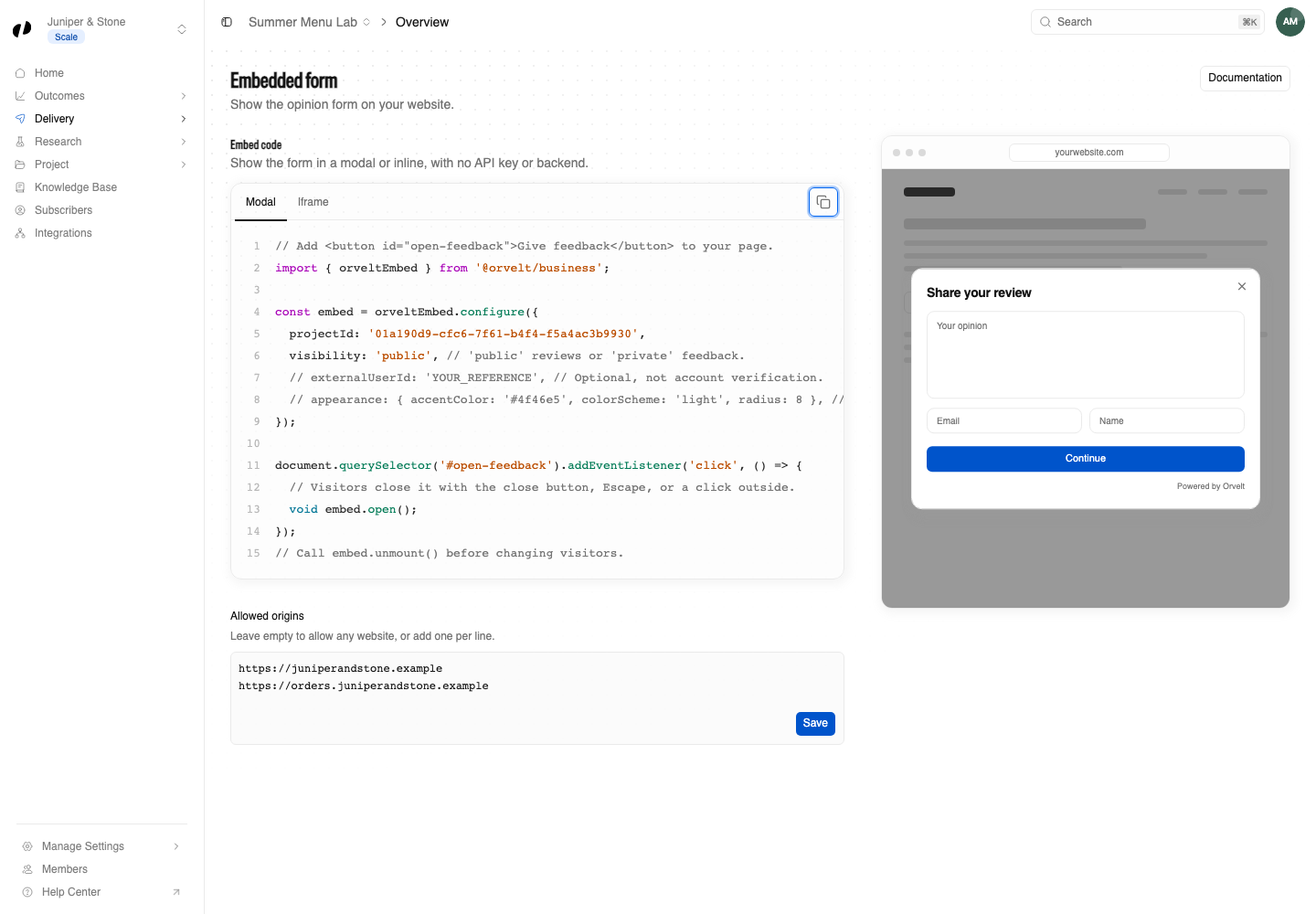
Delivery → Embedded form → Embed code shows a ready-made snippet with your project ID filled in. Modal is first and selected by default; choose Iframe if you want the form inside your page, then select Copy code. The snippet uses the npm package; the script-tag version below works the same way without a bundler. Website-builder users can follow the no-code guides instead.
Install in your frontend
Load the script from UNPKG (recommended)
The SDK creates the iframe, applies its sandbox attributes, resizes it as the form changes, and handles completion callbacks.
<button id="open-feedback" type="button">Give feedback</button>
<script src="https://unpkg.com/@orvelt/business/dist/opinion-embed.js"></script>
<script>
  const embed = OrveltEmbed.configure({
    projectId: 'PROJECT_UUID',
    visibility: 'public',
    // Optional reference metadata, not account verification:
    // externalUserId: 'order-42',
    onSubmitted: ({ isPrivate }) => {
      console.log(isPrivate ? 'Private feedback saved' : 'Public review saved');
    },
  });
  document.querySelector('#open-feedback').addEventListener('click', () => {
    embed.open().catch(() => console.error('Unable to open the opinion form'));
  });
  // Call embed.unmount() before removing the button or changing visitors.
</script>
Keep the URL without a version. UNPKG then serves the latest release, so your website picks up new form features and fixes with nothing to redeploy, once CDN and browser caches refresh. Use visibility: 'private' for private feedback, and pass origin, such as http://localhost:3000, for staging or local development.
For Turbo, unmount on turbo:before-cache and turbo:before-render, then configure the form and bind the new button on turbo:load.
Install the npm package
With a bundler you can install the same SDK from npm instead. Your lockfile then pins the version, so updates arrive only when you run npm update @orvelt/business; choose this only when you need to control when updates arrive.
npm install @orvelt/businessimport { orveltEmbed } from '@orvelt/business';
const embed = orveltEmbed.configure({
projectId: 'PROJECT_UUID',
visibility: 'public',
});
document.querySelector('#open-feedback')?.addEventListener('click', () => {
void embed.open();
});The npm export orveltEmbed and the script's OrveltEmbed global are the same object, with the same options and methods.
React and Next.js
For a form inside your page instead of a feedback button, mount in an effect and unmount during cleanup. For the Next.js App Router, add 'use client' at the top; configuration is SSR-safe, so mount only in browser effects or events.
import { useEffect, useRef } from 'react';
import { orveltEmbed } from '@orvelt/business';

export function OpinionForm() {
  const slot = useRef<HTMLDivElement>(null);
  useEffect(() => {
    if (!slot.current) return;
    const embed = orveltEmbed.configure({ projectId: 'PROJECT_UUID' });
    void embed.mount(slot.current).catch(() => console.error('Unable to open the opinion form'));
    return () => embed.unmount();
  }, []);
  return <div ref={slot} />;
}
Choose how to show the form
Both display methods use the same configuration and callbacks.
| Method | Use it when | How visitors close it |
|---|---|---|
Modal: embed.open() | Orvelt shows the form in a modal, for example behind a Give feedback button. | The close button, Escape, or a click outside. |
Iframe: embed.mount(target) | The form sits in your page, or inside a modal, drawer, or panel you already have. | Pass onClose to show a close button. You decide what closing does. |
Modal
The modal opens over your page and dims it:
const embed = OrveltEmbed.configure({
  projectId: 'PROJECT_UUID',
  onClose: () => console.log('Closed'),
});

document.querySelector('#open-feedback')?.addEventListener('click', () => {
  void embed.open();
});
Closing keeps the visitor's progress: calling open() again shows the same form, and after a submission the next open() starts a new opinion.
Iframe
The iframe sits in your page's layout:
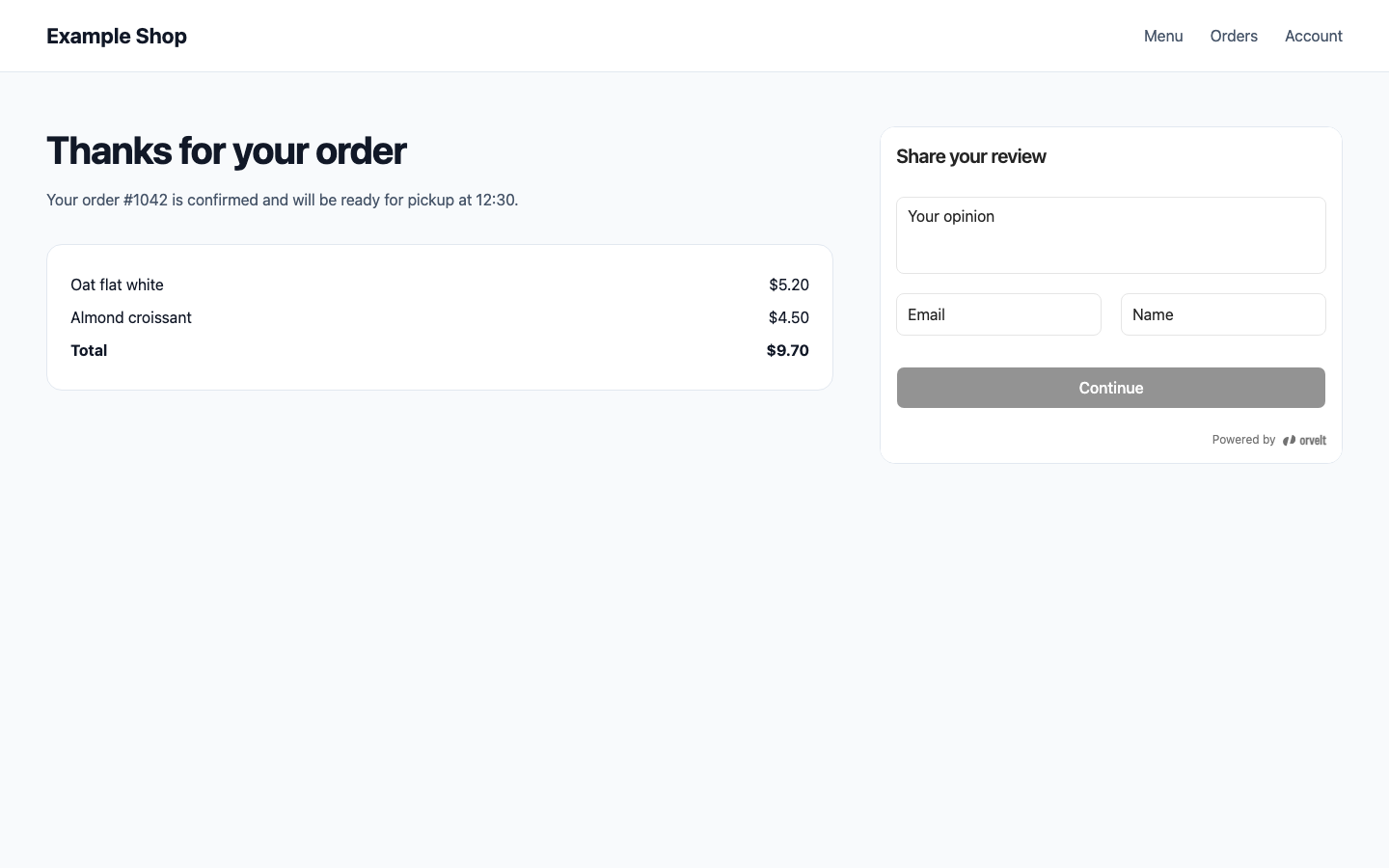
To put it inside your own modal, pass onClose and hide your container when it is called:
const embed = OrveltEmbed.configure({
  projectId: 'PROJECT_UUID',
  onClose: () => {
    embed.unmount();
    closeYourModal();
  },
});

await embed.mount('#your-modal-body');
Match your website
Appearance
OrveltEmbed.configure({
  projectId: 'PROJECT_UUID',
  appearance: {
    accentColor: '#4f46e5', // Buttons, focus rings, and highlights.
    colorScheme: 'system', // 'light' (default), 'dark', or 'system'.
    radius: 8, // Corners of fields and buttons, in pixels from 0 to 24.
  },
});
Your stylesheets cannot reach inside the form, so the SDK passes these options to it. To style the iframe and modal elements themselves, use the CSS classes.
Identify visitors
Optional external reference
Pass externalUserId, such as an order ID, to find a visitor's opinion later in business data, exports, and events. It never appears on public storefront pages. It is reference metadata, not an identity, account, or verification claim, so never use it for access control or purchase verification.
A detected Orvelt account uses its account identity, with or without a reference. Otherwise the form collects a name and email and verifies an email code before the opinion form opens. This works even when the browser blocks third-party cookies.
Verify your installation
Test checklist
- Open the form from an allowed origin and submit a staging opinion. Confirm its visibility and reference in Orvelt Business.
- If you use
open(), check that the close button, Escape, and a click outside each close the modal. - If you configured allowed origins, check that other origins are blocked.
- Check that browser requests contain no
x-api-keyand no calls to your own session backend.
Every option, method, and session rule is in Embed options.