Location and opening hours
Publish your address, time zone, accessibility information, and weekly opening hours, or mark your business as online only.
If customers can visit you, your Storefront should tell them where and when. If you're online only, say so, and Orvelt hides the address and hours entirely.
Choose in person or online only
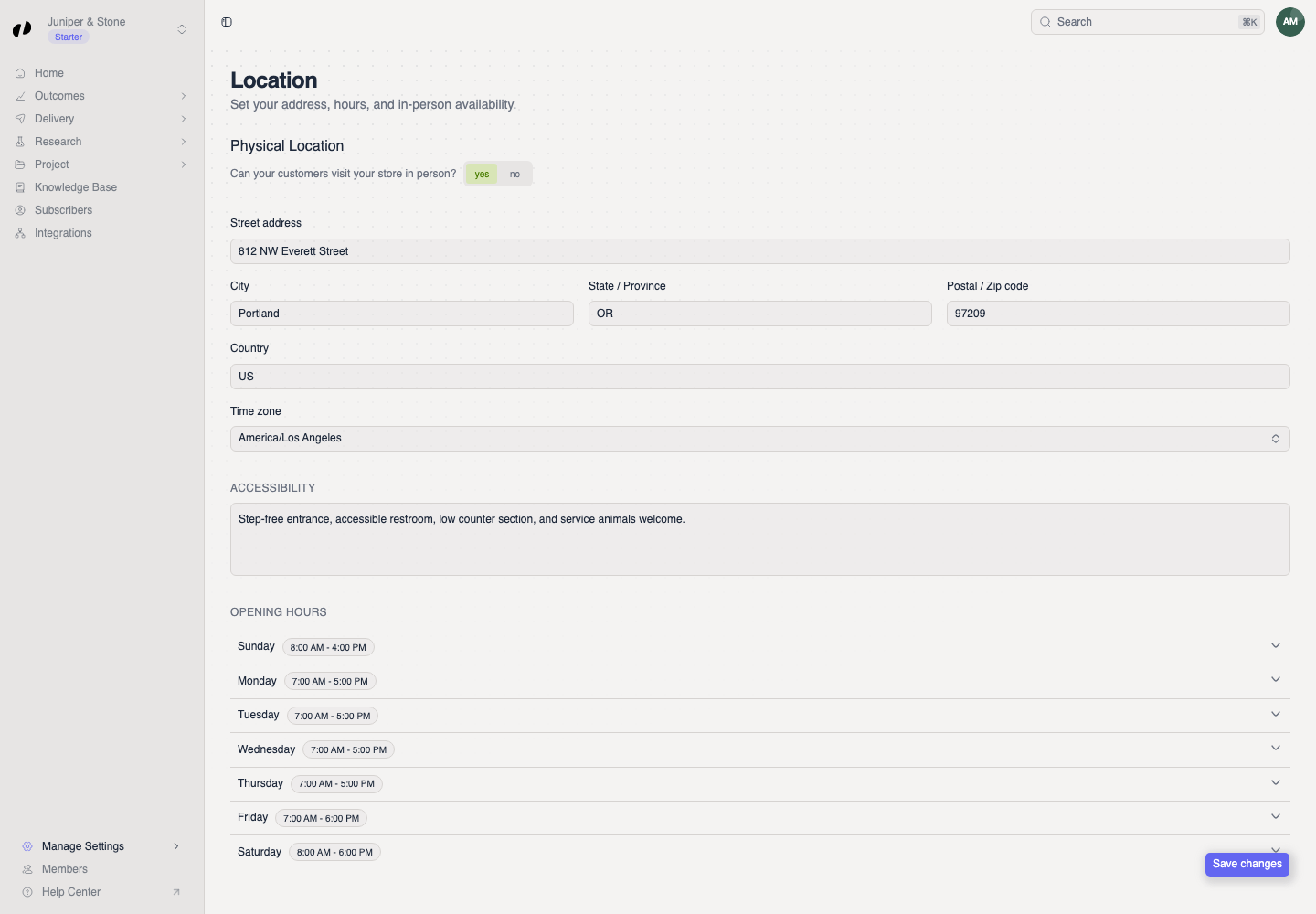
Open Manage Settings → Location. Under In-person visits, choose:
- Yes, in person if customers can visit a physical location. The rest of this page applies.
- Online only if they can't. Select Save changes and you're done.
Switching to Online only removes information
When you save Online only, Orvelt removes your address, accessibility information, and opening hours from your Storefront. If you switch back later, you'll need to enter them again.
Add your address and time zone
Under Address, enter the street address, city, state or province, postal code, and country.
Choose the Time zone your location runs on. This matters more than it looks: Orvelt uses it to show your hours correctly to every customer, wherever they are, and to group your analytics by day.
Under Accessibility, briefly describe what visitors can expect, for example "Step-free entrance on Forest Avenue; accessible restroom on the ground floor." Customers who need this information will thank you.
Set your opening hours
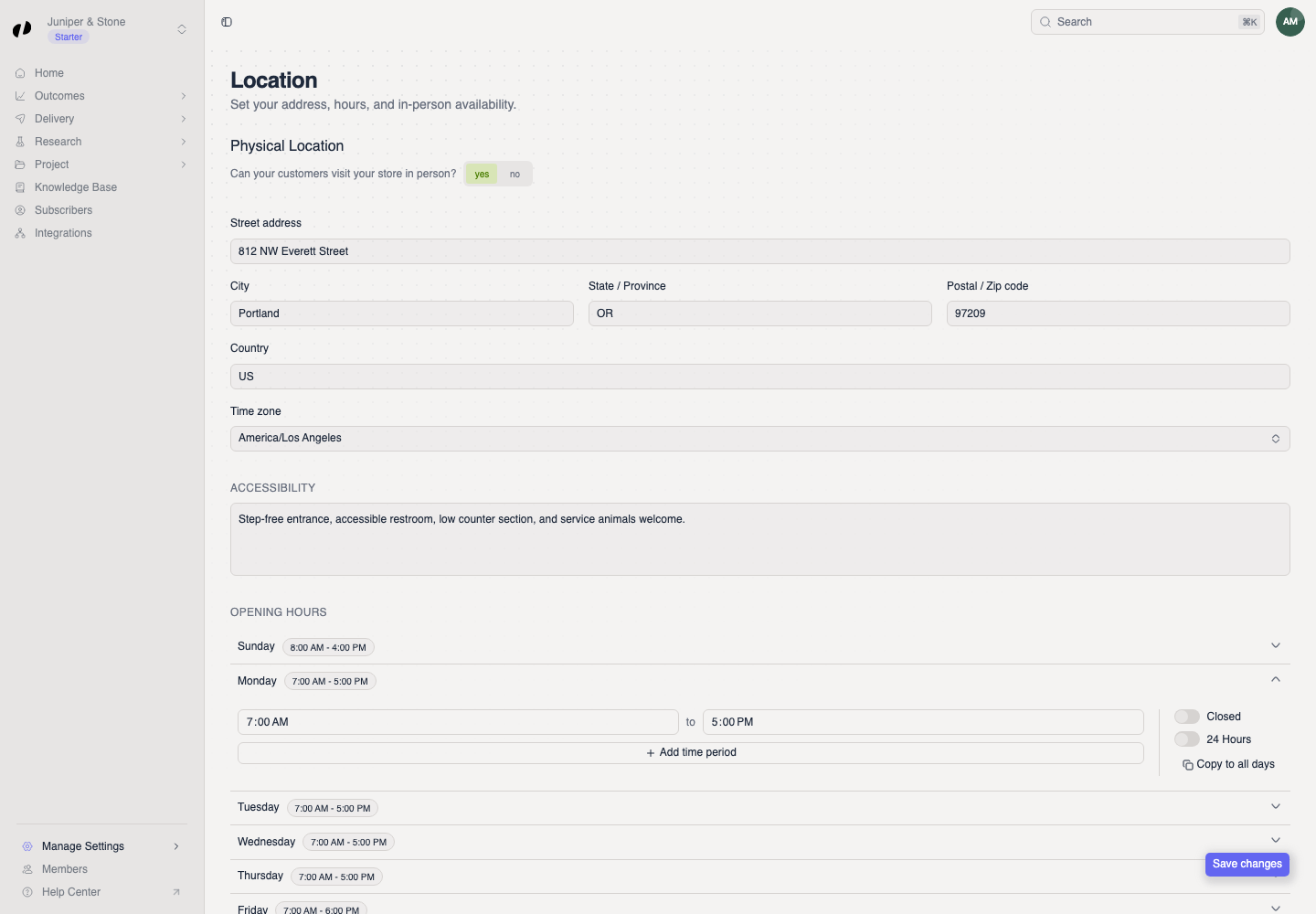
Under Opening hours, expand a day.
Set its opening and closing times, or turn on Closed or Open 24 hours.
Close in the middle of the day? Select Add time period to add a second set of hours, for example 8:00–14:00 and 17:00–22:00.
Same hours most days? Set one day, select Copy to all days, then fix the days that differ, usually weekends.
Select Save changes. A Storefront updated message confirms it.
Check the result
Open your public Storefront and check a weekday, a weekend day, and that the times match your sign on the door.
If the hours look wrong
The time zone is wrong. Fix the Time zone first, save, and check again before changing any times.
Copy to all days copies to every day, including weekends. Expand each day that differs and correct it.
Opening hours are a weekly schedule. For a one-off closure, update the affected day, save, and change it back afterward.