Storefront details
Control how your business appears to customers on its public Storefront page, including name, logo, description, contact links, URL, and categories.
Your Storefront is your business's public page on Orvelt, at orvelt.com/stores/your-business. It's often the first thing a customer sees after scanning your QR code or searching Orvelt, so it's worth five minutes to get right.
Storefront details vs. your profile
Manage Settings → Details changes what customers see about your business. Your own name and photo are separate, under your avatar → Settings. Your settings
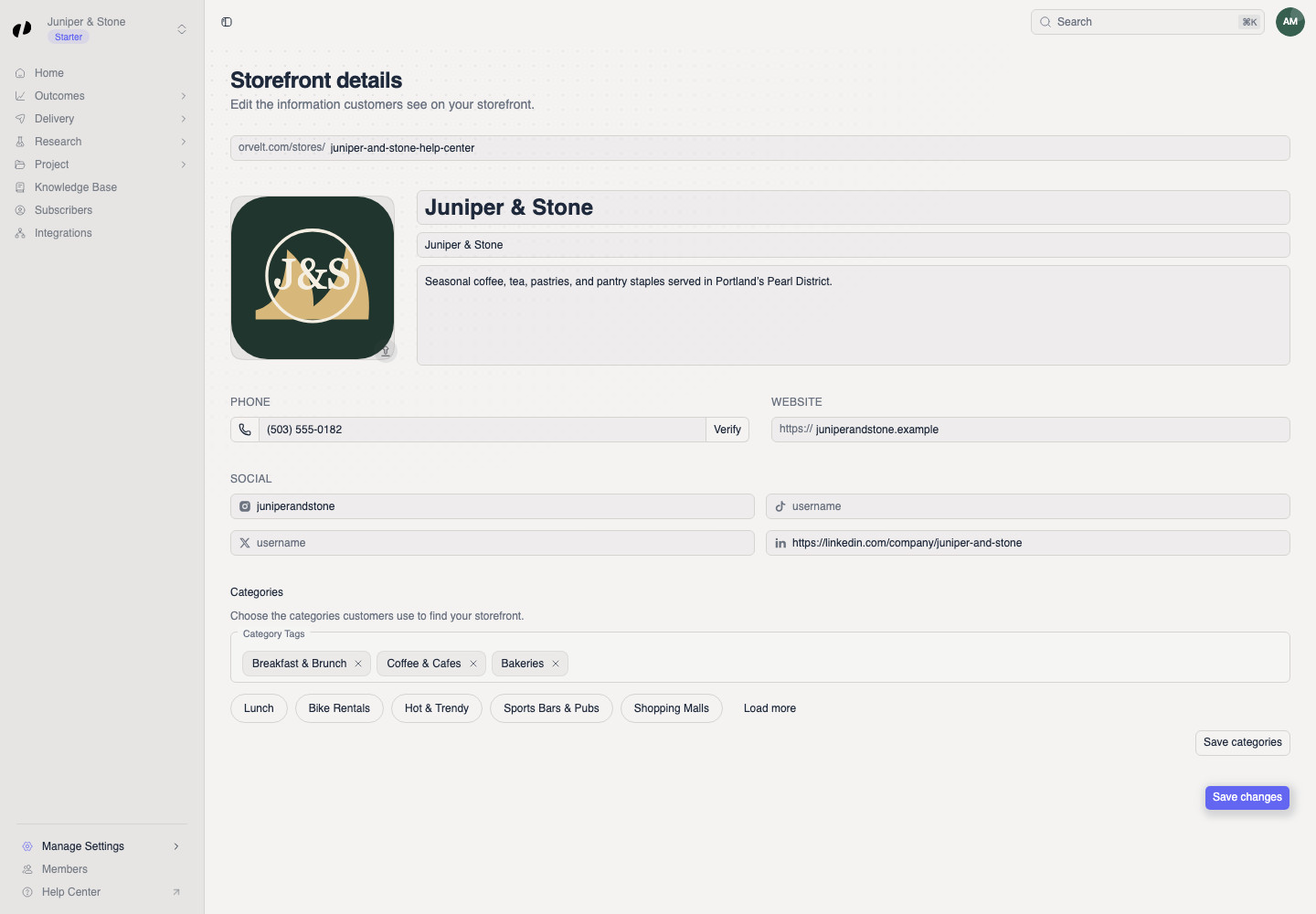
Update your main details
In Orvelt Business, open Manage Settings → Details.
Update any of these fields:
| Field | What it's for | Tip |
|---|---|---|
| Name | Your business name as customers know it. | Match your signage. |
| Tagline | A short line under your name. | One phrase, like "Seasonal plates, cardamom coffee". |
| Description | What you do and what makes you different. | Two or three sentences, written for a new customer. |
| Phone | Your public phone number. | Leave it out if you don't take calls. |
| Website | A link to your own site. | Use the full address, including https://. |
| Social usernames | Links to your social profiles. | Enter just the username, not the whole link. |
To replace the logo, select it and upload a new image. A square image works best.
Select Save changes. A Storefront updated message confirms the save.
Change your public URL
Your URL saves separately from the other details.
- Under Organization URL, edit the text after
orvelt.com/stores/. - Wait for the indicator to show the URL is available.
- Select Save.
Changing your URL breaks old links
Customers use this address to find you. After you change it, update any link you've shared: your website, social bios, emails, and printed material that shows the address.
Choose your categories
Categories decide where you appear when customers browse Orvelt by category. Choose every category that honestly fits, then select Save changes.
Check what customers see
Open orvelt.com/stores/your-business in a new browser tab. Check the logo, name, description, contact links, and categories. Select the contact controls to make sure each link opens the right place.
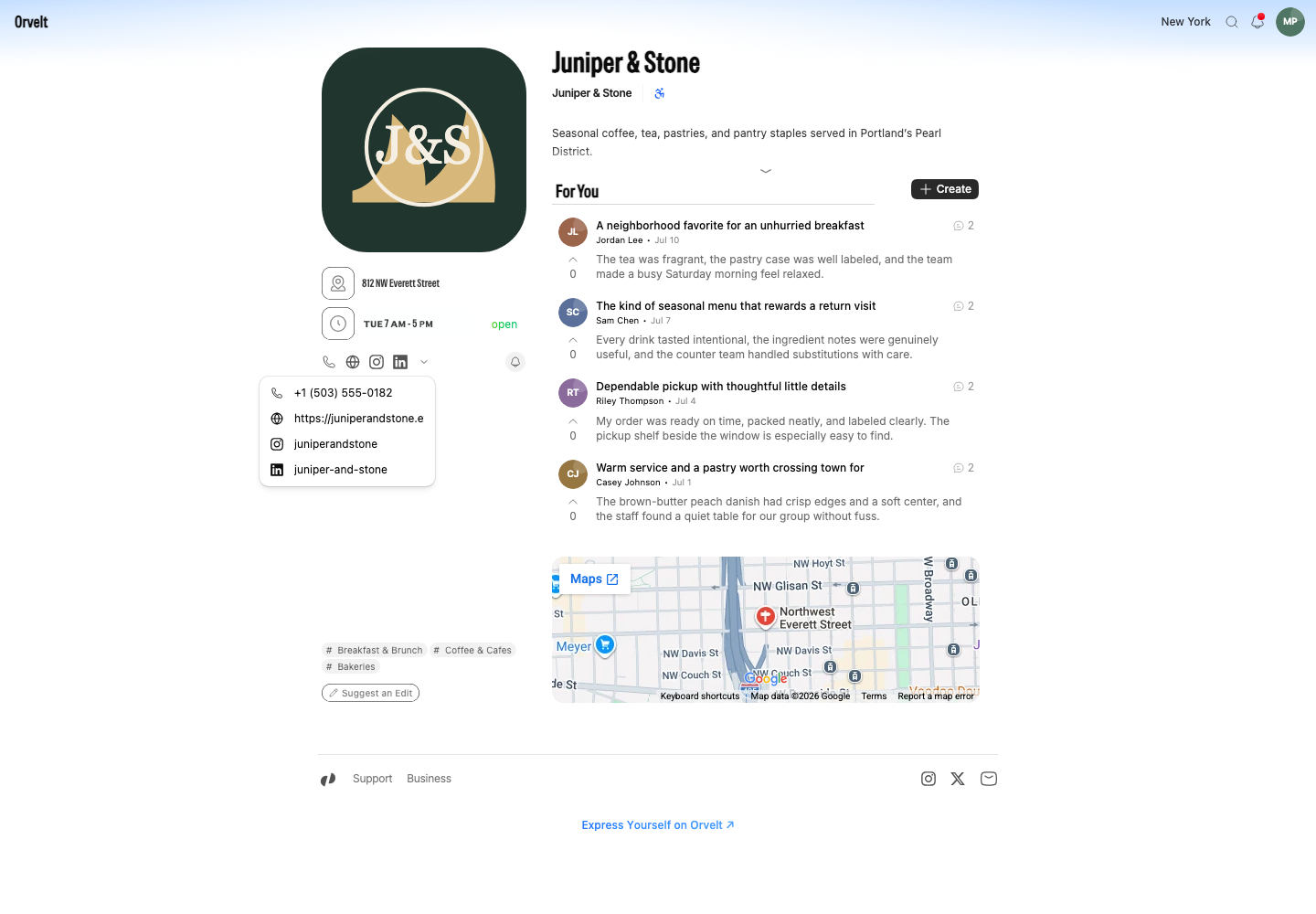
If a change is missing, reload the page.
Common questions
A business waiting for Orvelt's approval can't edit its Storefront until it's approved. Members also need Storefront product access; ask an owner or admin if Details is missing from your sidebar.
Projects have their own name and description under Project → Manage. Contact details, logo, location, and categories belong to the business as a whole. Project settings
Hours and address are set separately under Manage Settings → Location. Location and hours