Project settings
Rename a project, change its web address, status, or visibility, find its IDs, archive or restore it, or delete it for good.
Every project's settings live on one page. Open the project with the project switcher, then choose Project → Manage in the sidebar.
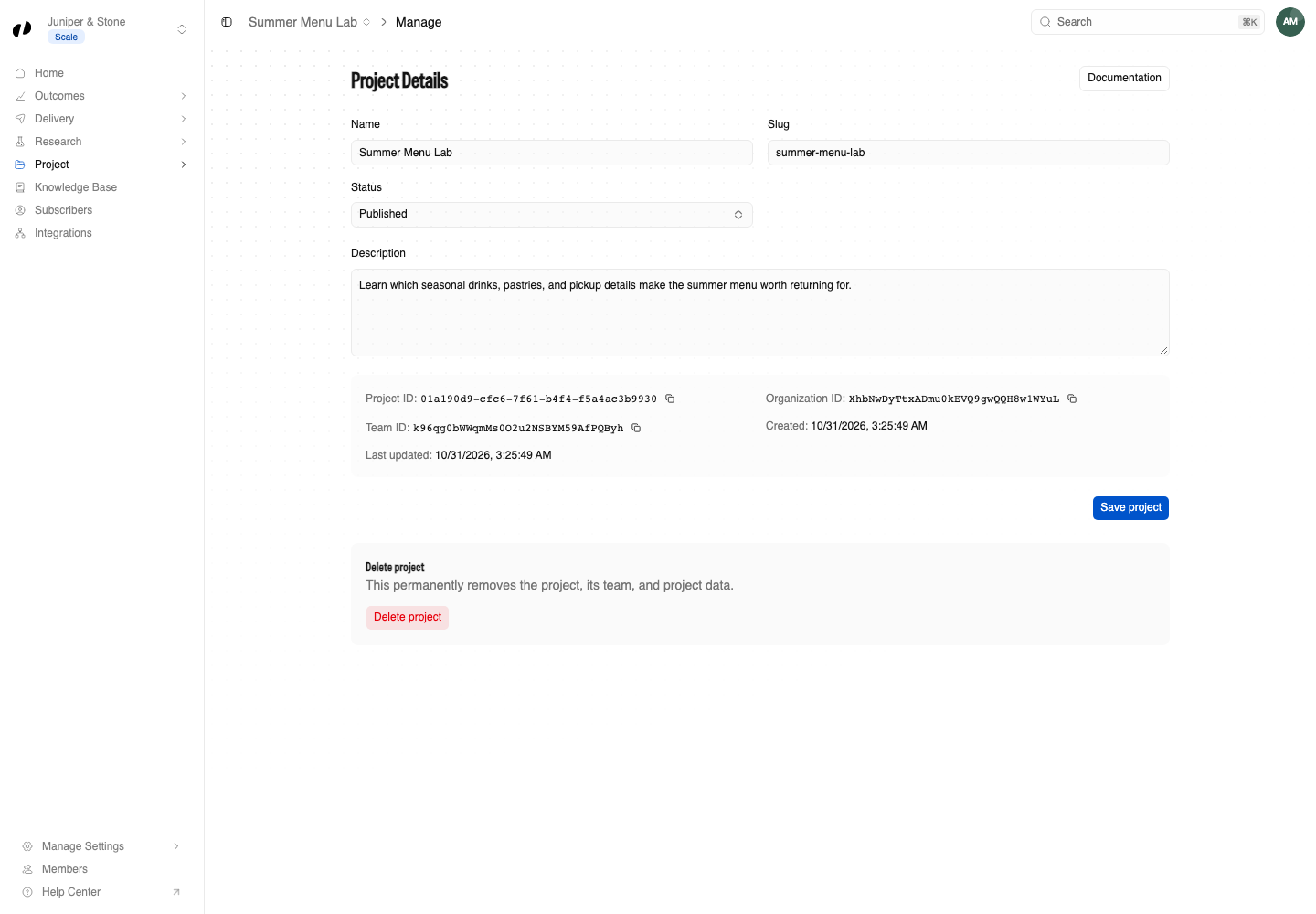
Edit the project's details
| Field | What it does |
|---|---|
| Name | The project's name in Orvelt Business and on its public page. |
| Slug | The last part of its public address. Changing it changes the address, so update any links you've shared. |
| Status | Draft, Published, or Archived. See below. |
| Visibility | Public or Private. See Make a project private. |
| Description | Tells customers what the project is about, up to 2,000 characters. |
Make your changes and select Save project. A Project updated message confirms it. To change your business's public details, like the logo or phone number, select Manage public details, which opens Manage Settings → Details.
Change the status
- Draft: customers can't use it yet. Use this while you set up questions.
- Published: customers can find it and write opinions.
- Archived: the project stops collecting opinions but keeps everything it has collected. Fields can't be edited while it's archived.
Draft and published projects both count toward your plan's project allowance. Archived projects don't.
Archive a project
Set Status to Archived and save. A Project archived message confirms it. Archiving is the safe way to close a project: nothing is lost.
Restore an archived project
Set Status back to Draft or Published. The save button changes to Restore project; select it. A Project restored message confirms it.
Make a project private
A private project collects feedback without showing anything publicly. It has no public page, and every opinion and answer it collects is private feedback that only your team can see. Customers still reach its form through your links, QR codes, and website form.
Set Visibility to Private and select Save project.
- You can make a project private only before it has any public reviews. Once customers have posted public reviews, the project stays public, so existing reviews can't be hidden.
- You can switch a private project back to Public at any time. Feedback collected while it was private stays private.
- The Storefront project is always public.
Find the project's IDs
The page lists the Organization ID, Project ID, and Team ID, each with a copy button. You only need these when a developer or an AI agent asks for them, for example to set up the website form or the Business API.
Delete a project
Deleting can't be undone
Deleting a project removes its team and all of its data: opinions, answers, questions, goals, links, QR codes, subscribers, and analytics. If you might want any of it later, archive the project instead.
- Scroll to Delete project at the bottom of the page.
- Select Delete project.
- Read the confirmation, Delete Project name?, then select Delete project again.
Delete project isn't shown for archived projects or for people without Team access. The Storefront project can't be deleted.
The Storefront project has no Status to change. Orvelt staff can unlist a project, including the Storefront, to remove it from search. Contact support to change an unlisted project's status.
Common questions
It represents your business as a whole and holds its general opinions, so every organization keeps it.
It already has public reviews. Private mode is for projects that haven't collected any yet. Create a new project and set it to Private before you share its links.
Archived projects stop collecting opinions. Check Manage Settings → Billing to see how your current usage counts against your allowances. Billing