Project team
Choose which members of your organization can work on each project, and remove access when someone moves on.
Each project has exactly one project team: the people in your organization who can work on it. Being a member of the organization doesn't put you on every project. This lets a manager of one location see only their location's opinions.
Project team vs. Members
Members (in the sidebar) is everyone in your organization and their role. Project → Team is who works on this project. You invite people to the organization first, then add them to project teams. Team and roles
See who's on the team
Open the project, then choose Project → Team. The table, Members on this project team, shows each person's name, email, and role badge (Owner, Admin, or Member).
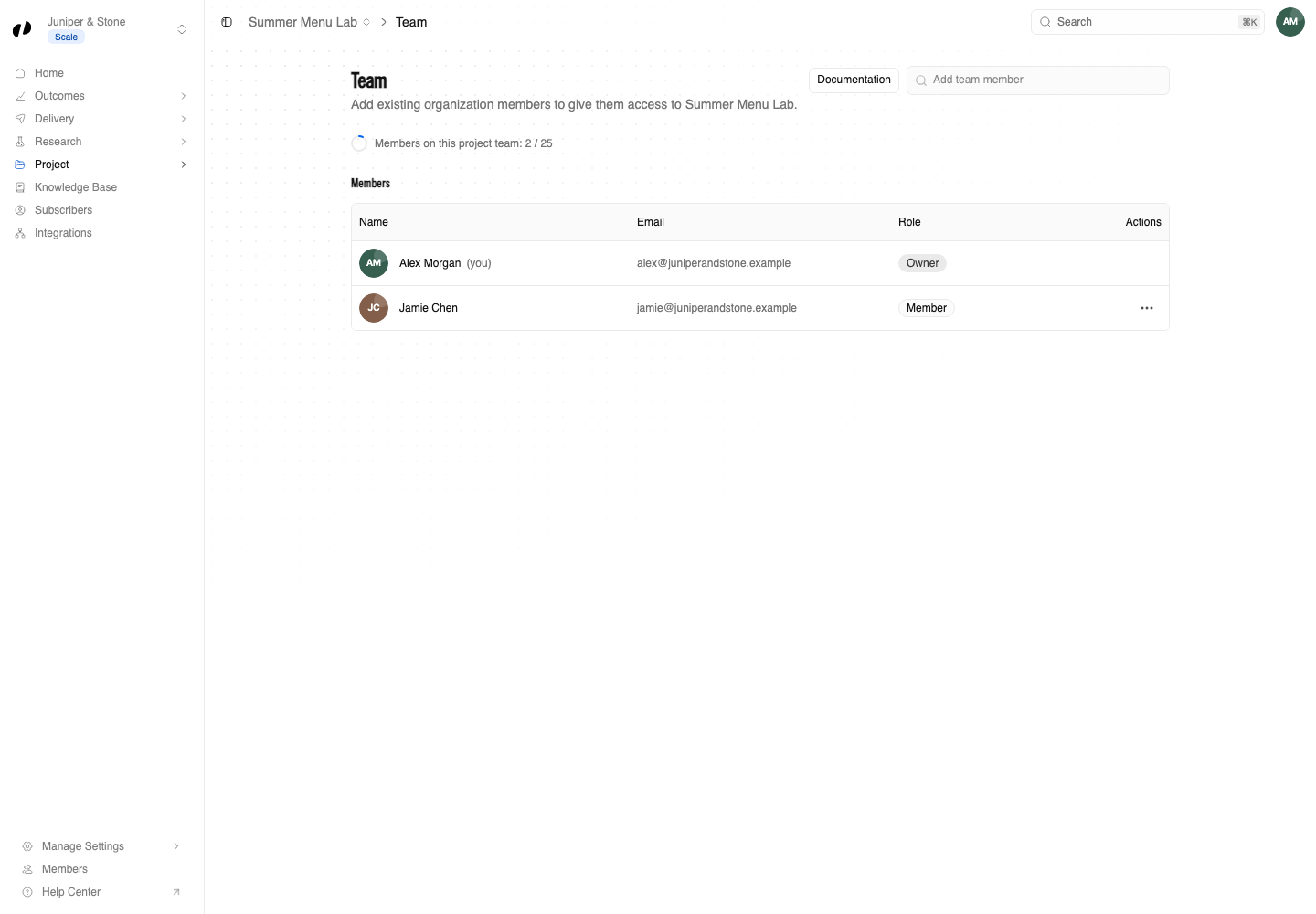
Add someone to the project
Select Add team member and start typing the person's name or email. Only people who are already members of your organization appear.
Choose the person. Orvelt asks Add name?. Select Yes, add.
A Team member added message confirms it. They can now open the project, limited by their own product access. For example, a member with only Outcomes access can read and reply to opinions but not edit questions.
Someone not listed? Invite them to the organization first from Members.
Remove someone from the project
Open the ... menu in their row and choose Remove from team. A Project access removed message confirms it. They stay in the organization and keep access to their other projects.
You can't remove yourself, and only people allowed to manage owners can remove an owner.
Common questions
Admins have access to every organization feature. Adding them to a team mainly makes it clear who works on what.
Project team membership opens the project; product access decides what they can do inside it. Ask an owner or admin to add Research access under Members → Access.
Every project's team counts. Your plan includes a number of additional project teams, shown under Manage Settings → Billing. Billing