Billing and plans
Check your plan and usage, compare plans, change or cancel, and manage invoices, payment details, and your billing address.
Every plan includes every feature. Plans differ only in their allowances: how much you can use, such as how many answers you can collect each month. You start on the free Launch plan, which needs no payment details.
Open Manage Settings → Billing. Only an Owner, or an Admin with billing access, can change the plan.
Check your plan and usage
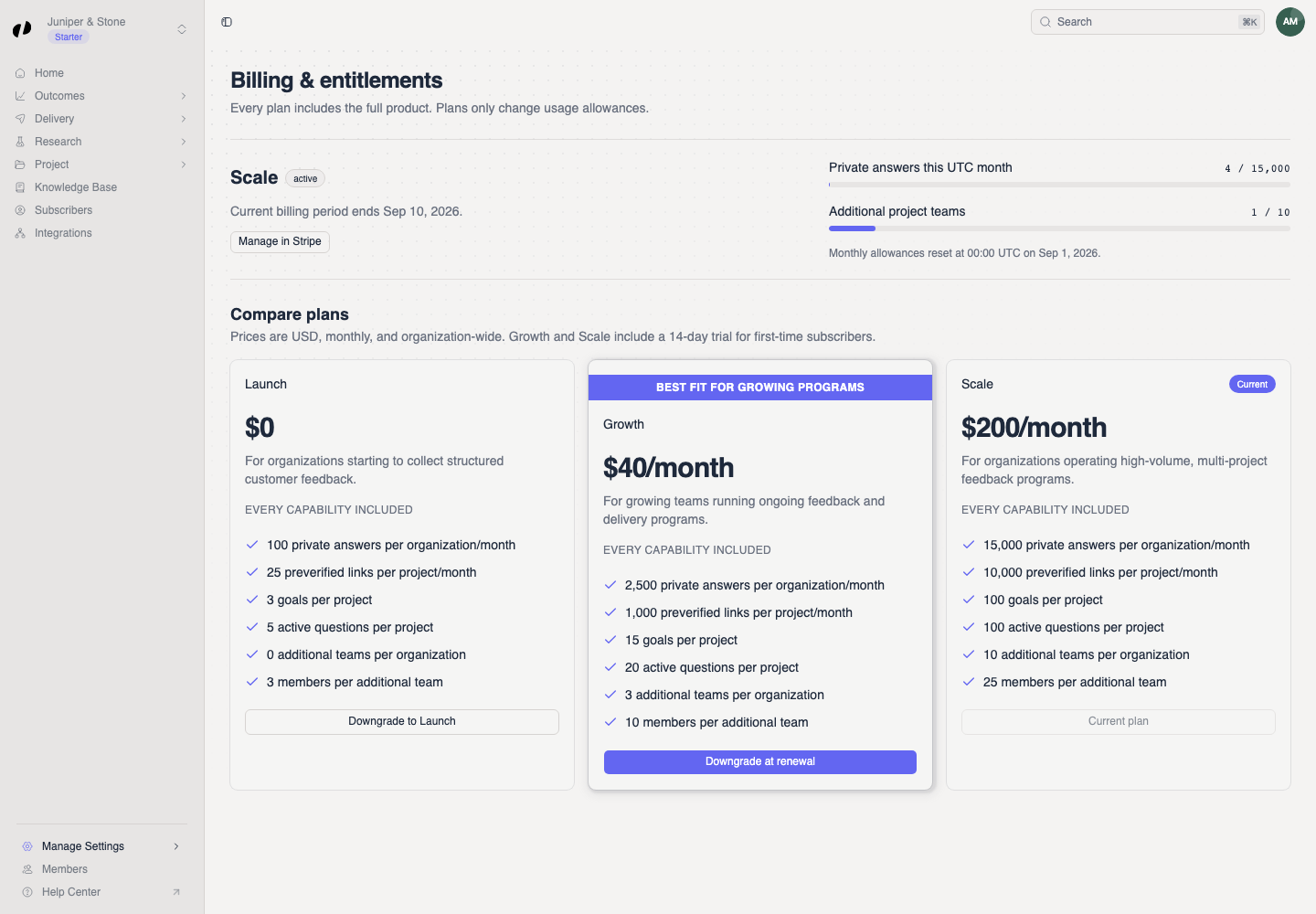
Under Billing & entitlements you'll see:
- Your current plan and its billing status.
- Any message about a trial, renewal, cancellation, scheduled change, or overdue payment.
- Answers this month: how many submitted answers you've collected across all projects. Public and private answers each use one unit. Answer visibility
- Additional project teams: how many project teams you use against your allowance.
- Under Projects, the allowances for the selected project: active questions, goals, preverified links, and team members. Switch projects to check another one.
What each allowance controls
| Allowance | What happens when you reach it |
|---|---|
| Answers per month | New questions stop being picked until the allowance resets or you upgrade. Customers can finish answers already in progress. Opinion collection continues. |
| Additional project teams | You can't create another project until you archive or delete one, or upgrade. |
| Active questions per project | You can't activate another question until you archive one. |
| Goals per project | You can't add another goal until you delete one. |
| Preverified links per project per month | You can't send another personal link until next month. |
| Team members per project | You can't add another person to that project's team. |
Compare and change plans
Scroll to Compare plans.
Choose Monthly or Annual billing to compare prices. Current plan marks the plan and interval you have now.
Select the action on the plan you want: Choose plan, Start trial, Upgrade plan, or Downgrade plan. For Enterprise, select Contact us.
Review the payment and effective-date details on the confirmation page that opens, and confirm.
Return to Billing & entitlements and check the new plan, or the scheduled-change message, is shown. A redirect alone doesn't mean the change went through.
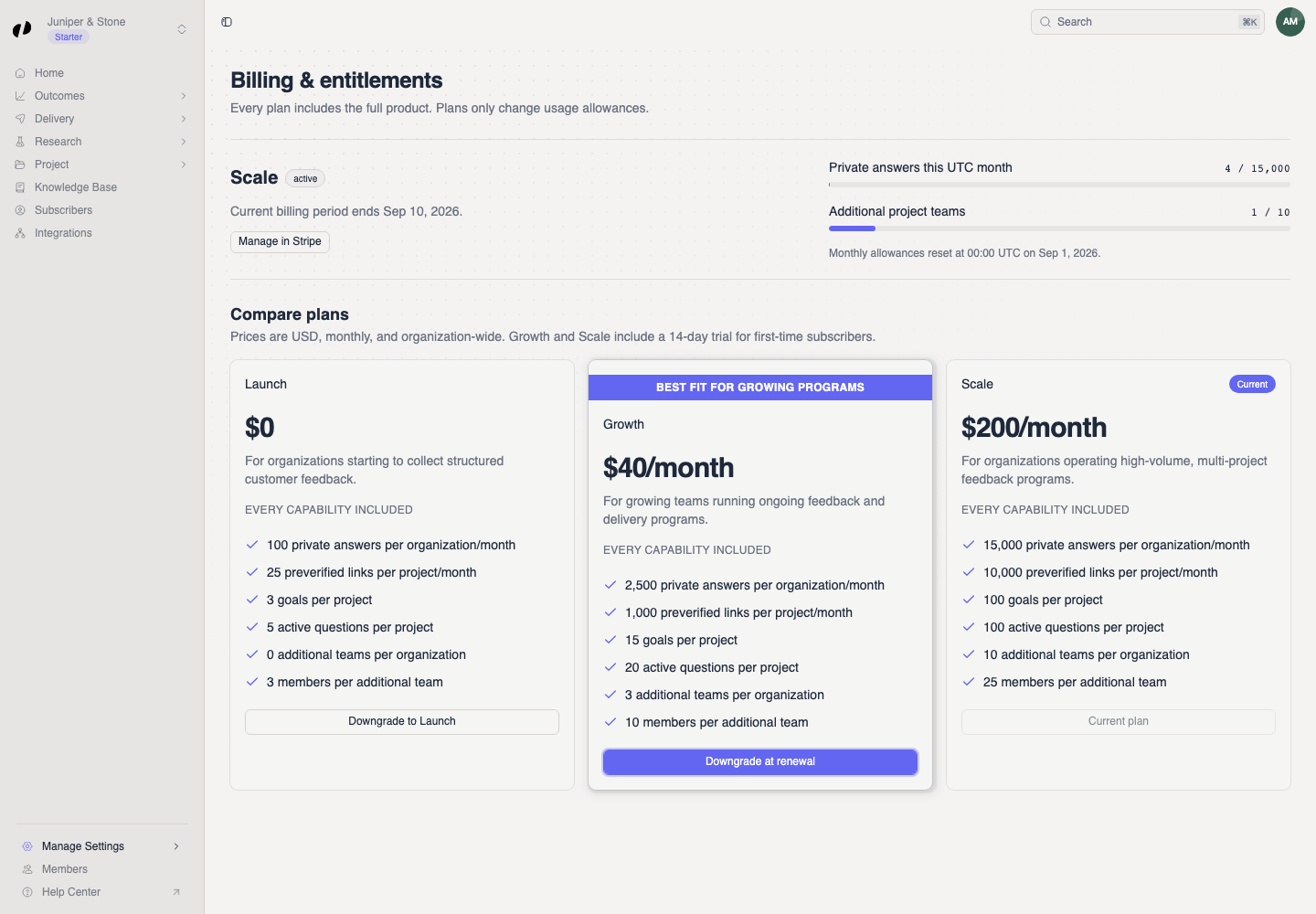
Plan scheduled marks a change that takes effect later, such as a downgrade at the end of your billing period.
Manage billing
Under Manage billing, below Compare plans, select Manage billing to open your billing settings. They show your plan, when it renews or ends, the card on file, and your past invoices with their amount and status. Select the link next to an invoice to view or download it. From there you can:
- Billing email: set the address that receives invoices and billing updates, such as your bookkeeper's. It doesn't change anyone's sign-in email.
- Billing address: set the address shown on invoices and used for tax. You can edit it after your first checkout, which collects it.
- Payment methods & invoices: update payment details or resolve an overdue payment. Payment details and invoices stay available even after a subscription ends.
- Cancel subscription: cancel at the end of the period you've paid for. You keep your plan until then.
- Keep current plan: undo a cancellation or scheduled change.
If you can't change billing
Your access doesn't include billing. Ask the organization's owner.
Select Manage billing, then Payment methods & invoices, and update your payment details before changing plans.
Return to Billing and check the current state before trying again, so you don't start a second change.