Security
Protect your Orvelt Business sign-in with a verified email, a linked Google account, and passkeys.
These settings protect your own sign-in. To manage other people's access, use Team and roles. To manage keys for systems, use API keys. To disconnect an AI agent, see Disconnect an agent.
Open your avatar → Settings → Security.
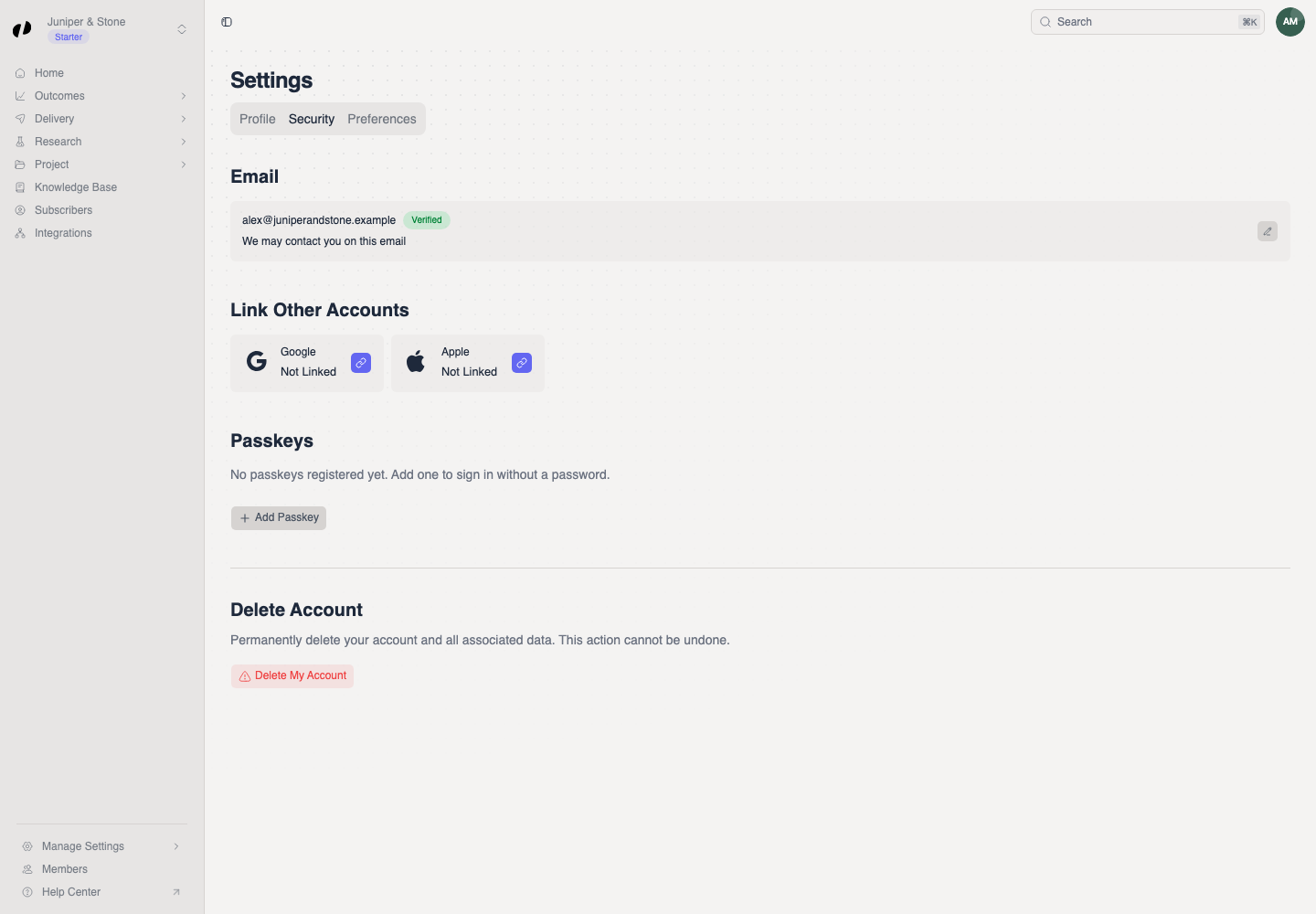
Verify or change your email
At the top, check your email has the Verified badge.
- Not verified? Select Verify, enter the 6-digit code from your inbox, and choose Verify Email. No code after a few minutes? Select Resend Code.
- Change it: select the edit icon beside your email, enter the new address, and select Continue. Check both addresses in Confirm email change, choose Send Verification, and follow the link in the email.
Link Google
Under Link Other Accounts, select Link Account on the Google card and sign in with Google. When you return, the card changes from Not Linked to Linked, and you can sign in either way.
Don't lock yourself out
Never unlink the only sign-in method you can still use.
Add a passkey
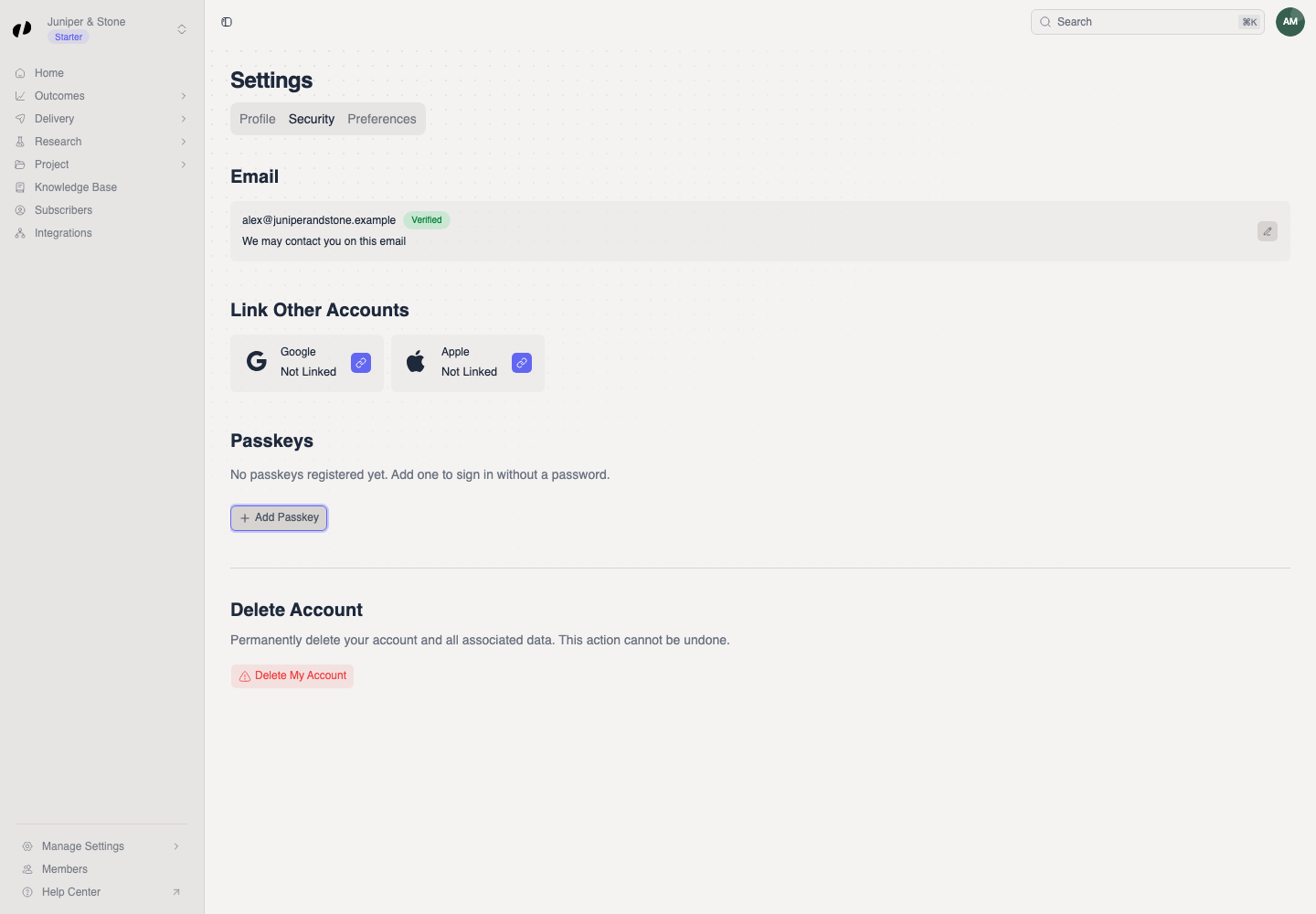
A passkey lets you sign in with your fingerprint, face, or device PIN instead of a code. It's faster and can't be phished.
- Scroll to Passkeys and select Add Passkey.
- Follow your browser or device's prompt.
- Rename a passkey to remember which device it's on, like "Work laptop", or delete one you no longer use.
If no prompt appears, use an up-to-date browser on a device with a screen lock turned on.
Good habits for your team
- Every person signs in with their own account. Don't share logins.
- Remove people from Members the day they leave.
- Give Members only the product access they need.
- Review Integrations → Business MCP occasionally and disconnect AI agents you no longer use.