Your settings
Update your own profile, theme, and notification preferences in Orvelt Business.
Settings change things about you, not your business. To change what customers see, like your business name or logo, use Storefront details instead.
Open them by selecting your avatar and choosing Settings.
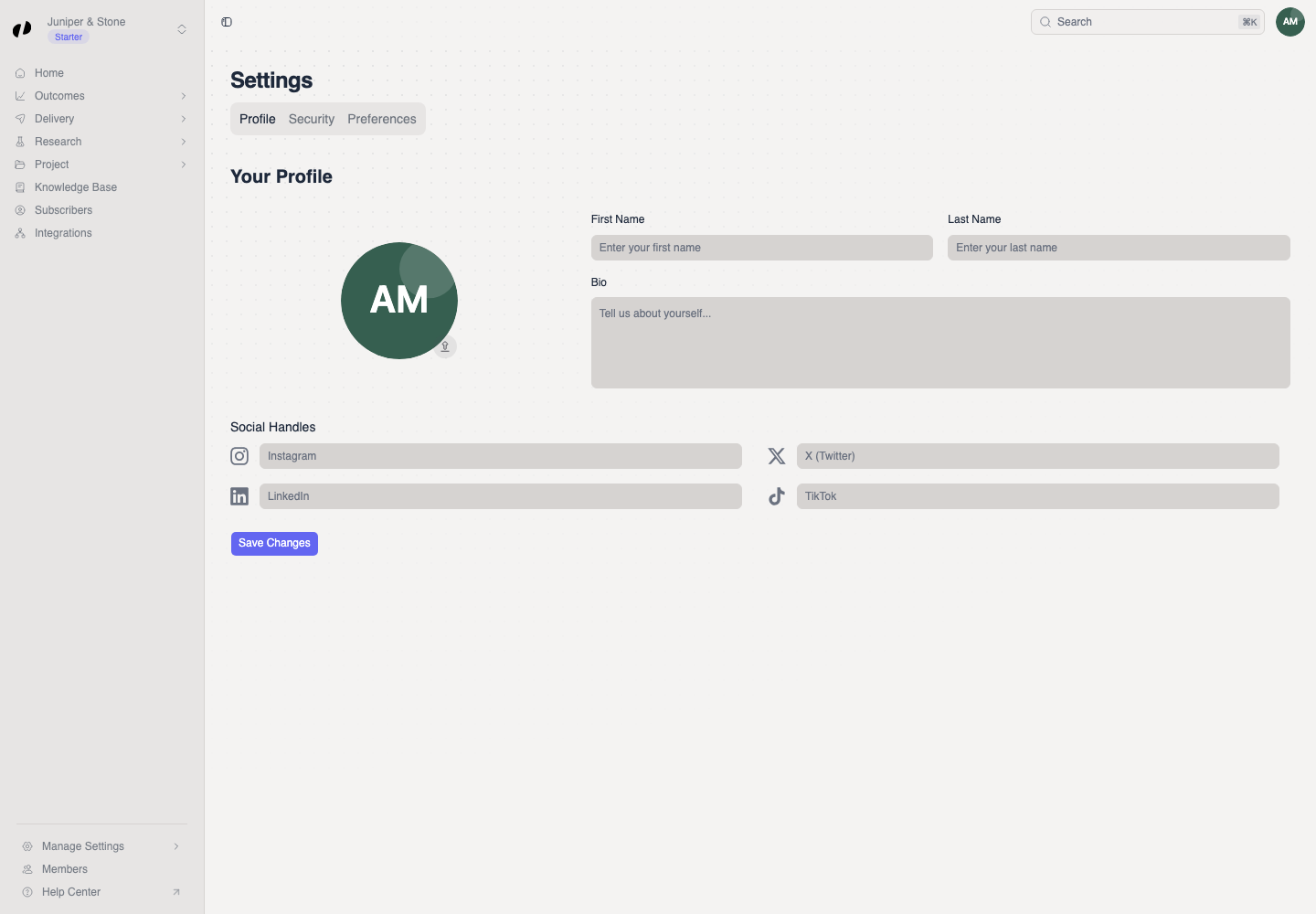
Profile
On the Profile tab:
- Update your avatar, First Name, Last Name, or Bio.
- Update your personal Social Handles.
- Select Save Changes. A message confirms it.
Both name fields are required. Your name appears to teammates in Orvelt Business.
Theme
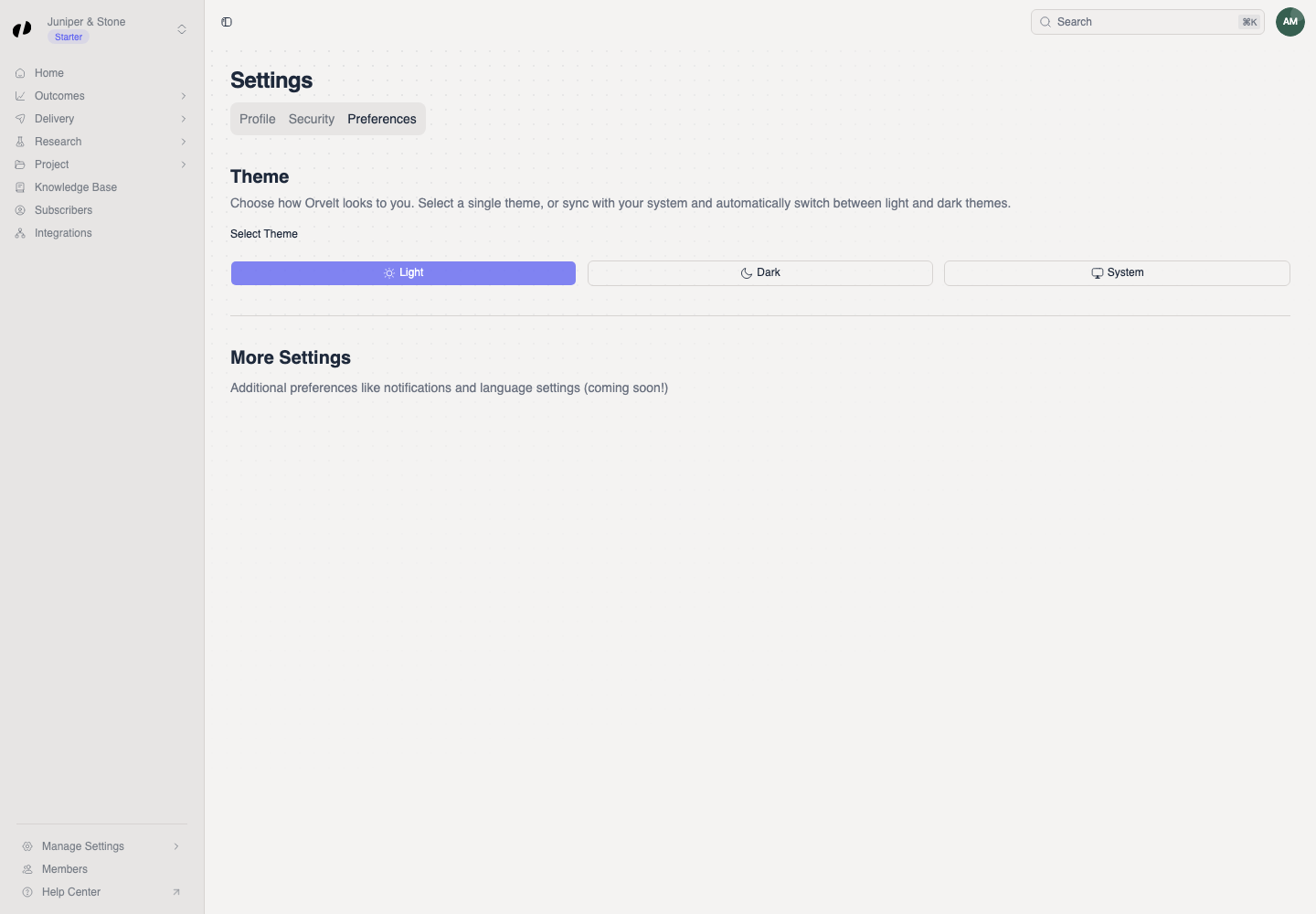
On the Preferences tab, under Theme, choose:
- Light
- Dark
- System, which follows your device's light or dark setting.
The change applies immediately; there's no save button.
Email notifications
Orvelt emails you about things like invitations and account activity. Every notification email has a link at the bottom to manage your email preferences. Turning an email category off there only stops the emails. Account and invitation emails always send.
Security
Your email, linked sign-in accounts, and passkeys are on the Security tab. Security