Subscribers
Invite customers to follow a project, import a list from a spreadsheet, and manage who's subscribed.
Subscribers are Storefront customers who follow one of your projects. They're your warmest audience: people who already know you and want to hear what's new. When you launch a project, your subscribers are the first people you can invite to share their opinion.
Subscribers are customers, not teammates. They never appear in Members, and they can't see Orvelt Business.
How people become subscribers
- They subscribe themselves: customers select Subscribe on your Storefront or project page.
- You invite them: you send an email invitation, and they become a subscriber when they accept. An invitation on its own is not a subscription.
Only invite people who agreed to hear from you
Invite customers who already know you and expect to hear from you, such as your mailing list or recent customers who opted in.
Invite one person
Open the project, then choose Subscribers in the sidebar.
Under Invite a subscriber, enter their Name and Email.
Select Send invitation. They'll appear in the list after they accept.
Import a list
Have a spreadsheet of customers? Export it as a CSV file with a column for names and a column for emails.
On Subscribers, open Import subscribers.
Upload CSV: drop your file in Drop your CSV here, or choose it.
Map columns: choose which column is the Name column and which is the Email column.
Review: Orvelt sorts every row into Ready to invite, Invalid or duplicate, or Over today's limit. Check the counts, then send the invitations.
Limits: a project can send 100 invitations a day. Rows over the limit are marked Over today's limit; import them again tomorrow. People already invited or subscribed are skipped.
Find and check subscribers
The list shows each subscriber's name, email, Status, and when they Subscribed. Use Search subscribers... to search by name or email, and the status filter to narrow the list.
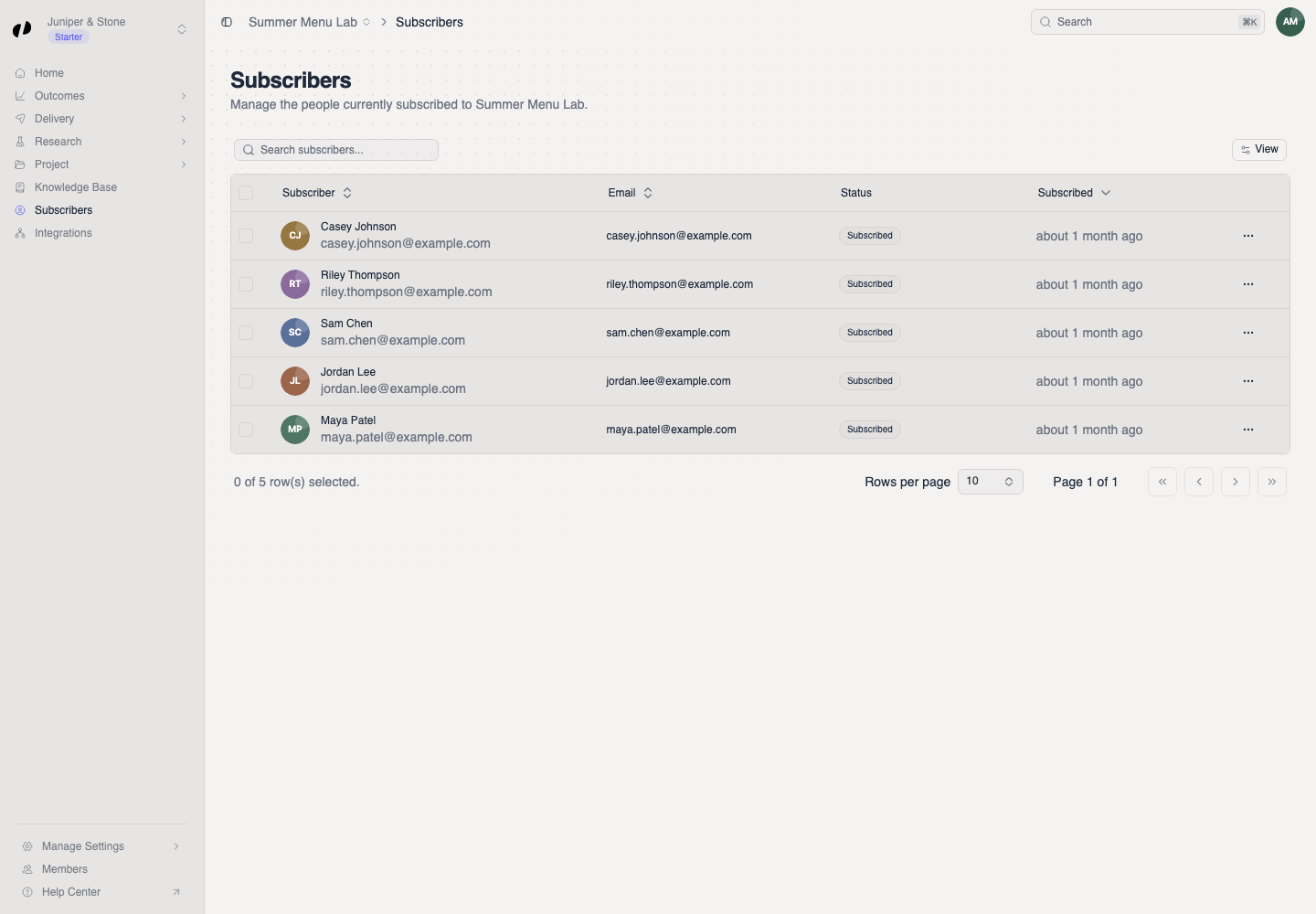
Block a subscriber
Block someone to remove them from the project, for example if they ask to be removed or behave abusively.
Blocking can't be undone from this page
Check you have the right person before you confirm.
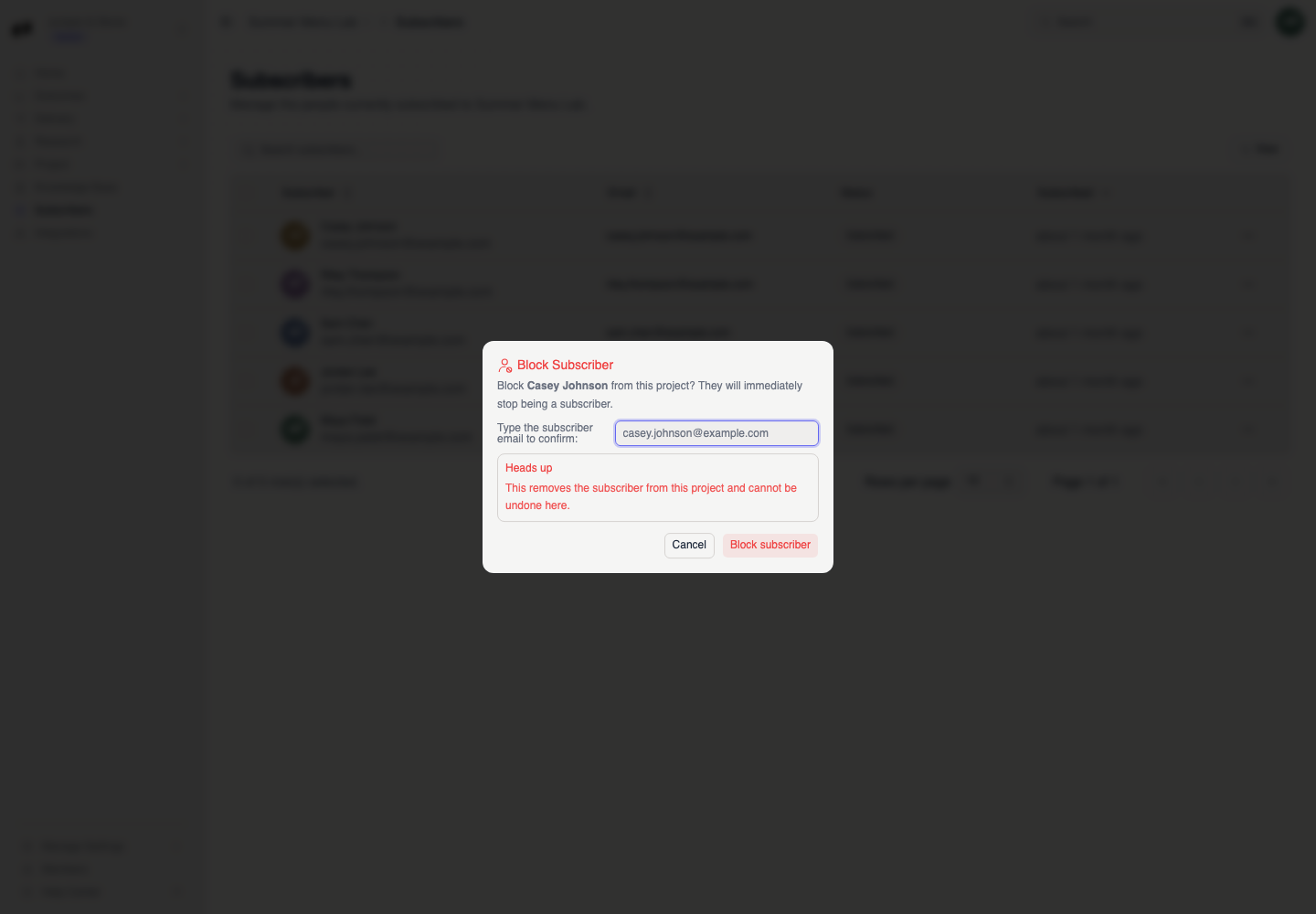
- Open the row's action menu and choose Block subscriber.
- Read the warning and check the name and email.
- Type the subscriber's full email address exactly as shown.
- Select Block subscriber.
A Subscriber removed from this project message confirms it.
To block several people at once, select their rows and choose Block selected subscribers.
If Block subscriber stays unavailable, the email you typed doesn't match. Copy it from the row and remove any spaces before or after it.