QR codes
Create a permanent QR code to print or a rotating QR code for a screen, so in-person customers can write a verified opinion in seconds.
A project QR code takes customers straight from their phone camera to the project's opinion form, and marks their opinion as verified by QR. It's the fastest way to collect opinions from people who visit you in person.
Permanent or rotating?
Each project can have one of each.
| Permanent QR | Rotating QR | |
|---|---|---|
| Changes | Never, until you regenerate or revoke it | Every 5 minutes |
| Best for | Printed signs, table tents, menus, receipts, packaging | A tablet, monitor, or point-of-sale screen at your location |
| Can be shared by photo | Yes, a photo keeps working | Only briefly: a photo stops working soon after it's taken |
| What verification shows | The customer saw your printed code | The customer was very likely there in the last few minutes |
What QR verification does and doesn't prove
A QR verification shows the customer started from your displayed code. It doesn't prove who they are, that they bought anything, or exactly where they were. Each code only verifies opinions for its own project.
Create a permanent QR code
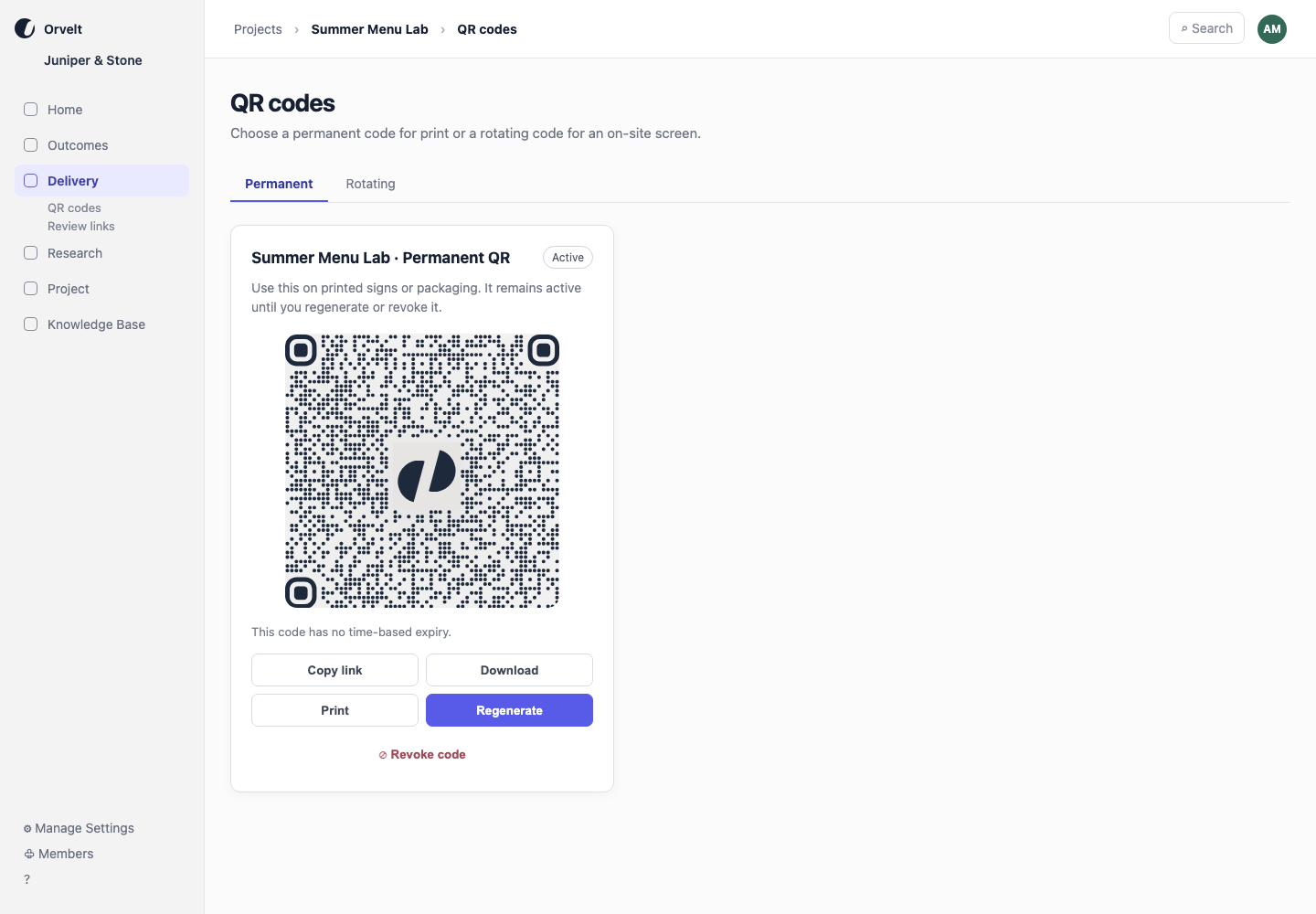
Open the project, then choose Delivery → QR codes.
Choose Permanent, then select Create permanent QR.
Test it: scan the code with your phone and check that it opens the right project's opinion form.
Select Download to save the image for your designer or printer, or Print poster to print a ready-made poster.
Printing tips
- Size: at least 2 × 2 cm (about 1 inch) on small items like receipts; larger on posters and table tents read from further away.
- Contrast: dark code on a light background. Don't place it over a busy photo.
- Add a reason: "Tell us how we did, it takes a minute" next to the code gets more scans than the code alone.
- Test the final print before printing hundreds.
Create a rotating QR code
Open Delivery → QR codes, choose Rotating, and select Create rotating QR.
On the device that will show it, sign in to Orvelt Business and keep the QR codes page open with the rotating code visible. It updates itself every 5 minutes.
Scan it with your phone to test.
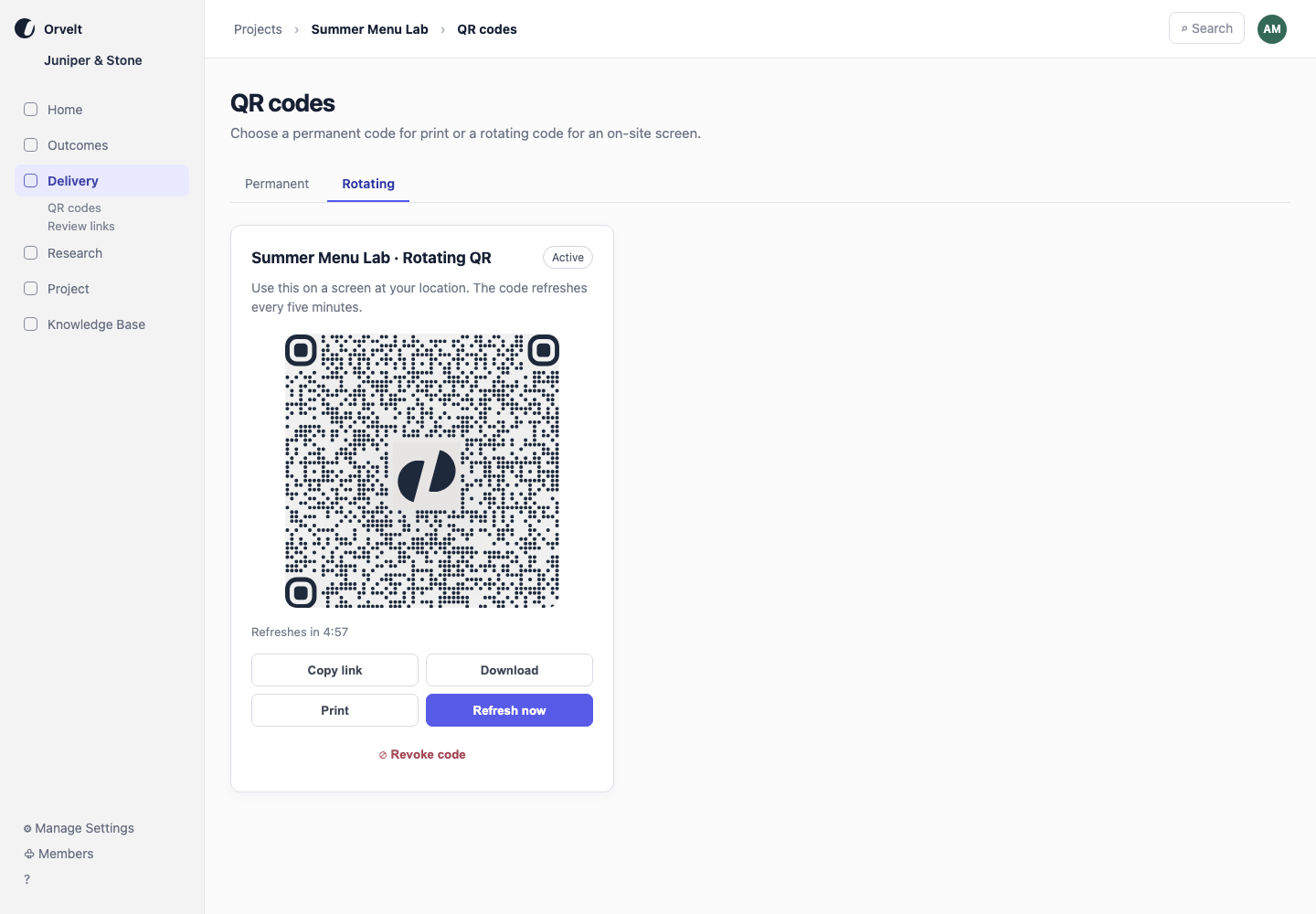
A customer who scans just before the code changes has a short grace period to open the form. After that, they need to scan the new code. A screenshot of a rotating code stops working after its 5-minute window and grace period.
Want the rotating code inside your own kiosk or point-of-sale app?
A developer can show the live code in any app using the Business API. Rotating QR codes for developers
Revoke or regenerate a code
Use these when a code ends up somewhere it shouldn't, or when you redesign your printed material.
| Action | What happens |
|---|---|
| Revoke code | The code immediately stops verifying new opinions. |
| Regenerate (on an active permanent code) | Replaces it with a new code. Every printed copy of the old code stops working, so print and display the new one. |
| Regenerate code (on a revoked code) | Creates a new code and turns that code type back on. |
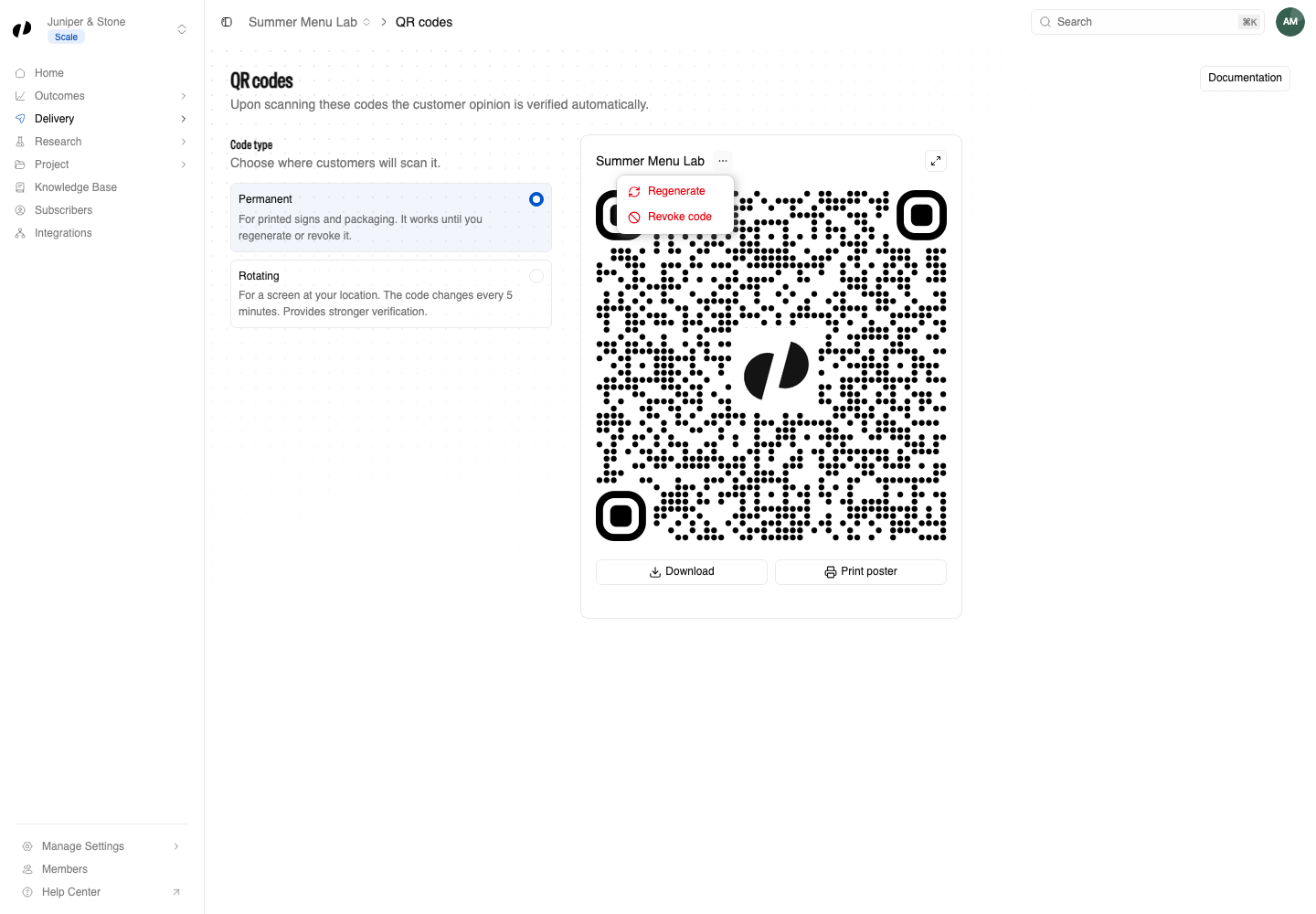
Neither action changes verifications already recorded. Drafts that were verified by the old code stay verified.
Common questions
As soon as a scan starts a new draft or resumes an existing one, before the customer submits.
No. Each code belongs to one project and only verifies opinions for it. Create codes in each project.
Select Regenerate to replace it, then reprint. Opinions verified with the old code keep their verification.