Create a question
Write a question, preview how customers will answer it, and save it as a draft or set it active.
Write your question and check the customer preview before you save. Choose Set active to start asking it, or Save as draft to keep it for later. Changes do not save automatically.
Open the editor
Open the project, then choose Research → Questions.
Select Create to open the Create question dialog. On larger screens, the customer preview appears beside the fields and updates as you edit.
Write the question
Question and visibility
Type what you want to ask in Enter a question, using up to 100 characters. Keep it short and about one thing. Tips for writing good questions
Choose who can read the answers:
- Public: answers can appear publicly with the customer's opinion.
- Private: answers are only for your business and are never available through public storefront reads.
Public and private answers both count against your organization's monthly answer allowance.
You can't change visibility after the question is created. Which should I choose?
Answer type
Choose how customers answer:
- Written: they type their own answer. Under Answer field, optionally enter a placeholder and choose One line or A few sentences.
- Single choice: they pick one option.
- Multiple choice: they pick all that apply.
For Single choice and Multiple choice, fill in 2 to 6 options. Select Add option for more choices, and drag an option's handle to reorder it. While editing an option, you can add a short description beneath it.
An Other written-answer option is included by default. You can change its placeholder or remove it with Remove Other. To add it back, select Add “Other”.
Preview the answer
On larger screens, use the preview to check the question, its visibility badge, and how the answers look. Try selecting options or typing an answer. The preview does not save the question.
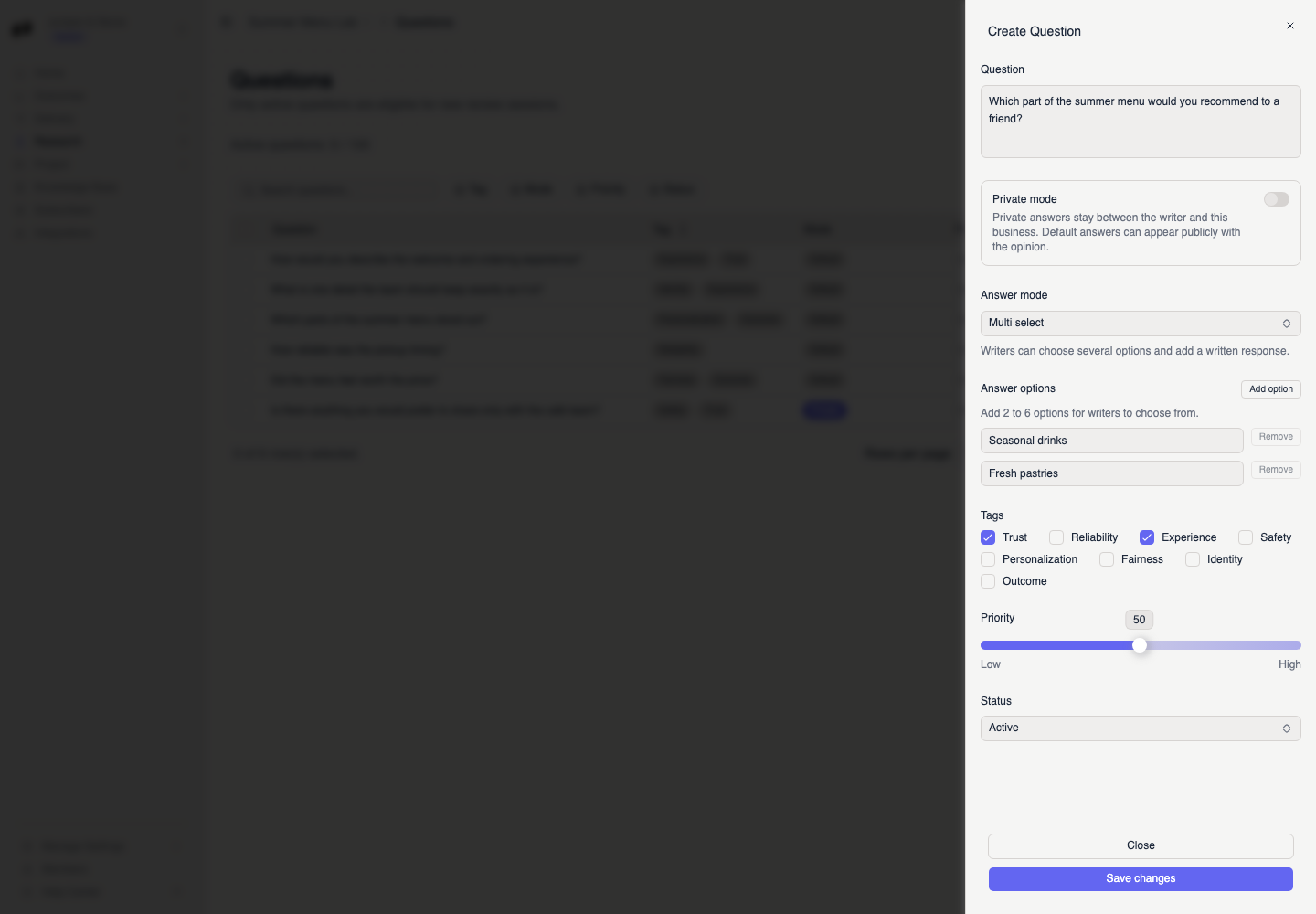
Adjust advanced settings
These settings are optional. Open Advanced to change them:
- Option display: for choice questions, choose Inline or Stacked options, and put the option numbers on the left or right.
- Tags: leave Auto on to let Orvelt choose the themes from your question and options when you save. To choose them yourself, turn Auto off and pick at least one tag. About tags
- Priority: leave Auto on to let Orvelt adjust how often the question is asked, or turn it off and choose a fixed priority. How priority works
- Allow skipping: choose whether customers see a Skip button for this question.
Save the question
Choose an action at the bottom of the dialog:
- Save as draft: saves the question without asking it yet. Activate it from the question's row menu when it's ready.
- Set active: saves the question and makes it eligible to be asked.
After a successful save, the dialog closes and a notification confirms Question saved as draft or Question is active. Check the question in the table.
If a notification says something is missing, complete the field and save again. If saving fails, the dialog stays open so you can retry. Closing the dialog without saving discards your changes.
Example: a complete question
Question: What almost stopped you from ordering today? Visibility: Private Answer type: Single choice, with options Price, Wait time, Not sure what to pick, Nothing, it was easy, and Other Tags: Auto Priority: Auto Save action: Set active
If you can't create a question
Your plan limits how many questions can be active at once. Choose Save as draft, or archive a question you no longer need and try again. Plan limits
You need Research product access on this project. Ask an owner or admin. Team and roles
Yes, with an AI agent (for example, "Add these five questions to Summer Menu Lab") or through the API. AI agents · Questions API